LinkedIn carousels are swipeable document posts, and they are one of the most engaging formats on the platform. You don’t need design skills to make one. With a template, you can go from idea to published carousel in about 5 minutes.
This guide covers the right size and format, two ways to build a carousel (with AI in Contentdrips, or for free in Canva), how to post it on LinkedIn, and the best practices and mistakes that decide whether people swipe past slide 1.
Quick answer: how to create a LinkedIn carousel
- Plan 6 to 10 slides, with one idea per slide.
- Design them at 1080 x 1350 px (portrait) in a tool like Contentdrips or Canva.
- Export the slides as a single PDF.
- Upload the PDF to LinkedIn: Start a post, add a document, and give it a title.
- Write a caption with a strong first line, then post or schedule it.
What is a LinkedIn carousel?
A LinkedIn carousel is a post that shows a multi-page document one page at a time. Readers swipe or click through the pages like slides.
LinkedIn has no button called “carousel”. You create one by uploading a document, usually a PDF, as a document post. Uploading several images instead creates a multi-image post, which shows as a grid, not a swipeable carousel.
Why LinkedIn carousels perform so well
- More time on your post. LinkedIn’s feed rewards posts people spend time on. Every swipe keeps readers on your post longer.
- Easier to read. One idea per slide is easier to take in than a long block of text.
- More saves and shares. Useful carousels, like checklists and frameworks, get saved and passed along.
- Room to show expertise. You can walk through a process, a case study or a framework step by step.
LinkedIn carousel size and format (2026)
Use 1080 x 1350 px (4:5 portrait) unless you have a reason not to. It takes up the most space in the mobile feed.
| Setting | Recommendation |
|---|---|
| Slide size | 1080 x 1350 px portrait (recommended) or 1080 x 1080 px square |
| File type | PDF (LinkedIn also accepts PowerPoint and Word files) |
| Number of slides | 6 to 10 for most posts |
| LinkedIn’s limit | 300 pages and 100 MB per document |
| Font size | At least 40 pt, so text is readable on a phone |
| Document title | Required when you upload; it shows at the top of the carousel |
Keep every slide the same size, or LinkedIn will add borders. For a deeper look at sizes, see our LinkedIn carousel size guide.
LinkedIn carousel example: what a high-performing post looks like
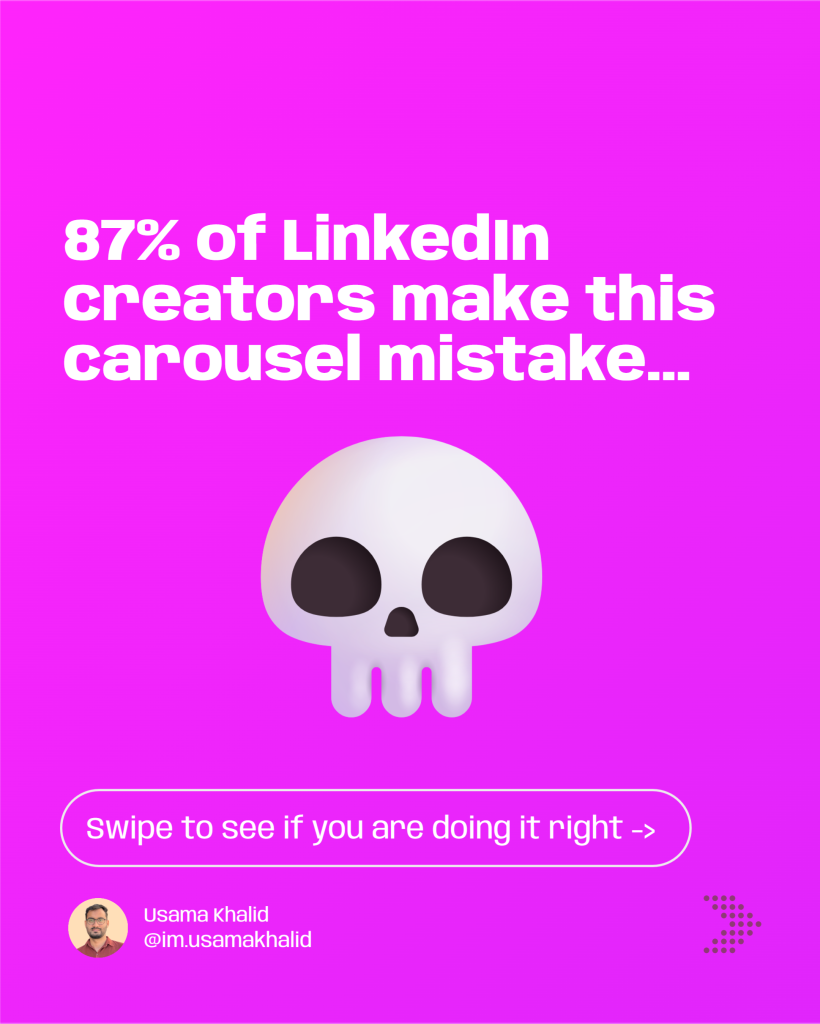
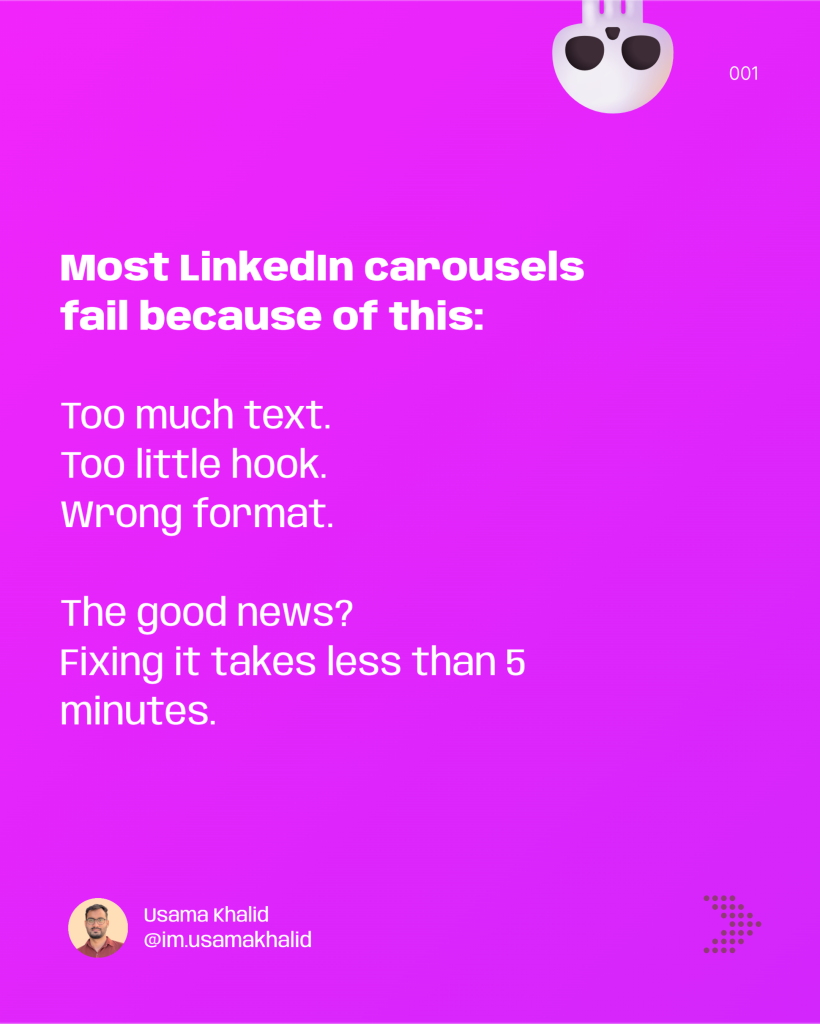
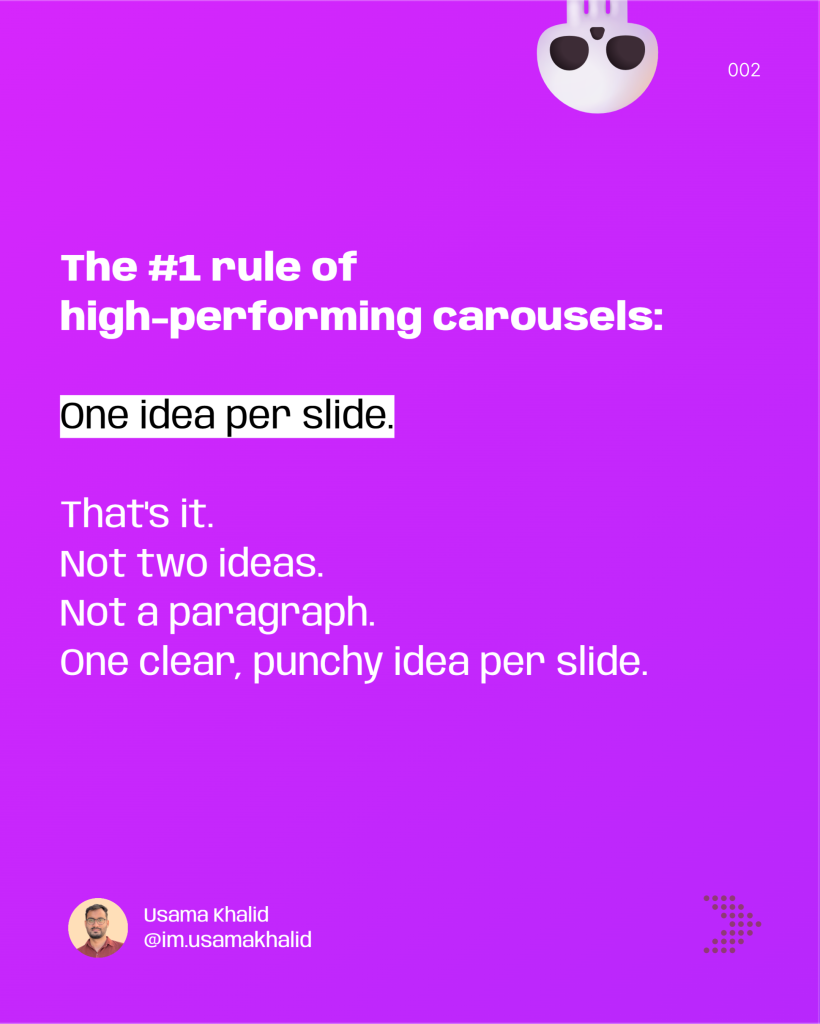
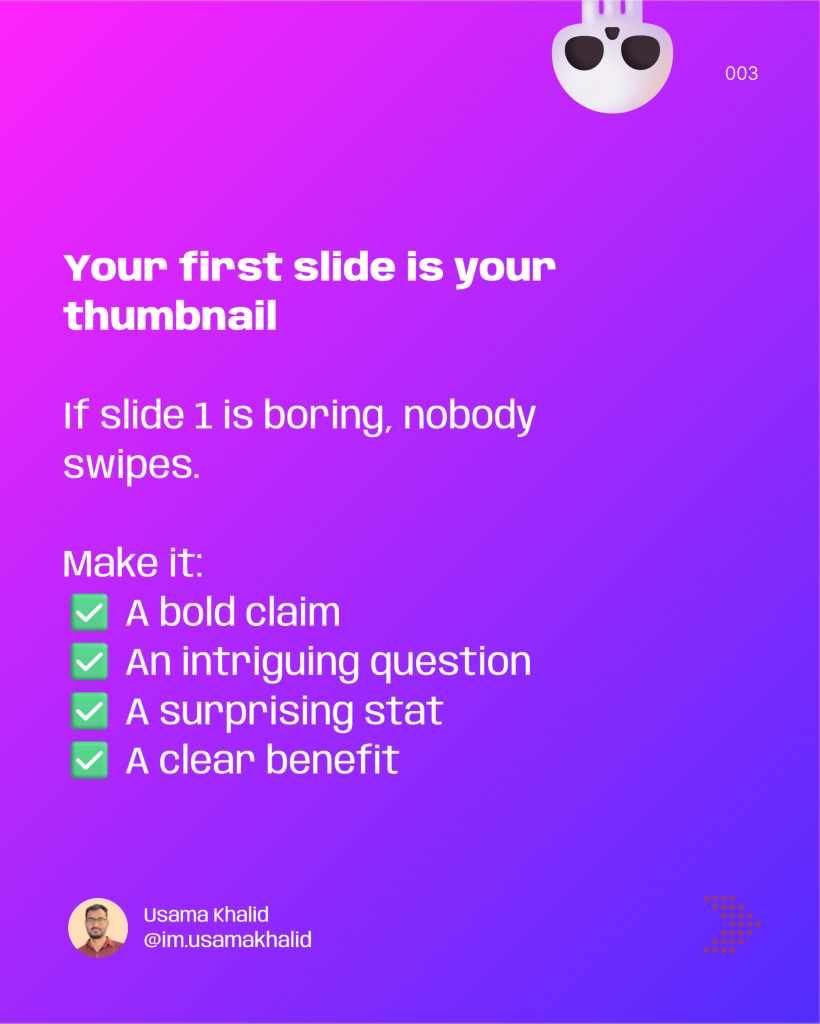
Here is a real carousel that follows everything in this guide. Notice the strong hook on slide 1, one idea per slide, and a clear call to action on the last slide.




Method 1: Create a LinkedIn carousel with AI (5 minutes, Contentdrips)
This is the fastest route, and the one that fits the “5 minutes” promise.
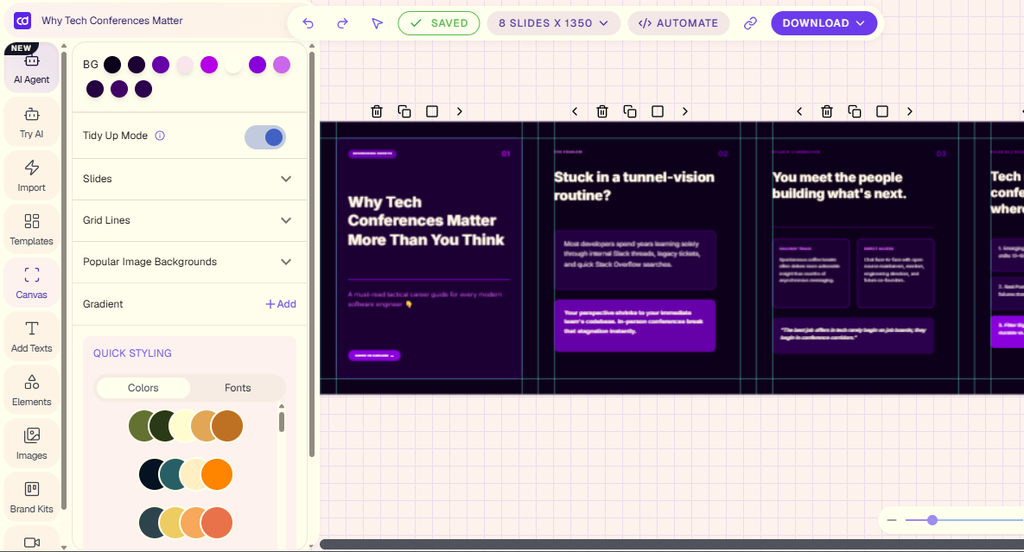
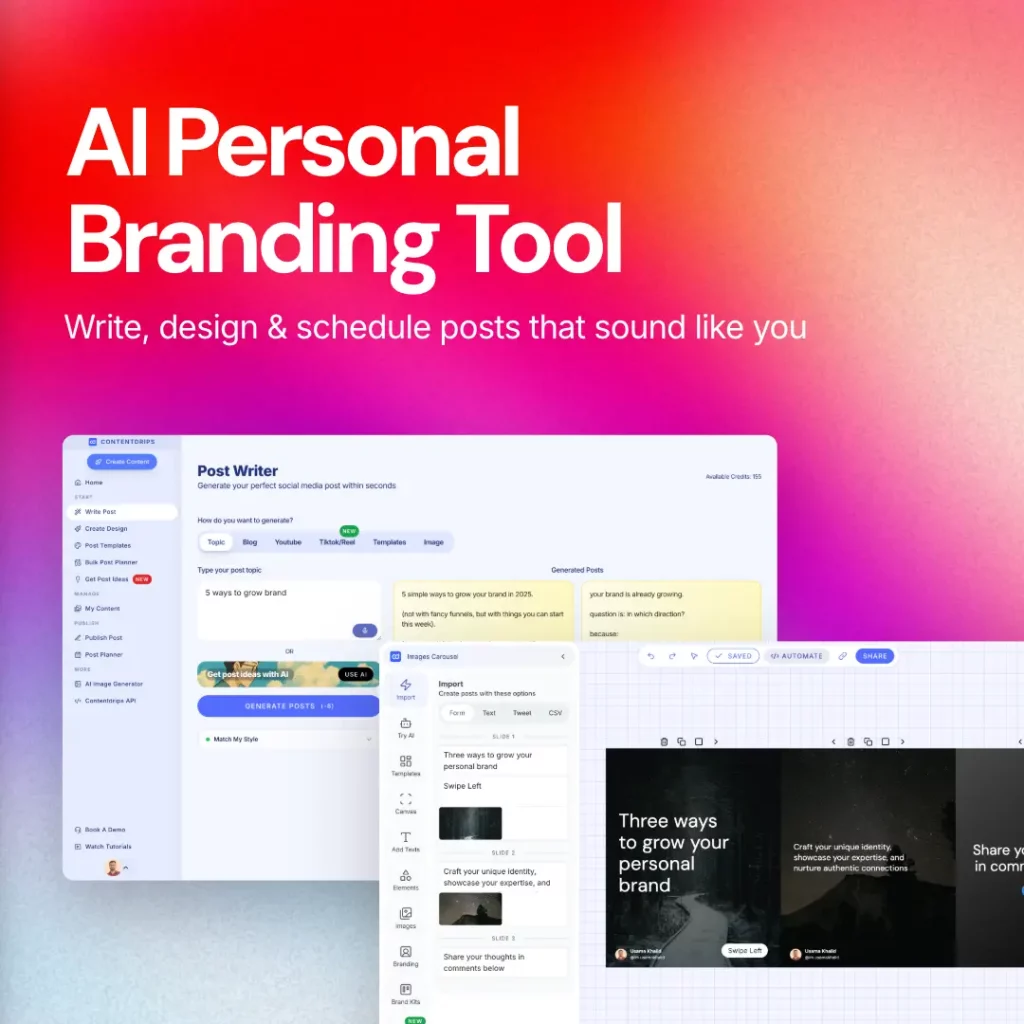
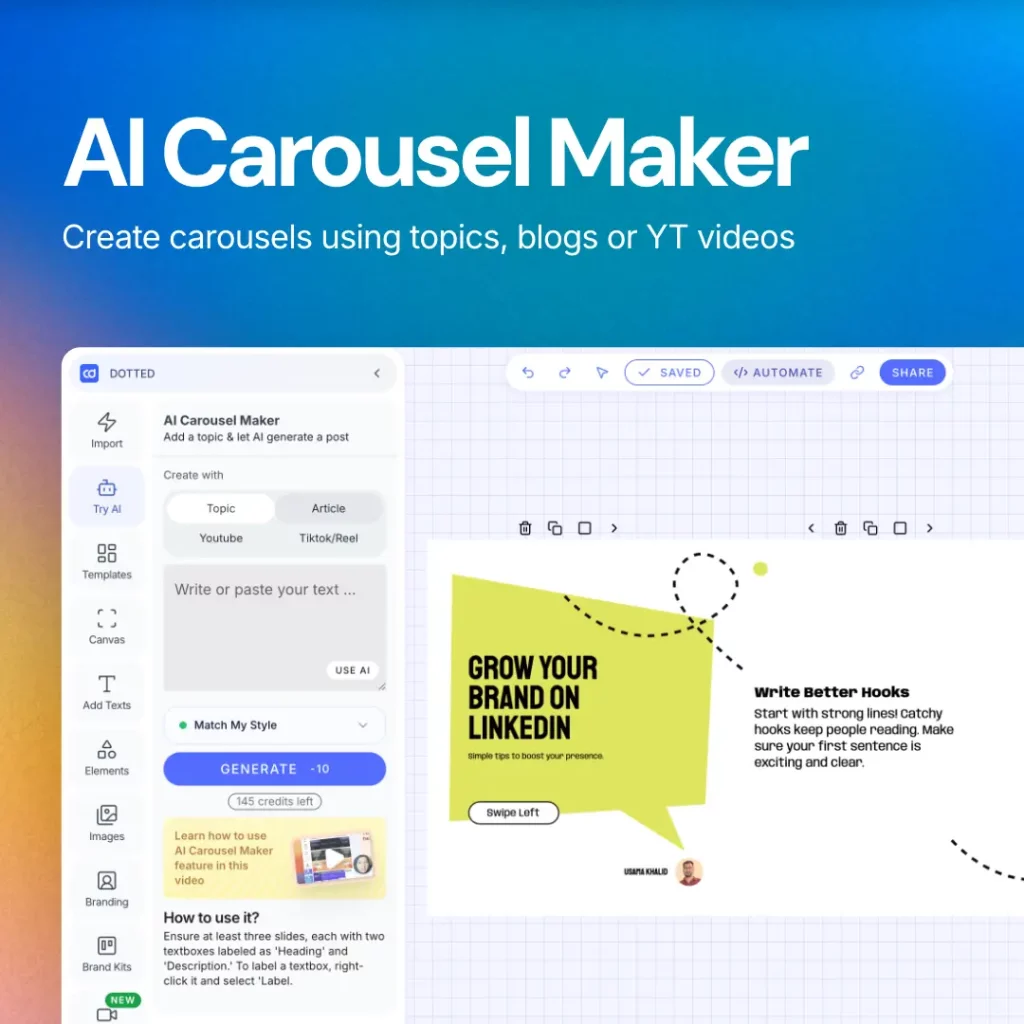
- Choose your starting point. Open the LinkedIn carousel generator and start from a topic, a blog article, a YouTube video or a TikTok/Reel. The AI turns it into a slide-by-slide outline.
- Pick a template. Browse 100+ carousel templates and filter by style or industry. Turn on Match My Style to write in your own voice.
- Generate the slides. The AI writes the copy, formats it for readability and applies your brand colors and fonts from your brand kit.
- Edit anything you like. Change text, layouts, images and backgrounds in the canvas editor.
- Export or schedule. Download the carousel as a PDF, or schedule it straight to LinkedIn from Contentdrips.
Already have text? Paste it into text to carousel instead.
Method 2: How to create a LinkedIn carousel in Canva (step by step, free)
Canva works well if you prefer to design each slide yourself. Expect it to take 30 minutes or more.
- Create a design. In Canva, click Create a design, then Custom size, and enter 1080 x 1350 px.
- Add your pages. Add one page per slide. Aim for 6 to 10.
- Design slide 1 as the hook. Use a bold claim, a question or a surprising number, in large text.
- Design the middle slides. One idea per slide, text at 40 pt or bigger, and the same fonts and colors throughout.
- Finish with a call to action. Tell readers what to do next: follow, comment, save or visit a link.
- Download as a PDF. Click Share, then Download, choose PDF Standard, and download all pages as one file.
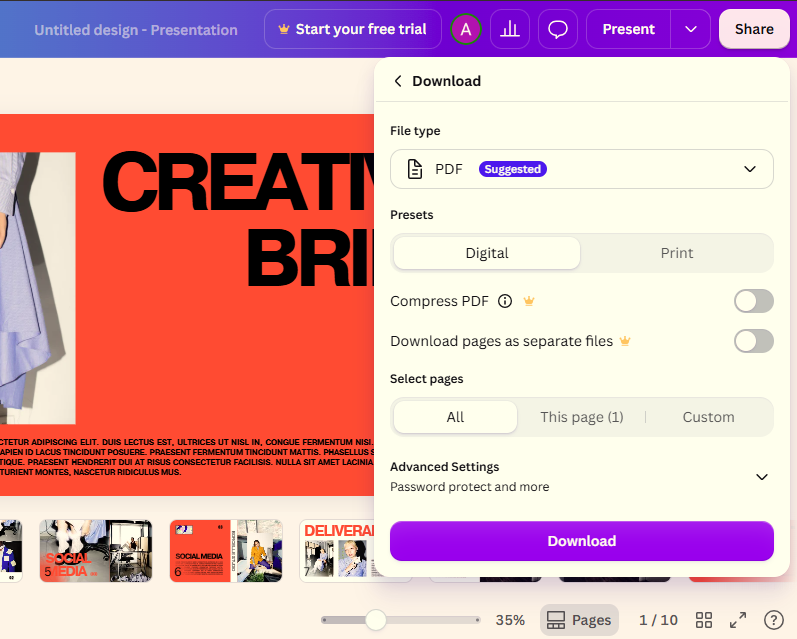
PowerPoint and Google Slides work the same way. Set a custom slide size of 1080 x 1350 px (or 11.25 x 14.06 in), design your slides, and save or download the file as a PDF.
How to post a carousel on LinkedIn
Once your PDF is ready, posting takes about a minute.
On desktop
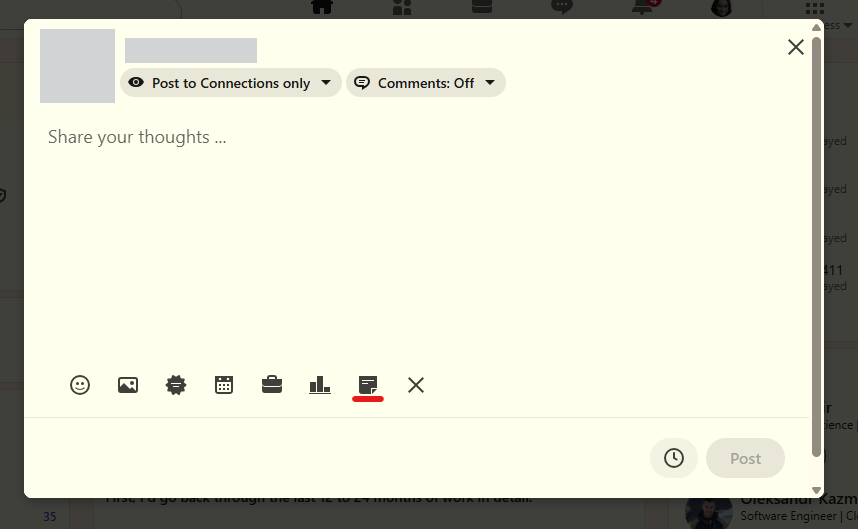
- On your LinkedIn home page, click Start a post.
- Click the + (more) icon at the bottom of the post box and choose Add a document.
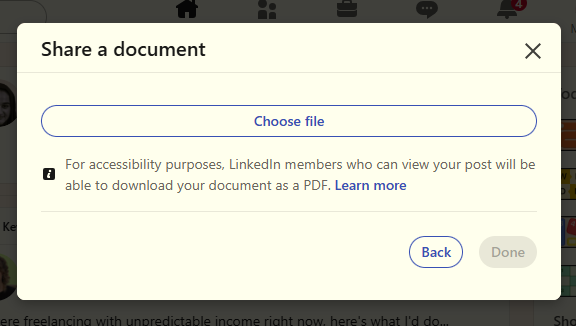
- Click Choose file and upload your PDF.
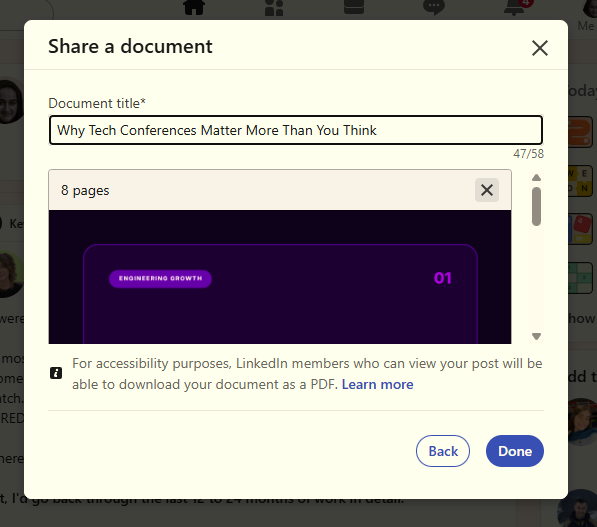
- Type a document title. It is required and shows at the top of the carousel, so make it descriptive.
- Click Done, then write your caption.
- Click Post, or click the clock icon to schedule it.
On mobile
- Tap Post at the bottom of the LinkedIn app.
- Tap the + icon and choose Add a document.
- Pick the PDF from your phone, add a title, write your caption and tap Post.
Write a caption that gets the swipe
- Hook in the first line. Only the first line or two shows in the feed before “see more”.
- Tease what’s inside. For example, “7 slides on how we cut onboarding time in half”.
- End with a question or call to action to start the comments.
Desktop vs mobile
| Task | Desktop | Mobile |
|---|---|---|
| Upload a PDF | Yes | Yes |
| Preview the carousel before posting | Full preview | Limited preview |
| Schedule the post | Yes, with LinkedIn’s scheduler or tools like Contentdrips | Limited |
| Edit the caption after posting | Yes | Yes |
| Replace the document after posting | No, delete and repost | No, delete and repost |
Tip: upload from desktop when you can. The mobile preview doesn’t always show how the carousel will look in the feed.
Want to know what makes a carousel spread once it’s live? Read how to make a viral carousel post on LinkedIn.
LinkedIn carousel best practices
Design best practices
- One idea per slide. Two or three short sentences at most.
- Large text. 40 pt minimum, 50 pt or more for headlines.
- Consistent design. The same fonts, colors and layout on every slide. A brand kit or template makes this automatic.
- Strong contrast. Dark text on light backgrounds, or the reverse, so slides read well on a small screen.
- Your name or handle on every slide. Carousels get downloaded and shared, so keep your credit on them.
Content best practices
- Slide 1 is your thumbnail. Lead with a bold claim, a question, a surprising number or a clear benefit.
- Tell a story. Each slide should make readers want the next one.
- Give real value. Checklists, frameworks, templates and step-by-step processes get saved.
- End with a call to action. Ask for a comment, a follow, a save or a click.
- Reply to comments early. Conversation in the first hour helps the post reach more people.
Common mistakes that kill carousel engagement
1. Too much text per slide. People scroll fast, and dense slides get skipped. Keep it to 2 or 3 short sentences.
2. No hook on slide 1. “87% of LinkedIn creators make this carousel mistake” gets swipes. “Introduction to LinkedIn strategy” doesn’t.
3. Inconsistent design. Random fonts and colors make a carousel look unprofessional. Use a template or brand kit.
4. No call to action on the last slide. You earned the reader’s attention, so tell them what to do next.
5. Uploading images instead of a PDF. Several images make a multi-image post, not a carousel. Always upload a single PDF.
Advanced tips for high-performing carousels
- Use a curiosity gap. End a slide with a teaser for the next one, such as “But here’s what most people miss…”.
- Add a pattern interrupt. Around slide 3 or 4, change the background or add a pull quote to re-engage readers.
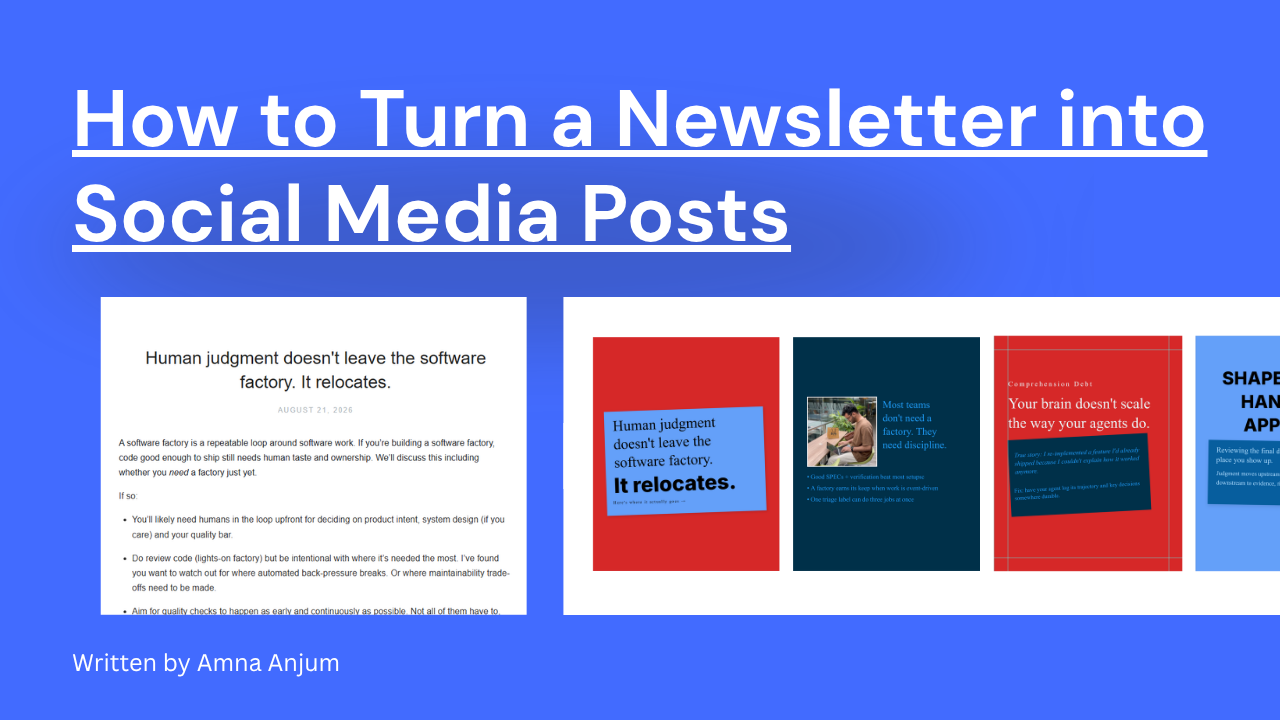
- Repurpose what you already have. One blog post can become a carousel, a video script, several short posts and a newsletter.
- Test your posting time. Weekday mornings are a common starting point, but check your own analytics and post when your audience is active.
- Track saves, not just likes. Saves show your content was worth keeping.
The fast way: automate your carousel workflow
If you post carousels every week, designing each one by hand becomes a bottleneck. Contentdrips handles the whole workflow:
- Input: paste a blog URL, YouTube link or topic.
- AI: it turns the content into structured slides.
- Design: it applies a template with your branding.
- Publish: download the PDF or schedule it to LinkedIn.
You can also plan two weeks of carousels in one session with the Bulk Post Planner. Try the LinkedIn carousel generator free.
FAQ: LinkedIn carousels
Can you post a carousel on LinkedIn? Yes. Design your slides, export them as a PDF, and upload it as a document when you create a post. LinkedIn shows it as a swipeable carousel.
What size should a LinkedIn carousel be in 2026? 1080 x 1350 px (4:5 portrait) is the best choice for most posts because it fills more of the mobile feed. 1080 x 1080 px square also works. Keep every slide the same size.
How many slides should a LinkedIn carousel have? 6 to 10 slides works best for most topics. Under 5 can feel thin, and past 12 or so, fewer people reach the end. LinkedIn’s own limit is 300 pages.
Can I upload images instead of a PDF? You can, but several images create a multi-image post that shows as a grid, not a swipeable carousel. Use a PDF.
How do I create a LinkedIn carousel with no design skills? Use a template-based tool like Contentdrips. Pick one of 100+ templates, let the AI write the slides or add your own text, and export a PDF. It takes about 5 minutes.
How do I create a LinkedIn carousel in Canva? Create a custom design at 1080 x 1350 px, add one page per slide, design your slides, then download them as a single PDF Standard file. Full steps are in Method 2 above.
Can I edit a carousel after posting? You can edit the caption, but you can’t replace the document. To change the slides, delete the post and upload it again.
Can I schedule a LinkedIn carousel? Yes. Use a tool like Contentdrips, or check whether LinkedIn’s built-in scheduler (the clock icon next to Post) is available for document posts on your account.
How do I download a LinkedIn carousel? It depends on whether the author allows downloads. See our guide on how to download a LinkedIn carousel post.
Do carousels work better than videos? It depends on your audience, so test both. Carousels tend to get more saves and shares, while videos often get more comments.
Start creating your LinkedIn carousel today
Carousels are one of the quickest ways to grow on LinkedIn. To recap:
- Design at 1080 x 1350 px, with one idea per slide and 6 to 10 slides.
- Build it with AI in Contentdrips in about 5 minutes, or for free in Canva.
- Upload it as a PDF document with a clear title and a strong first line.
- Avoid the big mistakes: too much text, a weak hook, no call to action, and images instead of a PDF.
Pick one piece of content you already have and turn it into a carousel this week. Need a starting point? Browse our LinkedIn carousel templates.

Muhammad Usama Khalid is the Founder and CEO of Contentdrips, building the platform since 2019 to help creators write, design, and publish social content in one place. He has a sharp sense of what makes carousels, posts, and graphics perform across platforms like Instagram and LinkedIn. Under his lead, Contentdrips has grown to serve over 100,000 creators worldwide.