LinkedIn carousel posts are one of the highest-performing content formats on the platform right now. But getting the dimensions wrong – even slightly – can result in blurry images, cropped content, or posts that just look off. This guide covers every size, dimension, aspect ratio, and format spec you need to get it right in 2026, plus best practices for making carousels that actually drive engagement.
What Is a LinkedIn Carousel Post?
LinkedIn carousel posts let you share multiple images or a PDF document in a swipable format. Viewers scroll through slides without leaving their feed, which means more time spent on your content and more dwell time signals sent to the algorithm.
Carousels work well for:
- Step-by-step guides and tutorials
- Data breakdowns and infographics
- Case studies with multiple sections
- Product showcases or portfolio pieces
- Educational “tips” content that performs well for personal brands
LinkedIn Carousel Sizes: Complete Reference for 2026
Image Carousel Size
| Spec | Value |
|---|---|
| Recommended size | 1080 x 1080 px |
| Aspect ratio | 1:1 (square) |
| Minimum resolution | 72 DPI |
| Max file size per image | 10 MB |
| Supported formats | JPG, PNG |
The square 1:1 format is the safest choice. It renders consistently across desktop and mobile without cropping or letterboxing.
PDF Carousel Size (Document Posts)
| Spec | Value |
|---|---|
| Recommended size | 1080 x 1080 px |
| Alternative landscape size | 1920 x 1080 px |
| Aspect ratio | 1:1 (square) or 16:9 (landscape) |
| Max PDF file size | 100 MB |
| Max pages | 300 slides |
LinkedIn converts your PDF pages into carousel slides automatically. For the cleanest result, design each page at exactly 1080 x 1080 px. If you prefer a widescreen format, 1920 x 1080 px works but may display narrower on mobile feeds.
Portrait Format (Optional)
Some creators use a 4:5 portrait format (1080 x 1350 px) to take up more vertical feed space on mobile. This can increase visibility but may clip slightly on desktop. Use it if your audience is primarily mobile.
LinkedIn Carousel Dimensions: Quick Reference
| Format | Pixel Dimensions | Aspect Ratio | Best For |
|---|---|---|---|
| Square (recommended) | 1080 x 1080 px | 1:1 | Universal — desktop + mobile |
| Landscape | 1920 x 1080 px | 16:9 | Data-heavy, wide visuals |
| Portrait | 1080 x 1350 px | 4:5 | Mobile-first audiences |
When in doubt, go square. It is the standard that renders predictably on every screen size.
LinkedIn Carousel Aspect Ratio Explained
The aspect ratio is the relationship between a slide’s width and height.
- 1:1 (square): The default and safest option for LinkedIn carousels. LinkedIn was built around this ratio for feed content.
- 16:9 (landscape): Works for PDFs, especially when repurposing presentation decks or wide infographics. Slightly smaller in the feed.
- 4:5 (portrait): Takes up more vertical real estate in the mobile feed, potentially increasing impressions, but not the official recommendation.
Avoid mixing ratios within the same carousel. Inconsistent dimensions cause jarring visual jumps between slides and signal low-quality content.
LinkedIn Carousel Best Practices for 2026
Getting the size right is the baseline. These are the practices that actually move the needle on reach and engagement.
1. Hook with slide one
The first slide is your headline. Most people won’t swipe unless slide one earns it. Use a bold, clear promise or surprising statement. Treat it like a subject line, not a cover page.
2. Aim for 6 to 10 slides
Shorter carousels (3 to 4 slides) often underperform because LinkedIn’s algorithm rewards high swipe-through rates. Longer ones (15+ slides) fatigue viewers. The 6 to 10 range tends to hit the sweet spot.
3. Keep text minimal per slide
Each slide should carry one idea. If you’re writing more than two short sentences on a single slide, split it. The goal is to give the viewer a reason to swipe, not to read a paragraph.
4. Use consistent branding across all slides
Same fonts, same color palette, same logo placement. This is non-negotiable for building recognizable content. Tools like Contentdrips let you save a brand kit and apply it automatically across every slide.
5. End with a clear call-to-action
Your last slide should tell viewers exactly what to do next: follow your profile, save the post, comment with a question, or visit a link. Without a CTA, engagement stops at the last swipe.
6. Design at 2x resolution
Even though 1080 x 1080 px is the minimum, consider designing at 2160 x 2160 px (2x) and exporting at 1080 x 1080 px. This keeps images crisp on high-density (Retina) screens.
7. Optimize file size before uploading
Large files take longer to load and can degrade image quality through LinkedIn’s compression. Compress images to under 2 MB per slide using tools like TinyPNG or Squoosh before uploading.
How to Create a LinkedIn Carousel in 2026
You have a few options depending on your workflow:
Option 1: Design tool (manual) Use Contentdrips, Adobe Illustrator, or Canva. Create a frame at 1080 x 1080 px, design each slide, then export as individual PNGs or bundle as a PDF.
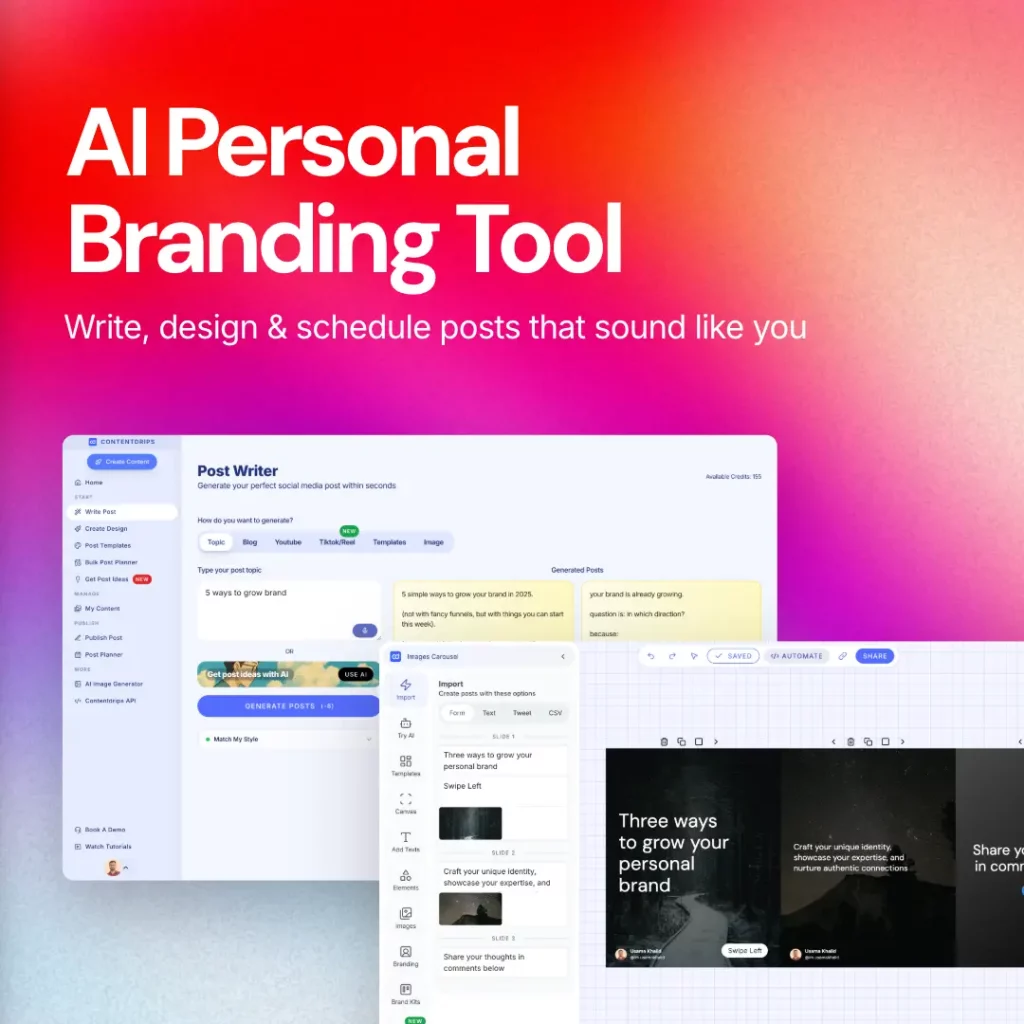
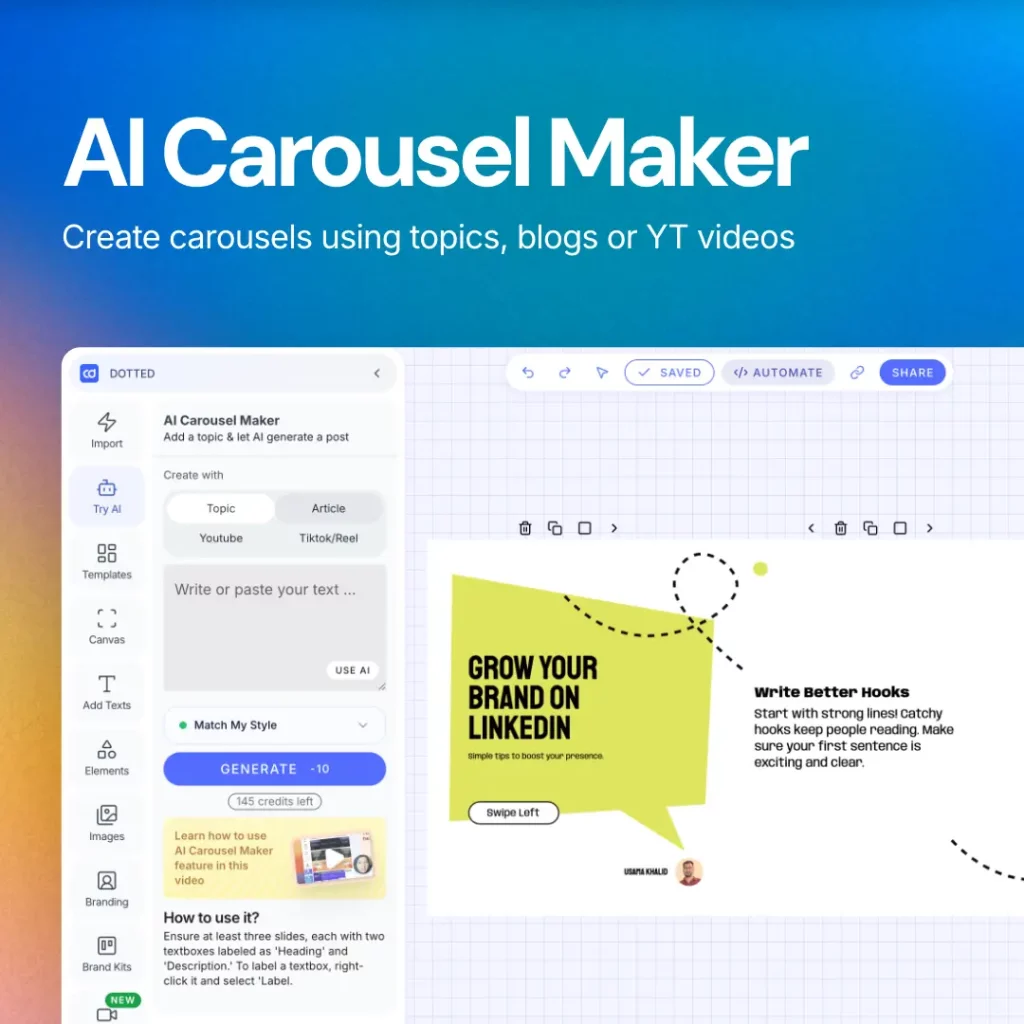
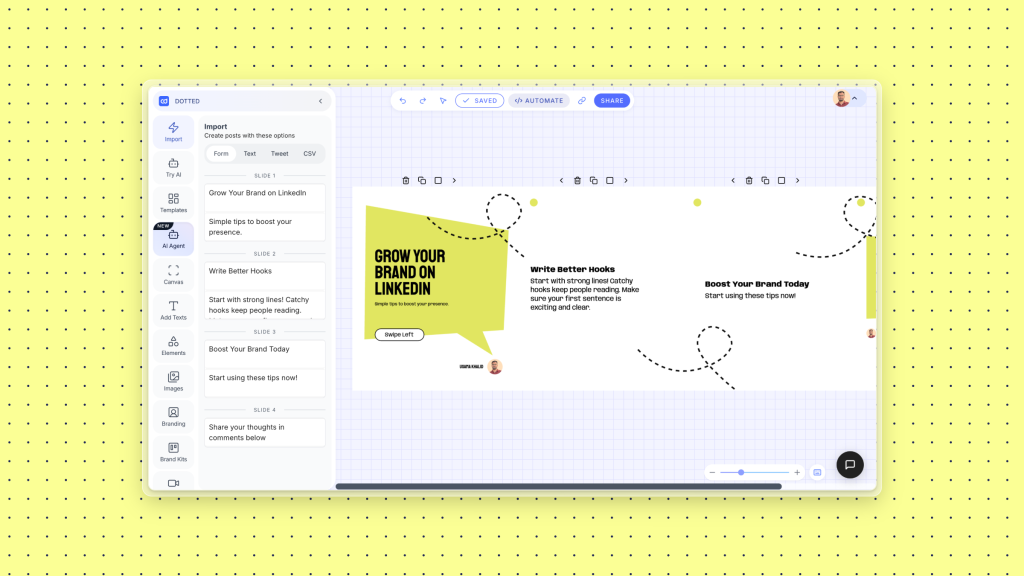
Option 2: AI carousel generator (fastest) Tools like Contentdrips let you enter a topic, blog URL, or YouTube link and generate a fully designed carousel in seconds. It writes the copy, applies your brand kit, and outputs slides ready to post. This is the fastest way if you’re producing carousels at volume.
Option 3: PowerPoint or Google Slides Set the slide size to 1080 x 1080 px (under Page Setup), design your slides, and export as a PDF. Simple and accessible, though not ideal for heavy branding.
Common LinkedIn Carousel Size Mistakes
Uploading different sizes in one carousel. LinkedIn will try to standardize them but often introduces white borders or crops. Design all slides at the same dimensions.
Using low-resolution images. Anything under 1080 px wide will look soft or pixelated after LinkedIn’s compression.
Landscape slides in a square template. If your template is 1080 x 1080 px, don’t paste a 16:9 image without resizing. The result is a squished or letterboxed visual.
Too much text. Dense text slides are skipped. Cut ruthlessly and move supporting detail into the post caption instead.
LinkedIn Carousel Size FAQs
What is the best size for a LinkedIn carousel in 2026?
The best size is 1080 x 1080 px (square, 1:1 ratio). It displays correctly on desktop and mobile without any cropping.
What size should a LinkedIn PDF carousel be?
Design PDF carousel slides at 1080 x 1080 px for square format, or 1920 x 1080 px for landscape. Square is recommended for maximum feed compatibility.
What aspect ratio does LinkedIn use for carousels?
LinkedIn supports 1:1 (square), 16:9 (landscape), and 4:5 (portrait) for carousel content. Square is the most reliable across all feed placements.
How many slides should a LinkedIn carousel have?
LinkedIn supports up to 300 slides for PDF carousels. In practice, 6 to 10 slides tends to generate the best engagement by balancing content depth with viewer attention.
What is the maximum file size for a LinkedIn carousel?
For image carousels, each image can be up to 10 MB. For PDF document carousels, the maximum PDF file size is 100 MB.
What is the LinkedIn carousel image size in pixels?
The recommended pixel dimensions are 1080 x 1080 px for square, or 1920 x 1080 px for landscape. Design at these dimensions before uploading.
Can I mix portrait and landscape slides in a LinkedIn carousel?
Technically yes, but it is not recommended. Inconsistent dimensions create a poor viewer experience and may affect how LinkedIn renders the post in the feed.
Conclusion
LinkedIn carousel sizes for 2026 come down to one practical rule: use 1080 x 1080 px square format for images and PDFs unless you have a specific reason to go landscape or portrait. Beyond dimensions, what separates average carousels from high-performing ones is the quality of the hook, consistent branding, and a clear CTA on the final slide.
If you want to skip the manual design work entirely, Contentdrips generates carousels from a topic or URL, applies your brand automatically, and outputs them ready to post in under two minutes.
Start creating LinkedIn carousels with Contentdrips and see the difference a properly sized, professionally designed post makes to your reach.

Muhammad Usama Khalid is the Founder and CEO of Contentdrips, building the platform since 2019 to help creators write, design, and publish social content in one place. He has a sharp sense of what makes carousels, posts, and graphics perform across platforms like Instagram and LinkedIn. Under his lead, Contentdrips has grown to serve over 100,000 creators worldwide.