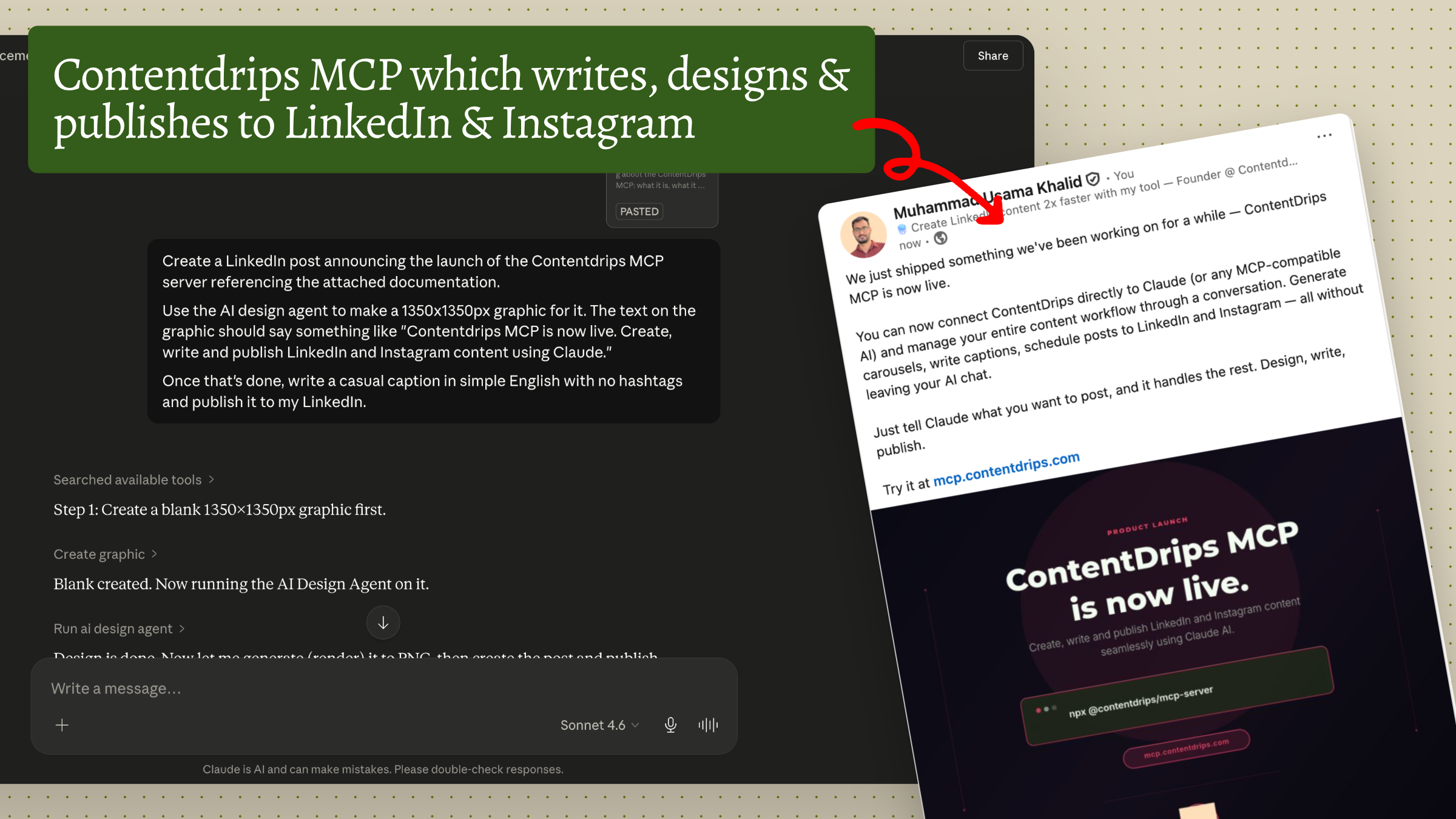
Writing, designing, and scheduling LinkedIn posts usually means jumping between a writing tool, a design tool, and a scheduler. What if you could do all three from a single chat window?
That’s exactly what’s possible when you connect Claude to Contentdrips through MCP (Model Context Protocol). In this guide, you’ll learn how to set up the integration and use Claude to write a LinkedIn post, generate a matching graphic with AI, and publish everything directly to LinkedIn, all without leaving your conversation with Claude.
What Is Contentdrips MCP?
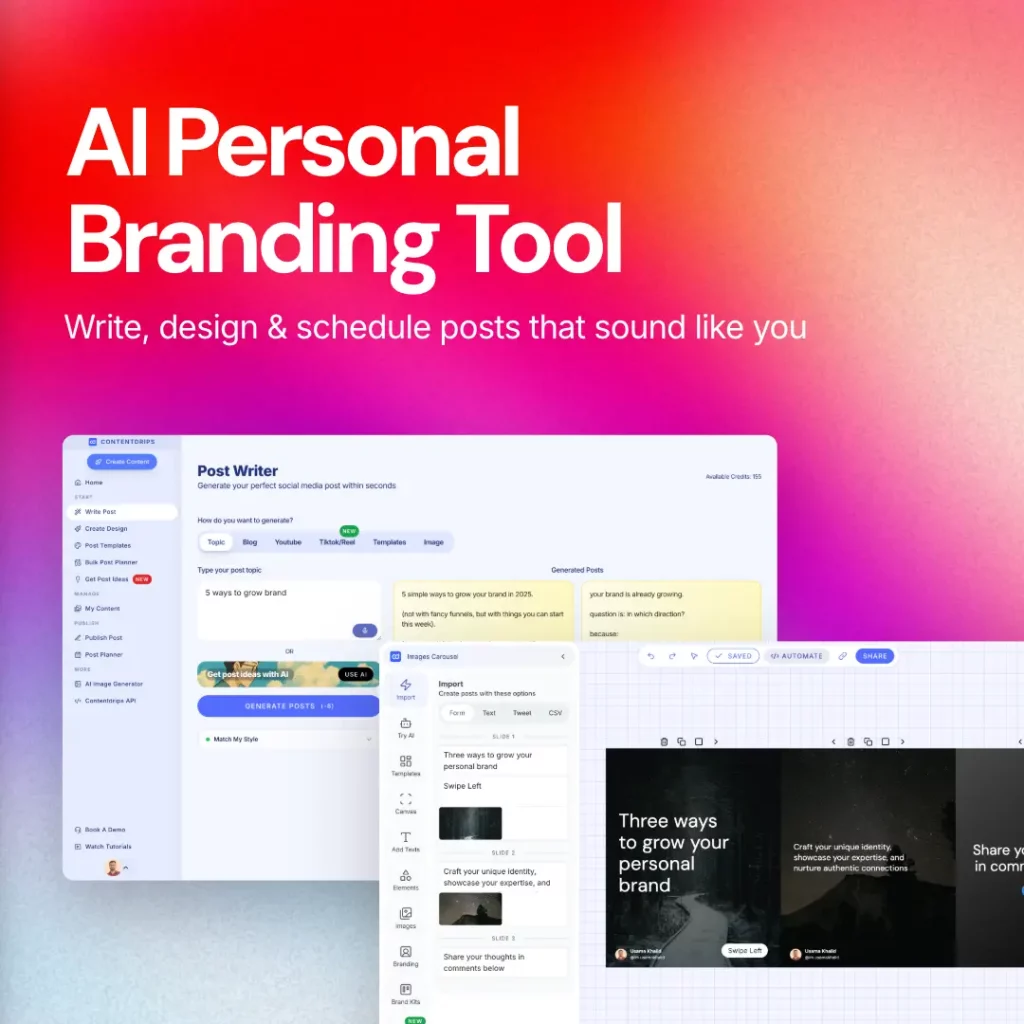
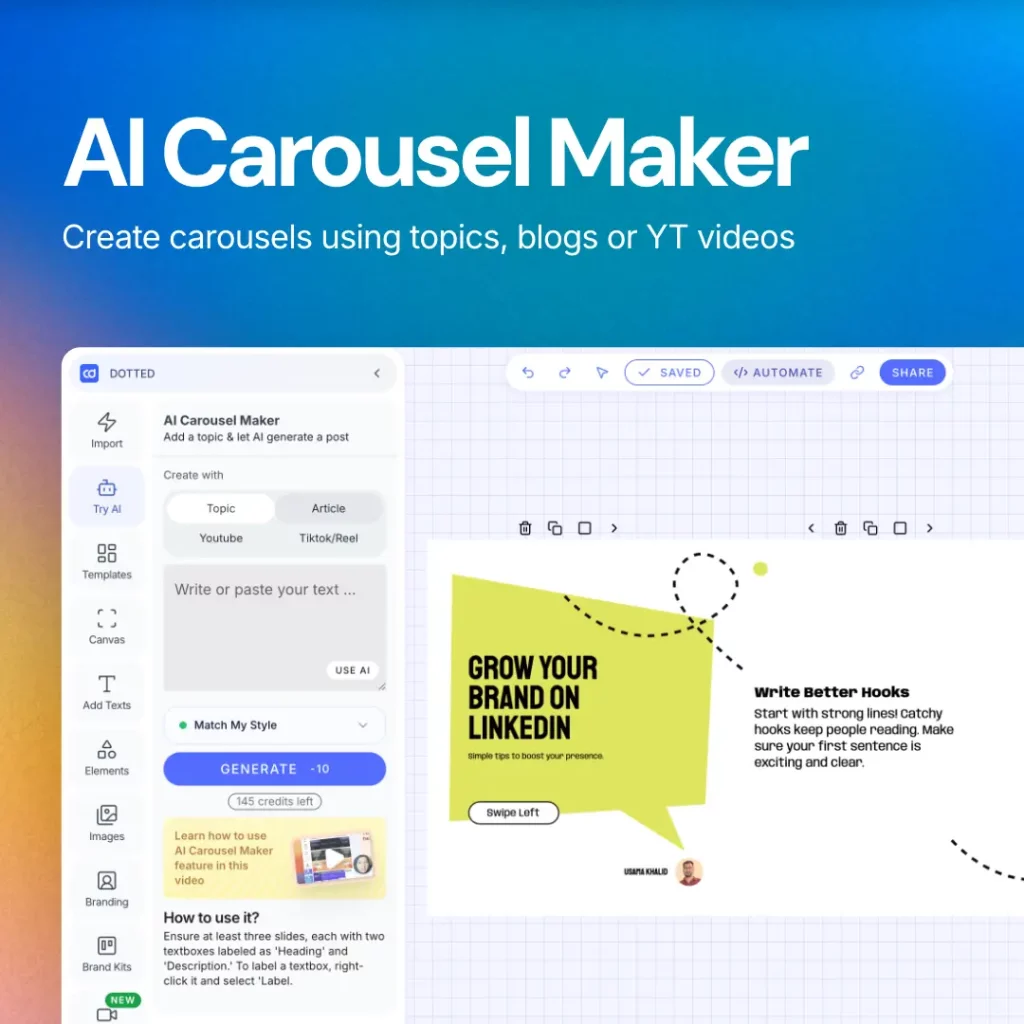
Contentdrips MCP is a connector that links AI assistants like Claude directly to your Contentdrips account. Instead of manually copying content between apps, Claude can talk to Contentdrips on your behalf: generating carousels, writing captions, designing graphics, and publishing straight to LinkedIn and Instagram.
Think of it as giving Claude direct access to your content creation and publishing toolkit, all through natural conversation.
Step 1: Connect Contentdrips to Claude
Before you can start creating content, you need to link your Contentdrips account to Claude. Full product overview: Contentdrips for Claude.
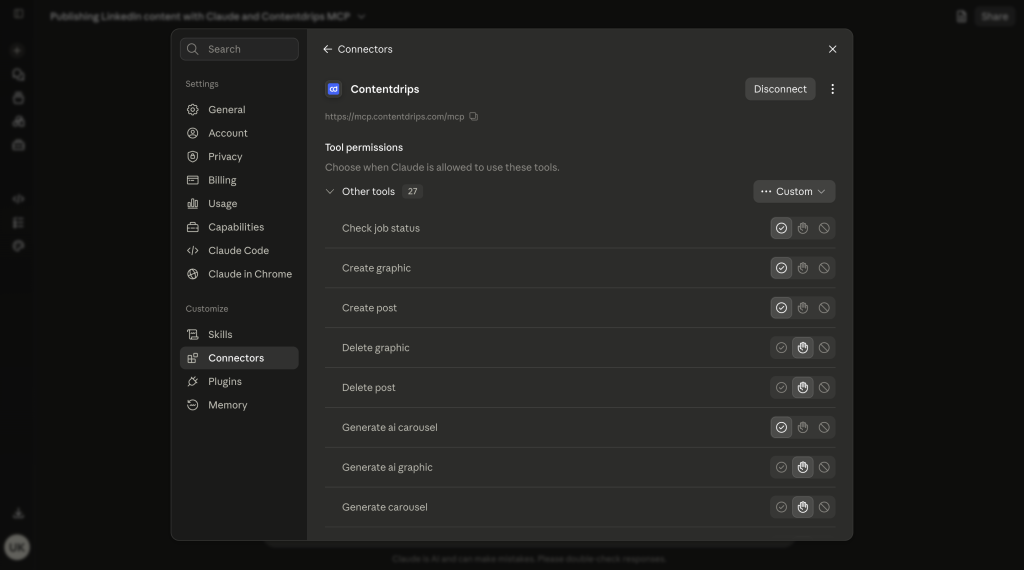
- In Claude, open Settings and go to the Customize or Integrations section.
- Click Add Connector (this is essentially adding an MCP server).
- Head to contentdrips.com and create your Contentdrips API key from your account dashboard.
- Back in Claude, enter the MCP URL:
mcp.contentdrips.com/mcp. - Claude will redirect you to Contentdrips and prompt you for your API key.
- Paste in your API key to complete the connection.
Once connected, Claude gains the ability to draft posts, generate graphics and carousels, and publish or schedule content, all from your conversation.
Step 2: Write a LinkedIn Post With Claude
With the connector in place, writing a post is as simple as describing what you want.
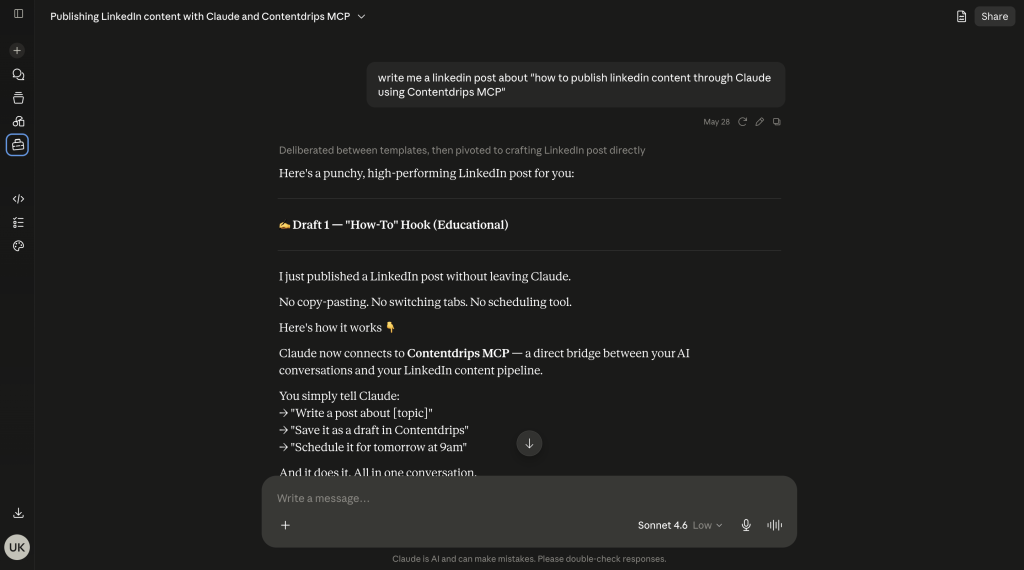
For example, you might prompt Claude with something like: “Write a LinkedIn post about how to publish LinkedIn content through Claude using Contentdrips MCP.”
Because Claude already has context on what Contentdrips MCP is, it can generate a relevant, well-structured draft in seconds. You’ll typically get more than one option to choose from, so you can pick the caption that fits your voice best.
Step 3: Publish or Schedule Your Post
Once you’re happy with a draft, you don’t need to copy and paste anything. Just tell Claude what to do next.
You can say something like “Post this first draft on LinkedIn for me” to publish immediately, or specify a future time, such as “Post this tomorrow at 3 PM,” to schedule it instead.
Behind the scenes, Claude uses the Contentdrips MCP tools to create the post, and it will appear on your Contentdrips content page. Claude also returns a direct link so you can open the post inside Contentdrips and confirm it’s live, or check it directly on LinkedIn.
Step 4: Generate a Matching Graphic With AI
Text-only posts work, but visuals tend to perform better on LinkedIn. This is where the AI Design Agent comes in.
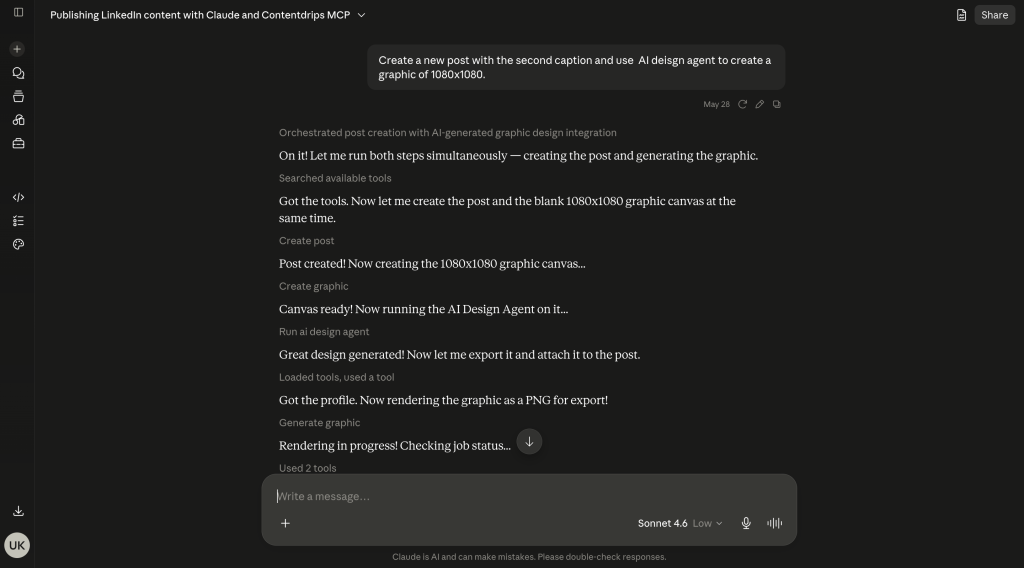
You can ask Claude to duplicate your post with a new caption and generate a visual to go with it, for instance: “Create a new post with the second caption and use the AI Design Agent to create a 1080 by 1080 graphic.”
Claude will queue the design job, run the AI Design Agent to build a full graphic based on your content and caption, and then export it as a PNG. Once it’s ready, you can review the design, request changes, or approve it as is.
By the way Claude will give you editing link for each template, so you can also manually tweak things if you want.
Step 5: Attach the Graphic and Publish
After the graphic is generated, Claude attaches it to your draft post automatically. At this point, you’ll typically see:
- Your final caption
- The AI-generated graphic attached to the post
- A confirmation prompt asking whether you want to publish
Once you confirm, Claude publishes the post (complete with image and caption) directly to LinkedIn. You can click through to view the live post and confirm everything looks right, no manual uploading required.
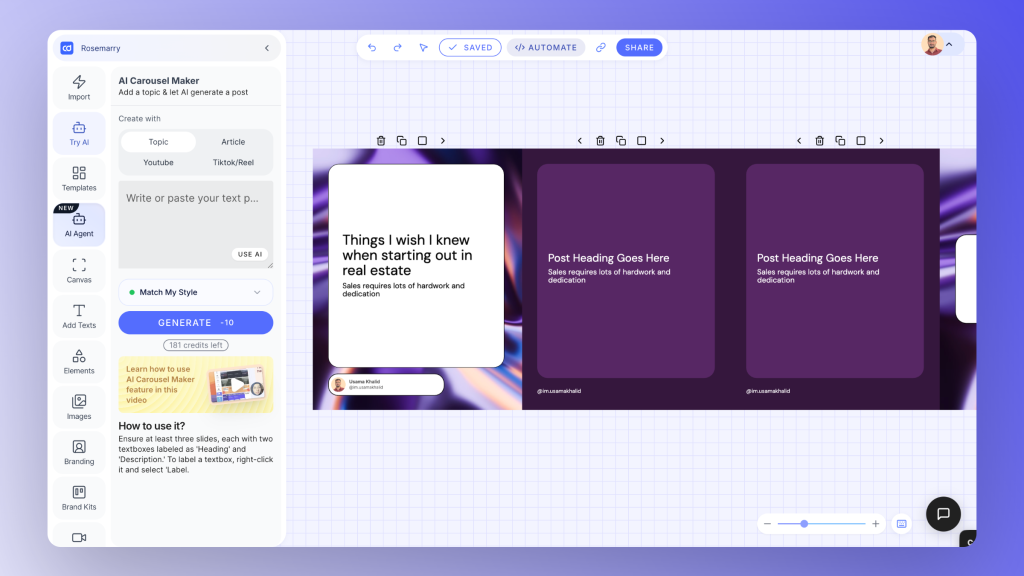
You Can Also Create LinkedIn Carousels, Not Just Graphics
Everything above works for single-image graphics, but the same workflow applies to carousels too. If you want a multi-slide LinkedIn carousel instead of a single image, just say so in your prompt, for example: “Create a 5-slide LinkedIn carousel about how to publish content through Claude.”
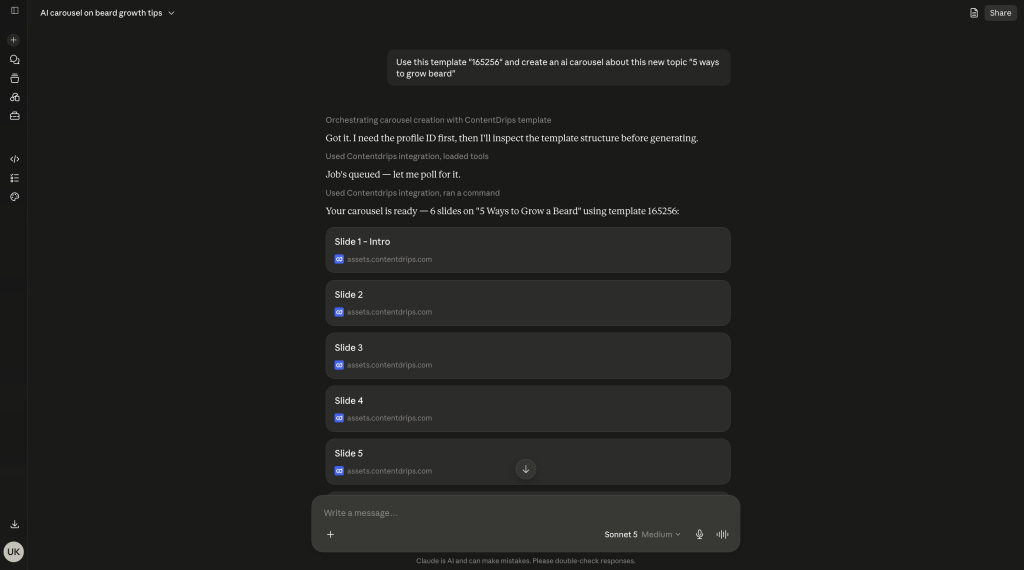
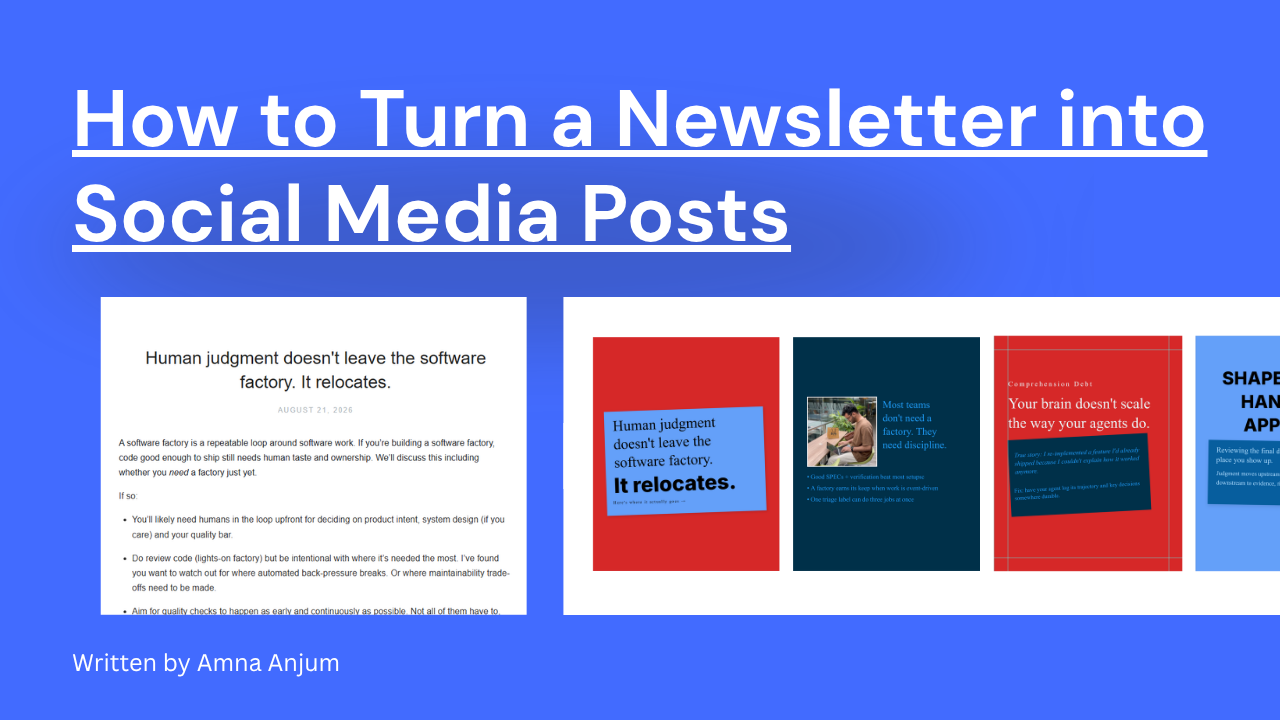
Claude will use the carousel tools in Contentdrips MCP to generate the intro slide, the content slides, and the ending slide, then render the full set and hand you back the post with all the slide images attached, ready to publish or schedule exactly like a single graphic.
When it comes to designing that carousel (or any graphic), there are two different approaches Claude can take, and it’s worth understanding both so you can prompt it correctly.
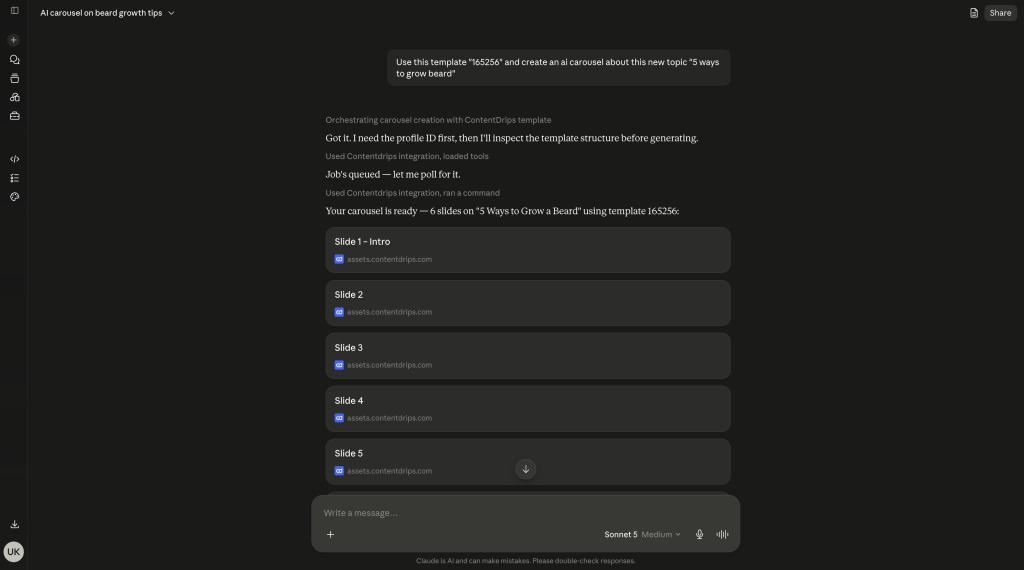
Case 1: Reuse an Existing Template With New Content
If you already have a Contentdrips template you like and just want to swap in new text and images for a new topic, Claude can update that exact template rather than designing something from scratch.
For this, you need to give Claude the template ID of the design you want to reuse. For example: “Use template 5821 and update it with content about LinkedIn publishing through Claude.”
Claude will pull the structure of that template, fill in the new headline, body text, and images based on your topic, and render it, keeping the same layout, fonts, and style as the original design. This is the fastest option when you already have a look you like and just need fresh content dropped into it.
Case 2: Let AI Design a New Template From Scratch
If you don’t have an existing template in mind and want Claude to design something new, you need to specifically mention the AI Design Agent in your prompt. This is what tells Claude to build a fresh layout rather than search for a template ID.
For example: “Use the AI Design Agent to create a new 1080 by 1080 graphic for this post, dark navy background with gold accents.”
In this case, Claude generates a full design from the ground up, including layout, typography, colors, and any decorative elements, based purely on your description. It’s the better option when you want something original rather than a variation of an existing design, or when you don’t have a template ID handy.
Quick way to remember the difference:
| You want to… | What to tell Claude |
|---|---|
| Reuse a design you already have, just with new text/images | Provide the template ID |
| Have AI create a brand-new layout from a description | Mention the AI Design Agent |
Personalizing Content With Brand Kits and Writing Style
Beyond writing and designing, Claude (through Contentdrips) can also keep every post on-brand and in your voice automatically.
Brand Kits: If you’ve set up a brand kit in Contentdrips (your fonts, colors, logo, and gradients), you can ask Claude to apply it when generating a graphic or carousel, for instance: “Use my branding for this design.” Whether Claude is filling an existing template or using the AI Design Agent to create something new, it will pull in your saved brand kit so the output stays visually consistent with the rest of your content.
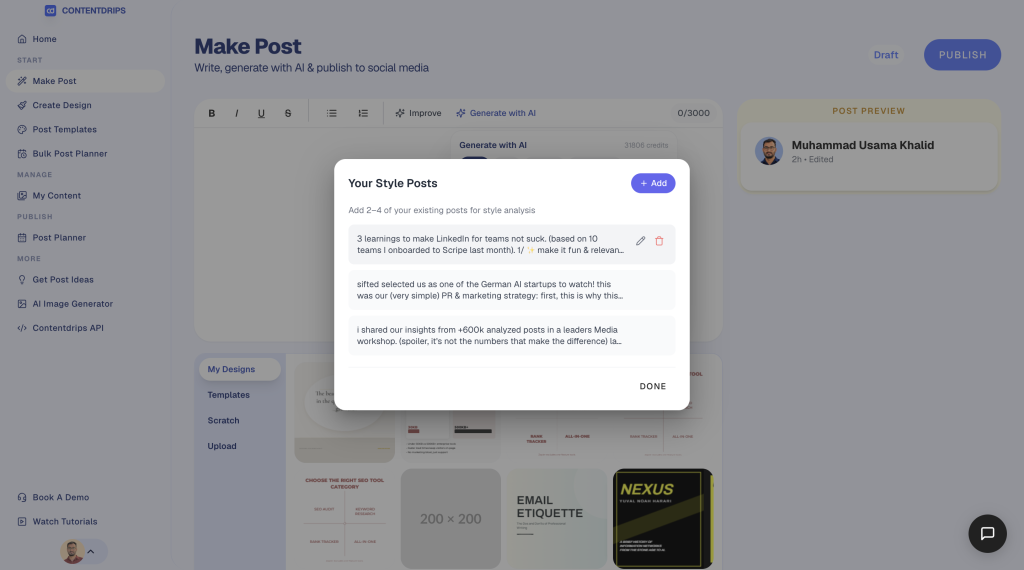
Match My Style: Contentdrips also has a feature that learns from your past posts to keep your writing voice consistent. When this is enabled, Claude writes new captions that sound like you, rather than generic AI copy, based on the tone and style of content you’ve published before. You can simply ask Claude to write a post “using my style” and it will lean on this feature automatically.
Together, brand kits and style matching mean you’re not just automating the writing and design work, you’re automating it in a way that still looks and sounds like it came from you.
Why Use Claude for LinkedIn Publishing?
Connecting Claude to Contentdrips MCP turns your AI assistant into a full content workflow:
- Write captions and post copy through natural conversation, optionally matching your own writing style
- Design single graphics or full multi-slide carousels, either by updating an existing template with a template ID or by having the AI Design Agent build something new from a description
- Stay on-brand automatically by applying your saved brand kit (fonts, colors, logo) to every design
- Schedule or publish directly to LinkedIn and Instagram
- Review everything through direct links back to Contentdrips, without switching tools
Instead of managing separate apps for writing, design, and scheduling, you get a single conversational workflow that takes you from idea to published post in minutes.
FAQs
Do I need to know how to code to connect Claude and Contentdrips?
No. Setting up the connection just means adding the Contentdrips MCP URL in Claude’s Integrations settings and pasting in your Contentdrips API key. Once that’s done, everything else happens through normal conversation with Claude.
Does Claude write in my own voice, or does it sound generic? If you turn on Match My Style in Contentdrips, Claude writes captions based on the tone and style of your past posts, so the output sounds like you rather than generic AI copy.
Can Claude create LinkedIn carousels, or just single graphics? Both. You can ask Claude to generate a single graphic or a full multi-slide carousel with an intro slide, content slides, and an ending slide, all in the same conversation.
What’s the difference between using a template ID and using the AI Design Agent? A template ID tells Claude to reuse an existing design and just swap in new text and images for your topic. Mentioning the AI Design Agent tells Claude to build a brand-new layout from scratch based on your description. Use a template ID when you already like a design; use the AI Design Agent when you want something original.
Can Claude use my brand colors, fonts, and logo automatically? Yes, as long as you’ve set up a brand kit in Contentdrips. Just ask Claude to use your branding, and it will apply your saved fonts, colors, and logo to any graphic or carousel it generates, whether it’s filling a template or designing something new.
Can I schedule posts instead of publishing them right away? Yes. You can tell Claude a specific date and time (for example, “post this tomorrow at 3 PM”) and it will schedule the post through Contentdrips instead of publishing immediately.
Which platforms can I publish to through Claude and Contentdrips? Currently, LinkedIn and Instagram are supported for direct scheduling and publishing.
Is there a limit to how many posts I can generate this way? Generating content and designs uses Contentdrips credits (shown in your account), so the limit depends on your plan and remaining credit balance rather than the Claude integration itself.
Final Thoughts
Once the Contentdrips MCP connector is set up, publishing LinkedIn content through Claude becomes as simple as describing what you want. Write a post, generate a graphic, and publish, all in one conversation, with no copy-pasting or app-switching involved.
Contentdrips not only posts on LinkedIn, you can also create and publish content on Instagram too.
If you haven’t tried it yet, connect your Contentdrips account to Claude and see how much faster your content workflow becomes.
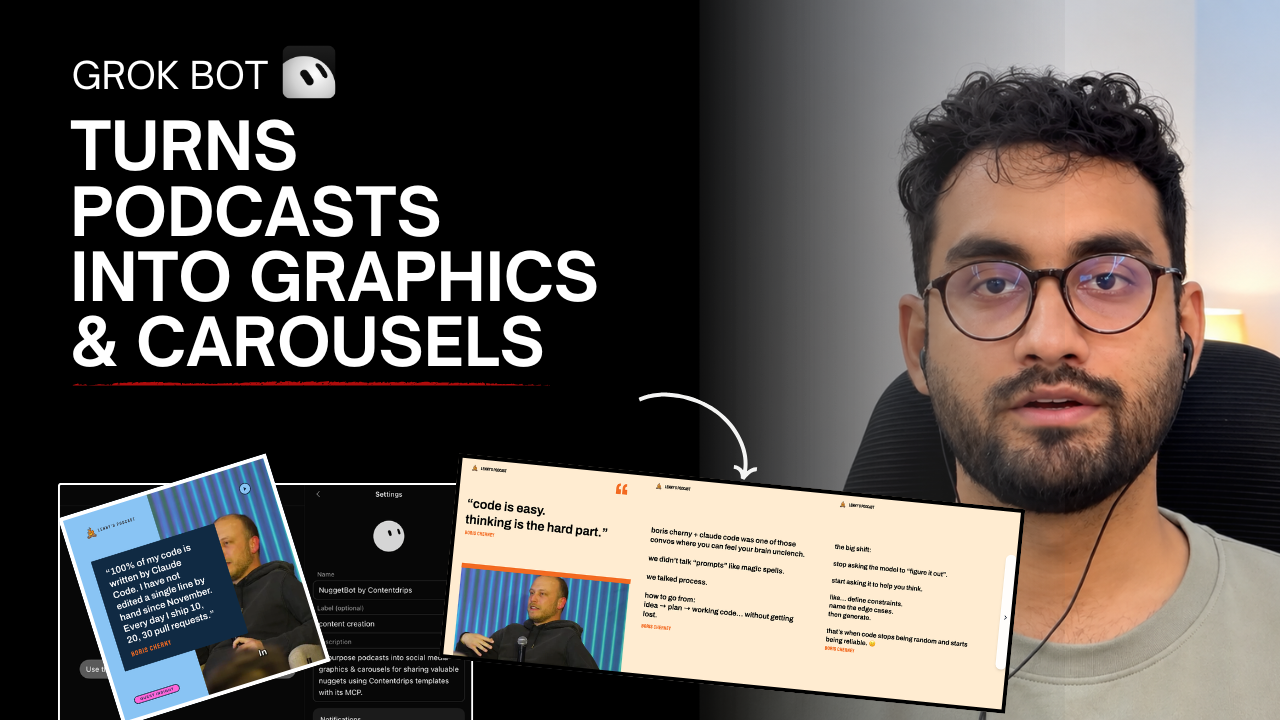
I’ve recorded a quick video tutorial on this too.

Muhammad Usama Khalid is the Founder and CEO of Contentdrips, building the platform since 2019 to help creators write, design, and publish social content in one place. He has a sharp sense of what makes carousels, posts, and graphics perform across platforms like Instagram and LinkedIn. Under his lead, Contentdrips has grown to serve over 100,000 creators worldwide.