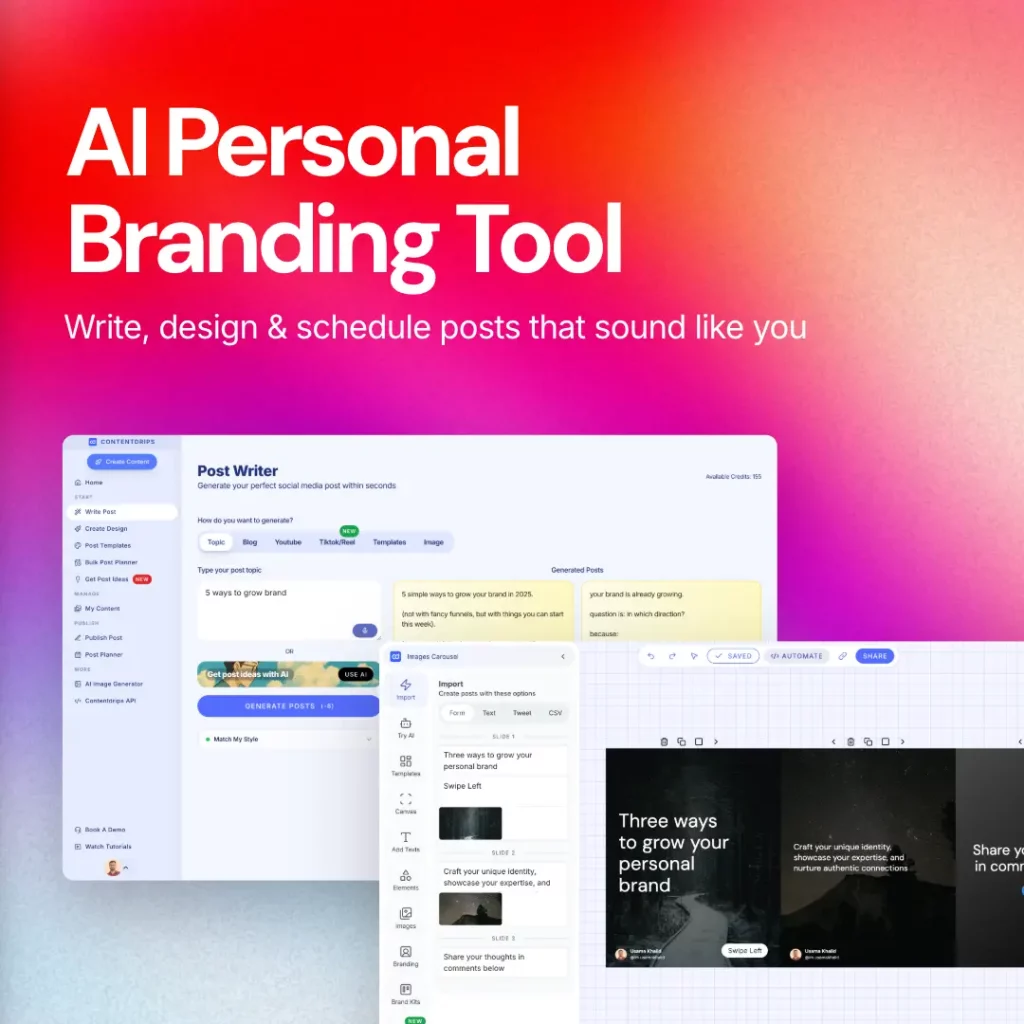
If you want to create, design, and schedule social media content faster, connecting Claude AI to Contentdrips using an MCP (Model Context Protocol) connector is a great choice. Learn more about Contentdrips for Claude.
This guide walks you through setting up Contentdrips inside Claude, generating single-image graphics or swipeable carousel posts, and publishing or scheduling them directly to Instagram and LinkedIn—all from a single chat conversation.
What You Need Before Starting
- A Claude AI account with MCP support (e.g., Claude Desktop or supported interface)
- A Contentdrips account with API access
- A connected Instagram Business or LinkedIn account inside Contentdrips
What is the Contentdrips MCP Connector?
Contentdrips is a dedicated platform for building and publishing high-performing visual content on social media.
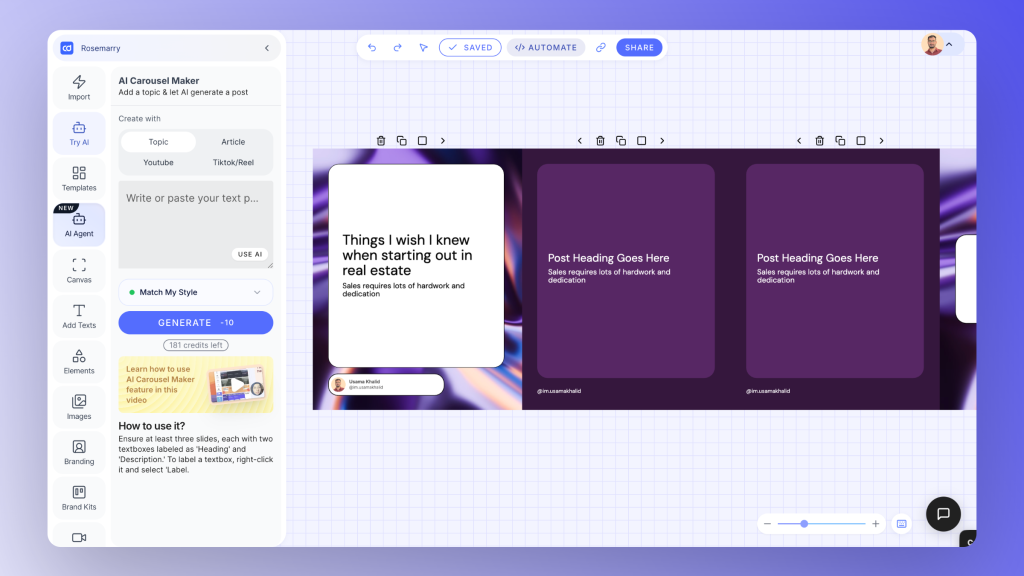
By integrating Contentdrips with Claude using MCP (Model Context Protocol), you enable Claude to interact directly with your design workspace. You can send plain-text prompts to build branded graphics, leverage custom design templates, write engaging captions, and publish live content without leaving your Claude chat interface.
Step 1: Set Up the Contentdrips MCP Connector
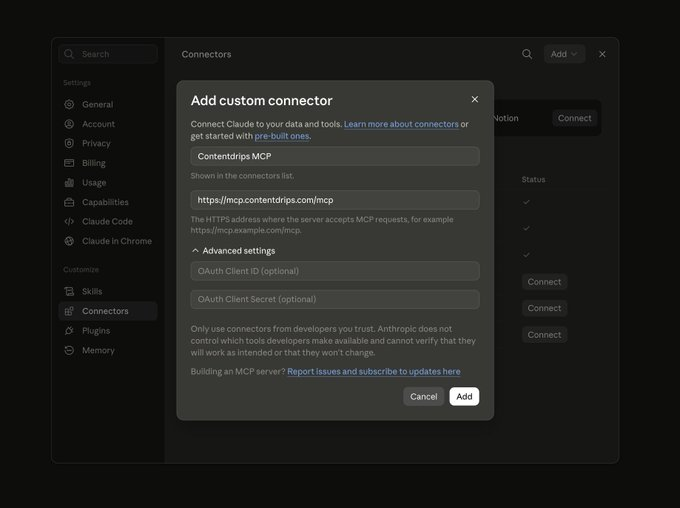
Connecting Contentdrips to Claude takes less than two minutes:
- Open Claude and navigate to Customize > Connectors.
- Click Add Custom Connector.
- Name your connector (e.g.,
Contentdrips) and paste your Contentdrips MCP Server URL. - Retrieve your API Key from your Contentdrips account settings and paste it into the authorization field.
Once connected, Claude automatically syncing with your brand kit—including saved brand colors, custom fonts, logos, and personal design templates.
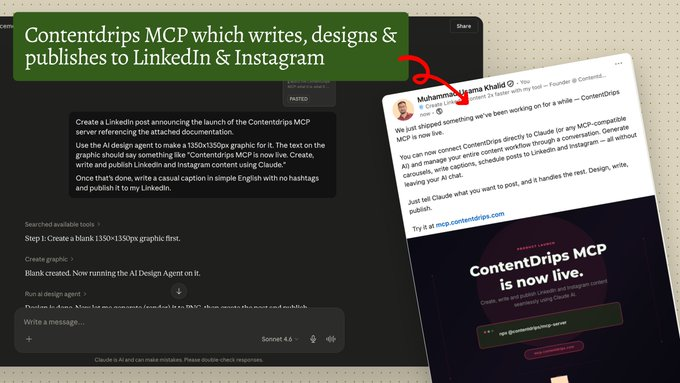
Step 2: Generate Social Media Graphics with Claude
When you prompt Claude to build graphics through Contentdrips, you can specify whether you need a carousel post or a single image graphic. For both formats, Claude can either populate an existing template or build a brand-new layout from scratch.
Option A: Creating Multi-Slide Carousel Posts
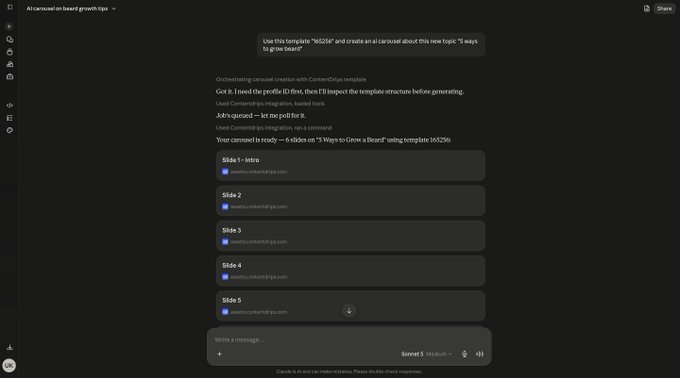
Carousels are ideal for educational content, step-by-step guides, lists, and breaking down long-form text like blog posts.
- Using a Pre-Made Carousel Template: Provide Claude with your Contentdrips Carousel Template ID along with your slide-by-slide copy or topic. Claude retains slide continuity, layout structures, and styling while populating the new content.
- Example Prompt:“Create a 5-slide carousel post about ‘5 Tips for Better Remote Work Habits’ using Carousel Template ID 98765. Populate each slide with one main tip and brief subtext.”
- Generating an AI Carousel from Scratch: If no Template ID is provided, the Contentdrips AI Design Agent generates a unified multi-slide design sequence, automatically maintaining visual consistency (fonts, colors, background elements) across every slide.
- Example Prompt:“Turn this blog post URL into a 6-slide carousel summary. Build a fresh design from scratch using my saved brand colors, and make sure Slide 1 features a bold title headline.”
Option B: Creating Single Image Graphics
Single image posts (1:1 square or 4:5 portrait) work best for quick announcements, quotes, single-stat highlights, or promotional feature spotlights.
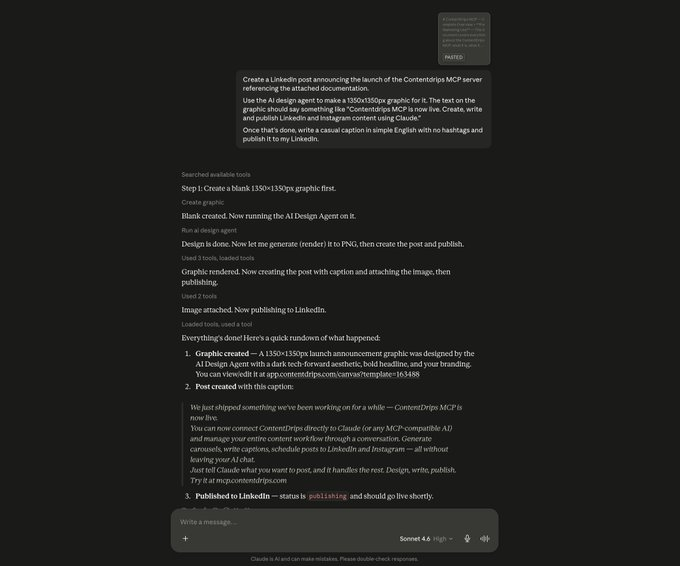
- Using an Existing Graphic Template: Specify a single-post Template ID to instantly insert new copy or images into a tested layout.
- Example Prompt:“Create a single image post for an upcoming webinar using Template ID 12345. Update the headline text to ‘Live Q&A: Master Claude MCP’ and swap the date to ‘Thursday at 2 PM’.”
- Generating a Custom Single Graphic with AI: When creating a post without a template, tell Claude the intended aspect ratio and primary focus of the graphic. The AI Design Agent will format the typography, background, and visual elements to fit your brand kit.
- Example Prompt:“Create a portrait-format Instagram post highlighting our product launch. Use a minimalist design layout, apply my brand’s primary color palette, and insert my saved photo tagged ‘product-shot’.”
Pro-Tip: Need to make a quick design edit? You can right-click any carousel slide or single image preview returned inside Claude to open and tweak it in the Contentdrips web editor before publishing.
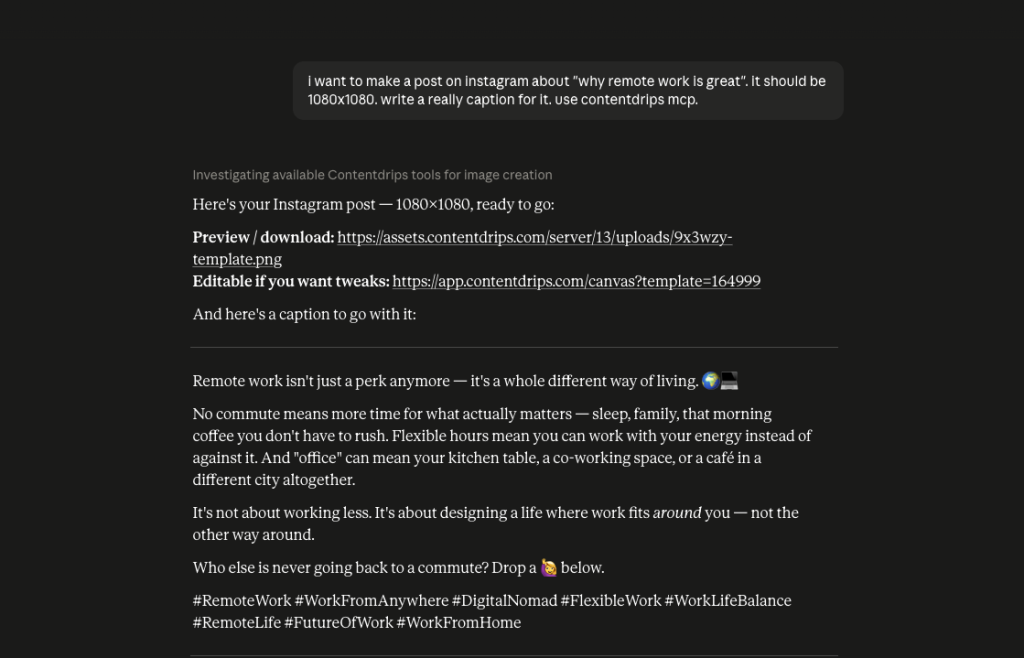
When prompting Claude to build a single graphic or a multi-slide carousel, you can choose between two design workflows.
Workflow A: Using an Existing Template
If you already have a preferred design layout in Contentdrips, provide Claude with your Template ID or template name. Claude will import that layout, retain your custom visual styling, and populate it with new copy and imagery.
- Example Prompt:
“Create a 5-slide carousel post about remote work productivity tips using template ID 12345. Replace the text and images to fit this new topic.”
Workflow B: Generating a Custom AI Design from Scratch
If you do not specify a Template ID, Claude invokes the Contentdrips AI Design Agent. The AI generates an original design layout from scratch while automatically applying your saved brand identity.
- Example Prompt:
“Create a portrait-sized single image Instagram post about my home office setup. Apply my saved brand colors and primary font.”
Pro-Tip: Need to make quick manual adjustments? You can right-click any image preview returned inside Claude to instantly open and fine-tune it in the Contentdrips web editor.
[Image Screenshot: Single image post and multi-slide carousel preview generated directly inside Claude]
Step 3: Write Captions and Publish Live
Once your graphics are generated, you can push them live across social networks without downloading files or switching tabs:
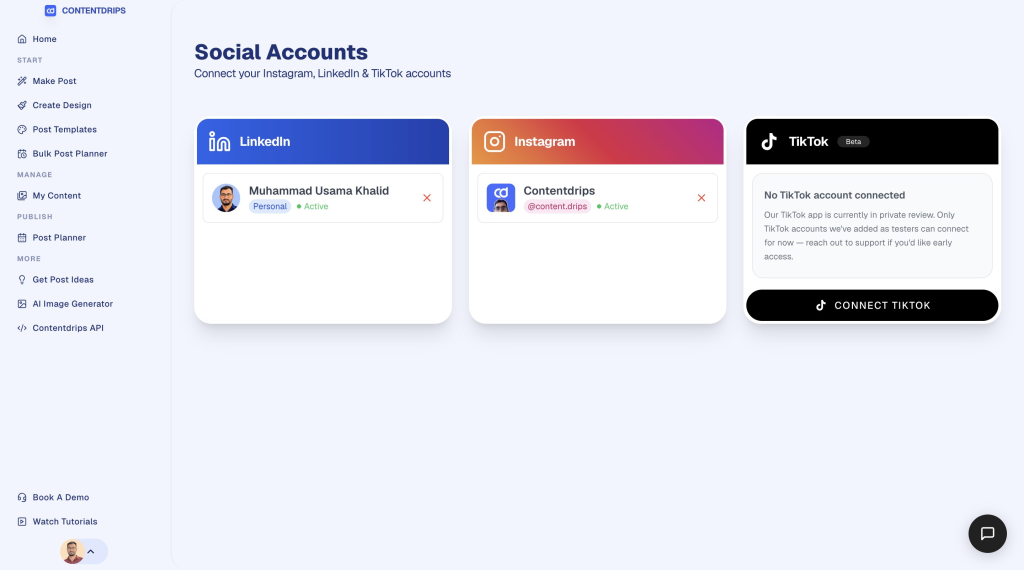
- Verify your social channels are connected under Contentdrips > Social Accounts.
- Prompt Claude:
“Write an engaging caption with relevant hashtags and publish this post to my Instagram account right now.”
Claude analyzes the visual content, generates an aligned caption, and publishes the post live to your Instagram feed immediately.
Step 4: Schedule Social Media Posts for Later
To batch-create content and maintain a consistent posting schedule:
- Generate your single image post or carousel using a Template ID or the AI Design Agent.
- Ask Claude to provide 2–3 caption variations.
- Select your preferred caption and specify your desired publish date and time.
- Example Prompt:
“Schedule this carousel post for tomorrow at 1:00 PM EST.”
Claude queues the content, and you can manage or edit scheduled items at any time within your Contentdrips dashboard.
[Image Screenshot: Scheduled carousel post preview and confirmation status in Contentdrips]
Advanced Features & Workflow Hacks
- Smart Photo Matching: Tag uploaded photos in your Contentdrips media library (e.g., label images as
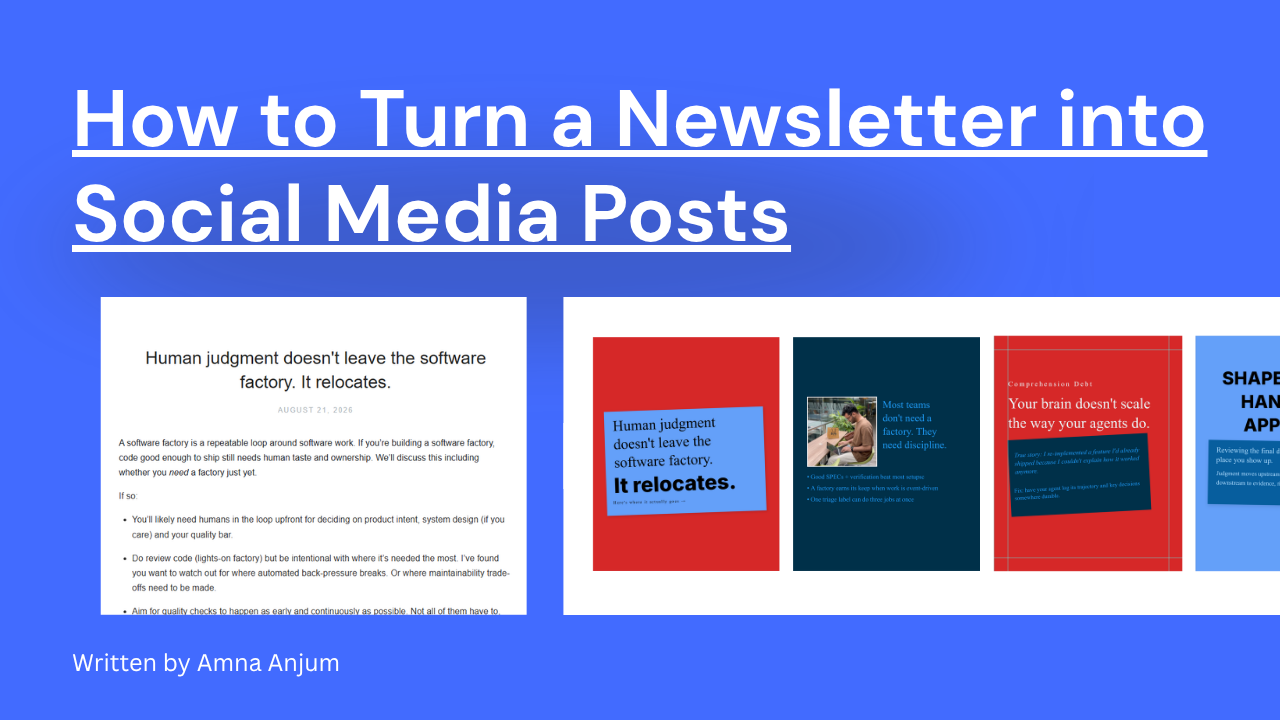
"headshot","workspace", or"product"). When prompting Claude, it dynamically pulls the correct image based on your tag. - Repurpose Blog Posts into Carousels: Paste an article URL directly into Claude and ask it to break the core takeaways into a multi-slide carousel design using your Contentdrips template.
Summary
Integrating Claude with Contentdrips streamlines social media production by unifying copywriting, graphic design, and publishing into a single AI chat workflow. Whether swapping text into proven templates or generating custom visuals on the fly, you can go from concept to published post in minutes.
Frequently Asked Questions (FAQ)
Yes. The Contentdrips MCP integration supports publishing and scheduling directly to both Instagram and LinkedIn.
Not at all. You can rely entirely on pre-made Contentdrips templates or let the AI Design Agent build layouts for you while automatically adhering to your brand guidelines.
Yes. Claude provides a direct preview link for every generated graphic. Clicking the preview opens the design in the Contentdrips editor for any manual tweaks before publishing.
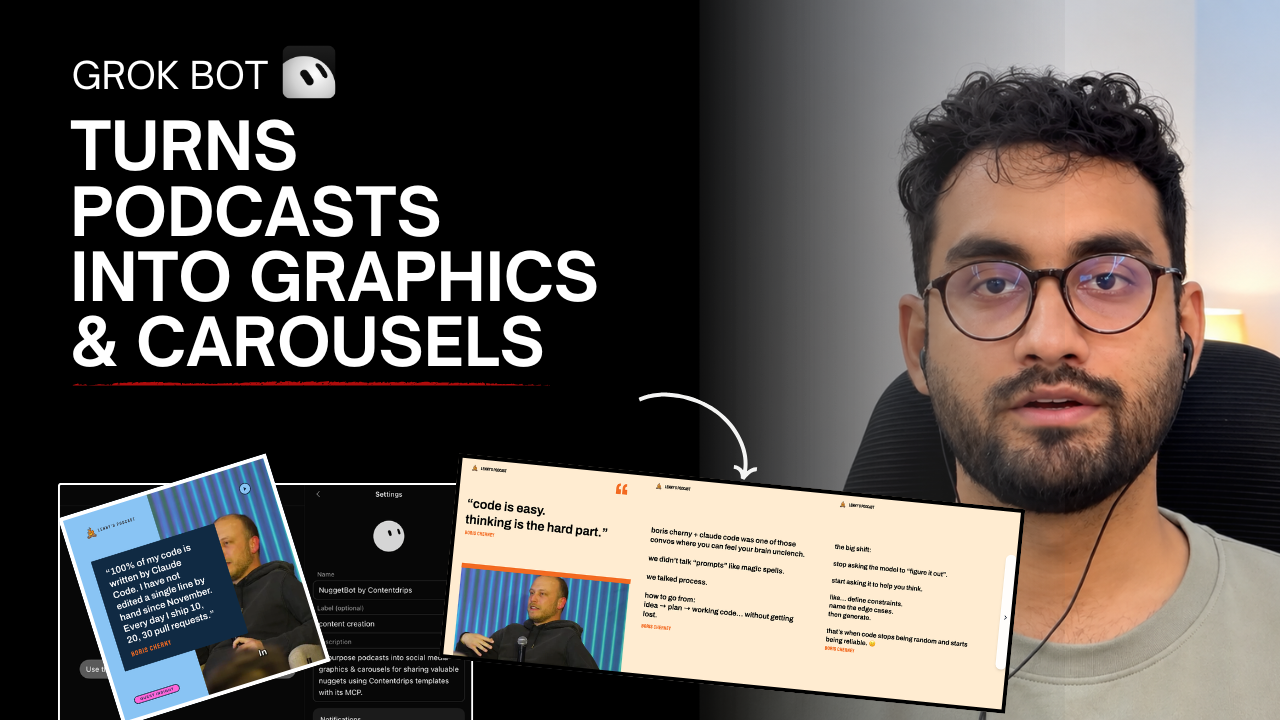
Watch this Youtube:

Muhammad Usama Khalid is the Founder and CEO of Contentdrips, building the platform since 2019 to help creators write, design, and publish social content in one place. He has a sharp sense of what makes carousels, posts, and graphics perform across platforms like Instagram and LinkedIn. Under his lead, Contentdrips has grown to serve over 100,000 creators worldwide.