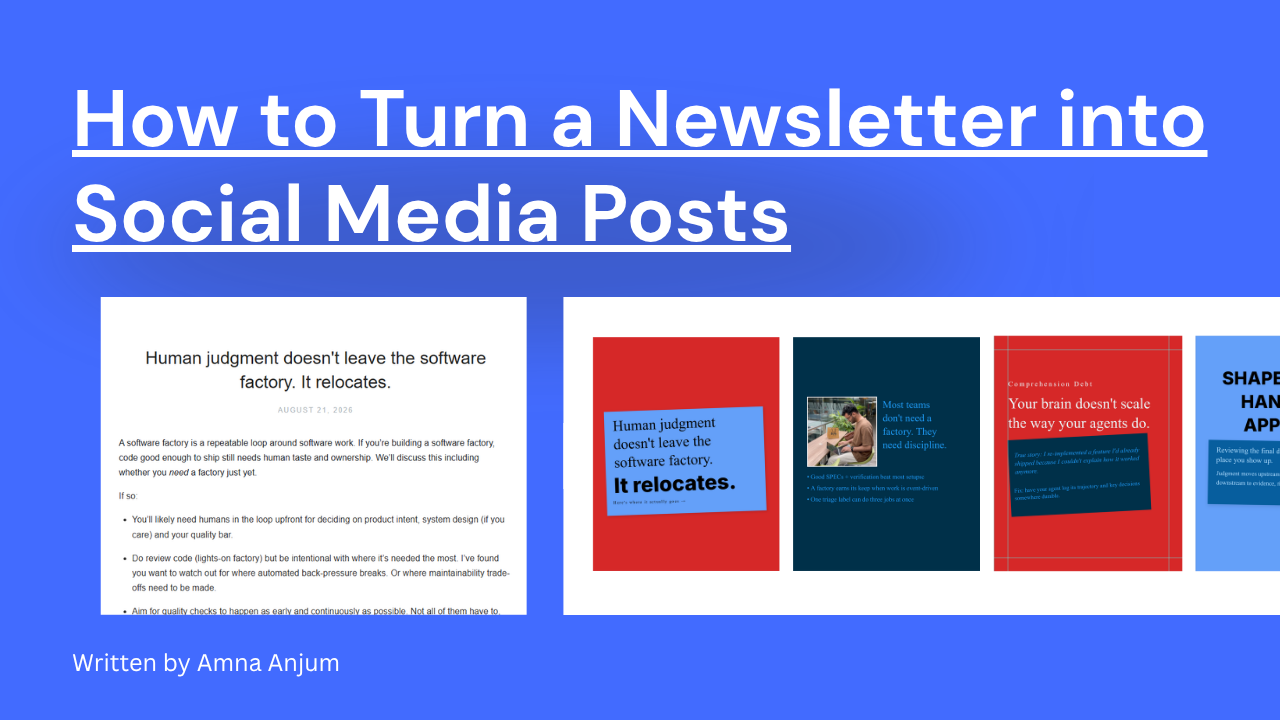
LinkedIn carousels are the fastest-growing content format on the platform. They get 3x more engagement than single-image posts and drive more profile visits than any other format.
But here’s the problem: designing carousels from scratch takes 30-60 minutes. Most creators don’t have that kind of time.
That’s where templates come in.
This guide includes 50+ pre-made LinkedIn carousel templates you can use right now, organized by use case, industry, and goal. Whether you’re a coach, founder, marketer, or creator, there’s a template here that will save you hours.
What You’ll Find
- 50+ carousel templates across 8 categories
- When to use each template type
- Common carousel mistakes to avoid
- How to customize templates for your brand
Why Templates Beat Starting from Scratch
The Time Math:
- Designing a carousel from scratch: 45-60 minutes
- Using a pre-made template: 5-10 minutes
- Time saved per carousel: 40+ minutes
The Quality Advantage:
- Templates are designed by professionals
- Proven layouts that drive engagement
- Consistent branding across all posts
- No design experience required
The Strategic Benefit:
- Spend time on content, not design
- Test different formats faster
- Maintain consistency across your profile
- Scale content production without burnout
Most top LinkedIn creators don’t design from scratch. They use template systems to maintain quality while posting consistently.
Template Category 1: Instagram & LinkedIn Carousels
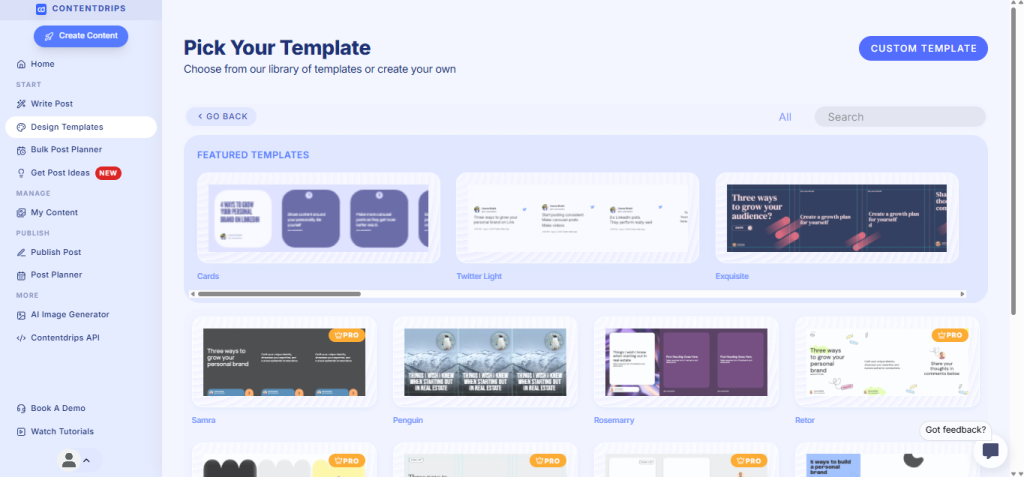
These templates are perfect for teaching concepts, sharing frameworks, or breaking down complex topics.
Template 1: The Step-by-Step Guide
Best for: Tutorials, how-to content, processes
Structure:
- Slide 1: “How to [achieve result] in [timeframe]”
- Slides 2-8: One step per slide with clear action items
- Slide 9: Common mistakes to avoid
- Slide 10: CTA or next steps
Example topics:
- “How to write a viral LinkedIn post in 15 minutes”
- “How to build an email list from LinkedIn”
- “How to create carousels that convert”
Design elements: Numbered steps, icons for each action, progress bar
Template 2: The Framework Breakdown
Best for: Business models, strategies, methodologies
Structure:
- Slide 1: “The [Framework Name] Framework”
- Slides 2-7: Each component of the framework
- Slide 8: How to implement it
- Slide 9: Real-world example
- Slide 10: CTA
Example topics:
- “The Content Flywheel Framework”
- “The LinkedIn Growth Strategy”
- “The 4-Hour Workweek for Creators”
Design elements: Diagrams, flowcharts, visual hierarchy
Template 3: The Mistake List
Best for: Helping audience avoid common errors
Structure:
- Slide 1: “X Mistakes [Audience] Make on LinkedIn”
- Slides 2-9: One mistake per slide + how to fix it
- Slide 10: “Start fixing these today”
Example topics:
- “7 LinkedIn Profile Mistakes Costing You Clients”
- “10 Carousel Design Mistakes Killing Your Engagement”
- “5 Content Mistakes Keeping You Invisible”
Design elements: Red X icons, before/after comparisons, warning colors
Template 4: The Myth Buster
Best for: Challenging conventional wisdom
Structure:
- Slide 1: “X Myths About [Topic]”
- Slides 2-9: Myth vs Reality format
- Slide 10: “What to do instead”
Example topics:
- “5 Myths About LinkedIn Algorithms”
- “Content Creation Myths Holding You Back”
- “The Truth About Going Viral on LinkedIn”
Design elements: Split screens, contrasting colors, myth/truth labels
Template 5: The Checklist
Best for: Actionable resources people will save
Structure:
- Slide 1: “The Ultimate [Topic] Checklist”
- Slides 2-9: Checkbox items with brief explanations
- Slide 10: “Download the full checklist” CTA
Example topics:
- “LinkedIn Profile Optimization Checklist”
- “Pre-Publish Content Checklist”
- “LinkedIn Engagement Checklist”
Design elements: Checkboxes, clean lists, iconography
Template Category 2: Storytelling Carousels
These templates help you share personal stories, case studies, and transformations.
Template 6: The Transformation Story
Best for: Before/after narratives, personal growth
Structure:
- Slide 1: “X months ago, I was…”
- Slides 2-4: The struggle
- Slides 5-7: What changed
- Slides 8-9: The results
- Slide 10: “Here’s what I learned”
Example topics:
- “From 500 to 50K followers in 6 months”
- “How I quit my job and went full-time as a creator”
- “My LinkedIn growth journey”
Design elements: Timeline graphics, contrasting colors for before/after
Template 7: The Case Study
Best for: Showcasing client results, proof of concept
Structure:
- Slide 1: “How [Client] achieved [Result]”
- Slide 2: The challenge
- Slides 3-6: The strategy/process
- Slides 7-8: The results (with numbers)
- Slide 9: Key takeaways
- Slide 10: “Want similar results?”
Example topics:
- “How we helped a B2B founder get 100K impressions/month”
- “Case study: LinkedIn content that generated $50K in sales”
Design elements: Data visualizations, client testimonials, metrics
Template 8: The Day-in-the-Life
Best for: Building relatability, showing your process
Structure:
- Slide 1: “A day in my life as a [role]”
- Slides 2-9: Hourly or activity-based breakdown
- Slide 10: “What’s your schedule look like?”
Example topics:
- “What a content creator’s day actually looks like”
- “How I manage 3 businesses and LinkedIn”
Design elements: Time stamps, activity icons, casual photography
Template Category 3: Data & Insights Carousels
These templates help you present statistics, research, and findings.
Template 9: The Stats Showcase
Best for: Sharing research, industry data
Structure:
- Slide 1: “X Stats Every [Audience] Needs to Know”
- Slides 2-9: One stat per slide with context
- Slide 10: “What this means for you”
Example topics:
- “10 LinkedIn Algorithm Stats from 2025”
- “Creator Economy Statistics That Will Surprise You”
Design elements: Large numbers, data visualization, source citations
Template 10: The Trend Report
Best for: Industry insights, what’s working now
Structure:
- Slide 1: “What’s Working on LinkedIn Right Now”
- Slides 2-8: One trend per slide with examples
- Slide 9: “What’s dying”
- Slide 10: “How to adapt”
Example topics:
- “LinkedIn Content Trends for 2025”
- “What Top Creators Are Doing Differently”
Design elements: Graphs, trend arrows, comparison charts
Template Category 4: List & Roundup Carousels
These templates organize resources, tools, or ideas into digestible lists.
Template 11: The Tool Stack
Best for: Sharing resources, recommendations
Structure:
- Slide 1: “X Tools I Use Every Day for [Goal]”
- Slides 2-9: One tool per slide with what it does
- Slide 10: “Honorable mentions”
Example topics:
- “10 Tools Every LinkedIn Creator Needs”
- “My Content Creation Tech Stack”
- “Free LinkedIn Tools You’re Sleeping On”
Design elements: Tool logos, feature callouts, pricing info
Template 12: The Resource Library
Best for: Curated collections, reading lists
Structure:
- Slide 1: “X Resources to [Achieve Goal]”
- Slides 2-9: One resource per slide (books, courses, creators, etc.)
- Slide 10: “Start with these first”
Example topics:
- “10 Books Every Entrepreneur Should Read”
- “LinkedIn Creators Worth Following”
Design elements: Book covers, profile pictures, star ratings
Template 13: The Best Practices List
Best for: Actionable tips, optimization advice
Structure:
- Slide 1: “X Best Practices for [Topic]”
- Slides 2-9: One best practice per slide
- Slide 10: “Which one will you implement first?”
Example topics:
- “LinkedIn Posting Best Practices for 2025”
- “Carousel Design Best Practices”
Design elements: Icons, checkmarks, highlighted tips
Template Category 5: Comparison Carousels
These templates help you compare options, strategies, or approaches.
Template 14: The A vs B Comparison
Best for: Helping audience choose between options
Structure:
- Slide 1: “[Option A] vs [Option B]”
- Slides 2-8: Feature-by-feature comparison
- Slide 9: “Which is right for you”
- Slide 10: Recommendation based on use case
Example topics:
- “LinkedIn Carousels vs Videos: Which Performs Better?”
- “Contentdrips vs Canva for LinkedIn Creators”
Design elements: Split-screen layouts, vs. graphics, comparison tables
Template 15: The Tier List
Best for: Ranking strategies, tools, or approaches
Structure:
- Slide 1: “Ranking [Items] from Best to Worst”
- Slides 2-9: Items organized in tiers (S, A, B, C, D, F)
- Slide 10: “Where would you rank these?”
Example topics:
- “Ranking LinkedIn Content Formats by ROI”
- “Every LinkedIn Feature Ranked”
Design elements: Tier graphics, color-coded rankings
Template Category 6: Quote & Inspiration Carousels
These templates feature memorable quotes, insights, or motivational content.
Template 16: The Quote Collection
Best for: Thought leadership, inspiration
Structure:
- Slide 1: “X Quotes That Changed How I Think About [Topic]”
- Slides 2-9: One quote per slide with context
- Slide 10: “Which one hit hardest?”
Example topics:
- “10 Quotes on Content Creation”
- “Wisdom from Top Entrepreneurs”
Design elements: Large typography, minimal backgrounds, attribution
Template 17: The Lesson Learned
Best for: Sharing hard-won wisdom
Structure:
- Slide 1: “X Lessons I Learned the Hard Way”
- Slides 2-9: One lesson per slide with short story
- Slide 10: “Save yourself the pain—learn from my mistakes”
Example topics:
- “10 Lessons from Building a 6-Figure Business”
- “What 1,000 LinkedIn Posts Taught Me”
Design elements: Story-based visuals, personal photos, handwritten fonts
Template Category 7: Engagement & Viral Carousels
These templates are optimized for maximum engagement and shares.
Template 18: The Hot Take
Best for: Sparking conversation, standing out
Structure:
- Slide 1: “Unpopular opinion: [Controversial statement]”
- Slides 2-7: Why you believe this
- Slide 8: The counterargument
- Slide 9: Why you still disagree
- Slide 10: “Change my mind”
Example topics:
- “Unpopular Opinion: Daily Posting Is Overrated”
- “Hot Take: You Don’t Need 10K Followers to Make Money”
Design elements: Bold typography, contrasting colors, fire emojis
Template 19: The Fill-in-the-Blank
Best for: Driving comment engagement
Structure:
- Slide 1: “Fill in the blank!”
- Slides 2-9: Prompts that require audience input
- Slide 10: “Drop your answers in the comments”
Example topics:
- “My biggest content struggle is __“
- “If I could change one thing about LinkedIn it would be __“
Design elements: Blank spaces, playful fonts, interactive elements
Template 20: The This or That
Best for: Quick engagement, polls
Structure:
- Slide 1: “This or That: [Topic] Edition”
- Slides 2-9: Binary choices with fun graphics
- Slide 10: “Comment your answers!”
Example topics:
- “This or That: Content Creator Edition”
- “LinkedIn Content Preferences”
Design elements: Split screens, option buttons, playful design
Template Category 8: Industry-Specific Carousels
Pre-made templates for specific niches and industries.
Templates for Coaches & Consultants
- Client transformation templates
- Testimonial showcase templates
- Framework breakdown templates
- Authority-building templates
Templates for SaaS Founders
- Product update templates
- Feature comparison templates
- Use case showcase templates
- Customer success story templates
Templates for Marketers
- Campaign results templates
- Strategy breakdown templates
- Tool recommendation templates
- Trend analysis templates
Templates for Creators
- Behind-the-scenes templates
- Growth milestone templates
- Creator economy insights templates
- Monetization breakdown templates
Templates for Job Seekers
- Career journey templates
- Skills showcase templates
- Portfolio highlight templates
- Interview tip templates
When to Use Each Template Type
| Template Type | Best For | Post Frequency |
||-|-|
| Educational | Building authority | 2-3x/week |
| Storytelling | Connection & relatability | 1-2x/week |
| Data & Insights | Thought leadership | 1x/week |
| Lists & Roundups | Providing value | 2x/week |
| Comparisons | Helping decision-making | 1x/week |
| Quotes | Engagement filler | 1x/week |
| Viral/Engagement | Growing reach | 1x/week |
| Industry-Specific | Niche authority | 2x/week |
Pro tip: Rotate between 3-4 template types to keep your content fresh and appeal to different audience segments.
How to Customize Templates for Your Brand
Even with pre-made templates, customization is key to standing out.
Step 1: Apply Your Brand Colors
- Replace template colors with your brand palette
- Maintain consistency across all posts
- Use 2-3 primary colors maximum
Step 2: Add Your Logo or Branding
- Include a small logo on slide 10
- Add your handle or website
- Use consistent fonts that match your brand
Step 3: Adapt Tone and Voice
- Rewrite template copy in your voice
- Add personality and personal touches
- Remove generic placeholder text
Step 4: Add Unique Elements
- Include your photo where relevant
- Add custom icons or illustrations
- Incorporate brand-specific graphics
Step 5: Test and Iterate
- Post different templates
- Track which styles get the most engagement
- Double down on what works for your audience
Common Carousel Template Mistakes
❌ Mistake 1: Using Templates Without Customization
The problem: Your carousels look generic and blend in with everyone else’s.
The fix: Always customize with your brand colors, fonts, and voice. Templates are a starting point, not the finish line.
❌ Mistake 2: Overcomplicating the Design
The problem: Too many fonts, colors, and elements make slides hard to read.
The fix: Keep it simple. One idea per slide. Maximum 2-3 colors. Consistent fonts.
❌ Mistake 3: Ignoring Mobile Preview
The problem: Text is too small or elements are cut off on mobile.
The fix: Always preview your carousel on mobile before posting. LinkedIn is primarily mobile.
❌ Mistake 4: Using Low-Quality Images
The problem: Pixelated or blurry images make your content look unprofessional.
The fix: Use high-resolution images (minimum 1080 x 1080 px). Test how they look after LinkedIn compresses them.
❌ Mistake 5: Forgetting the CTA
The problem: Slide 10 doesn’t tell viewers what to do next.
The fix: Always include a clear CTA: follow, comment, share, visit link, download resource, etc.
Where to Find These Templates
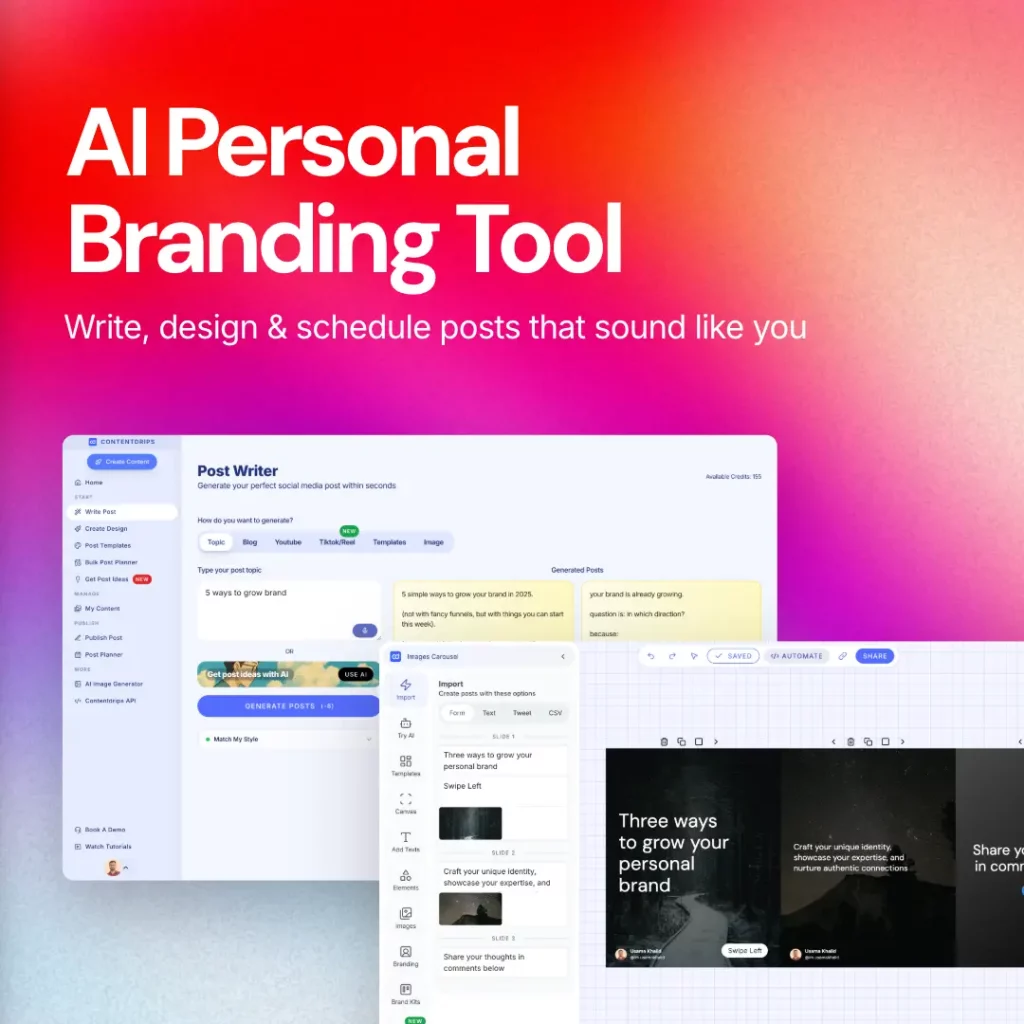
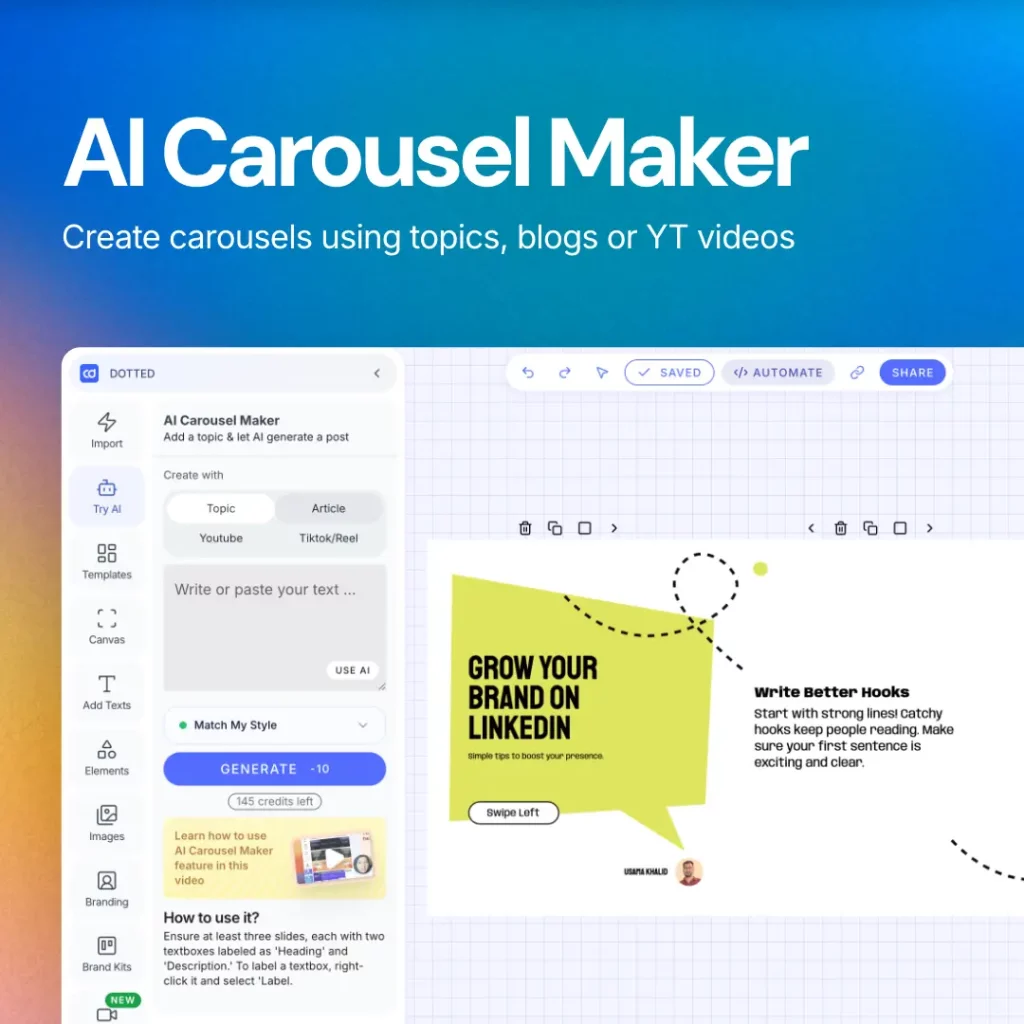
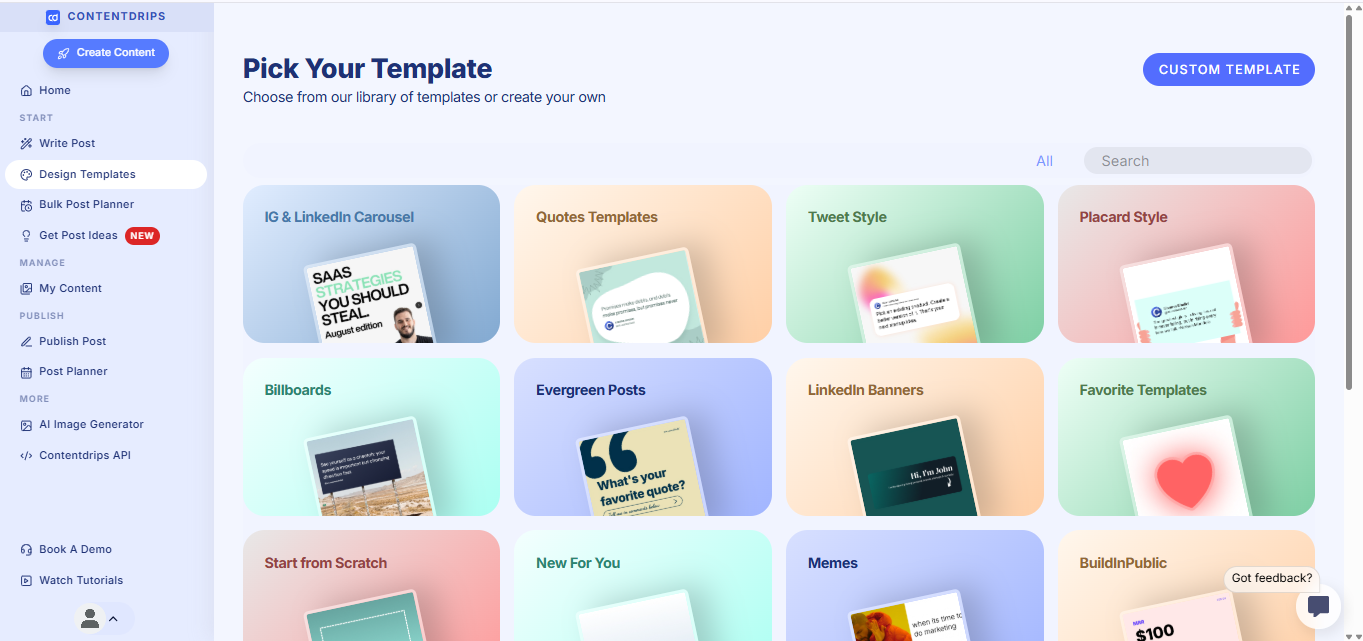
Option 1: Contentdrips Template Library
- 100+ professional LinkedIn carousel templates
- Organized by category and industry
- One-click customization with your branding
- Export to PDF or post directly to LinkedIn
Features:
- All 50+ templates mentioned in this guide
- New templates added weekly
- AI-powered content generation
- Bulk template application
Browse Contentdrips templates →
Option 2: Canva (Free & Pro)
- Search “LinkedIn carousel” in Canva
- Free templates available (limited customization)
- Canva Pro unlocks more options
- Requires manual design work
Option 3: Figma Community
- Free community templates
- Requires Figma account
- More design flexibility
- Steeper learning curve
Option 4: Create Your Own Template System
If you’re creating carousels regularly, build a template library:
- Design 5-10 base templates
- Save as reusable files
- Create a swipe file of successful carousels
- Establish brand guidelines
- Batch-create content using your templates
This approach gives you full control but requires upfront design time.
How to Build a Template-Based Content System
Week 1: Foundation
- Choose 5 template types that fit your content strategy
- Customize them with your branding
- Create 1 carousel with each template
Week 2: Production
- Use templates to create 10 carousels
- Schedule across 2 weeks
- Track performance of each template type
Week 3: Optimization
- Identify which 2-3 templates performed best
- Create variations of winning templates
- Retire underperforming templates
Week 4: Scale
- Batch-create 20 carousels using proven templates
- Schedule 4-6 weeks in advance
- Focus creative energy on new content ideas, not design
Result: Consistent, high-quality carousel output without design bottlenecks.
FAQ: LinkedIn Carousel Templates
Q: Can I use the same template multiple times?
A: Yes! Top creators reuse templates constantly. Just change the content, not the design.
Q: How many templates should I use?
A: Start with 3-5. This gives variety without overwhelming your audience.
Q: Do templates hurt originality?
A: No. Templates handle design so you can focus on original ideas and insights. Your voice makes it unique.
Q: Are free templates good enough?
A: Free templates work for testing. Premium templates (like Contentdrips’) save more time and offer better customization.
Q: How often should I update my templates?
A: Refresh your template system every 3-6 months to stay current with design trends.
Conclusion: Templates Are Your Competitive Advantage
The creators winning on LinkedIn aren’t designing every carousel from scratch. They’re using template systems to scale quality content production.
Quick recap:
- 50+ carousel templates across 8 categories
- Use templates for educational, storytelling, data, lists, comparisons, quotes, engagement, and niche content
- Customize templates with your brand
- Rotate 3-5 template types for variety
- Track performance and double down on what works
Next steps:
- Choose 3 templates that fit your content strategy
- Customize them with your branding
- Create your first carousel in under 10 minutes
- Schedule it for this week
The fastest way to start? Browse 100+ ready-to-use templates in Contentdrips and create your first carousel today.
Stop spending hours on design. Start using templates and focus on what matters: great ideas and consistent execution.

Amna Anjum is an Associate at Contentdrips, working closely with the product and how creators use it day to day. She specializes in social content strategy, with deep knowledge of how carousels, graphics, and threads perform across Instagram, LinkedIn, Twitter, and TikTok. She writes from firsthand experience with the tools and workflows she covers.