LinkedIn carousels are one of the highest-performing content formats on the platform right now. They get 3x more engagement than single-image posts and keep viewers on your content longer.
The best part? You don’t need any design skills to create them. We have shared our personal insights as well.
With millions of ready-made templates available, anyone can create a professional, eye-catching LinkedIn carousel in under 5 minutes — no graphic design experience required.
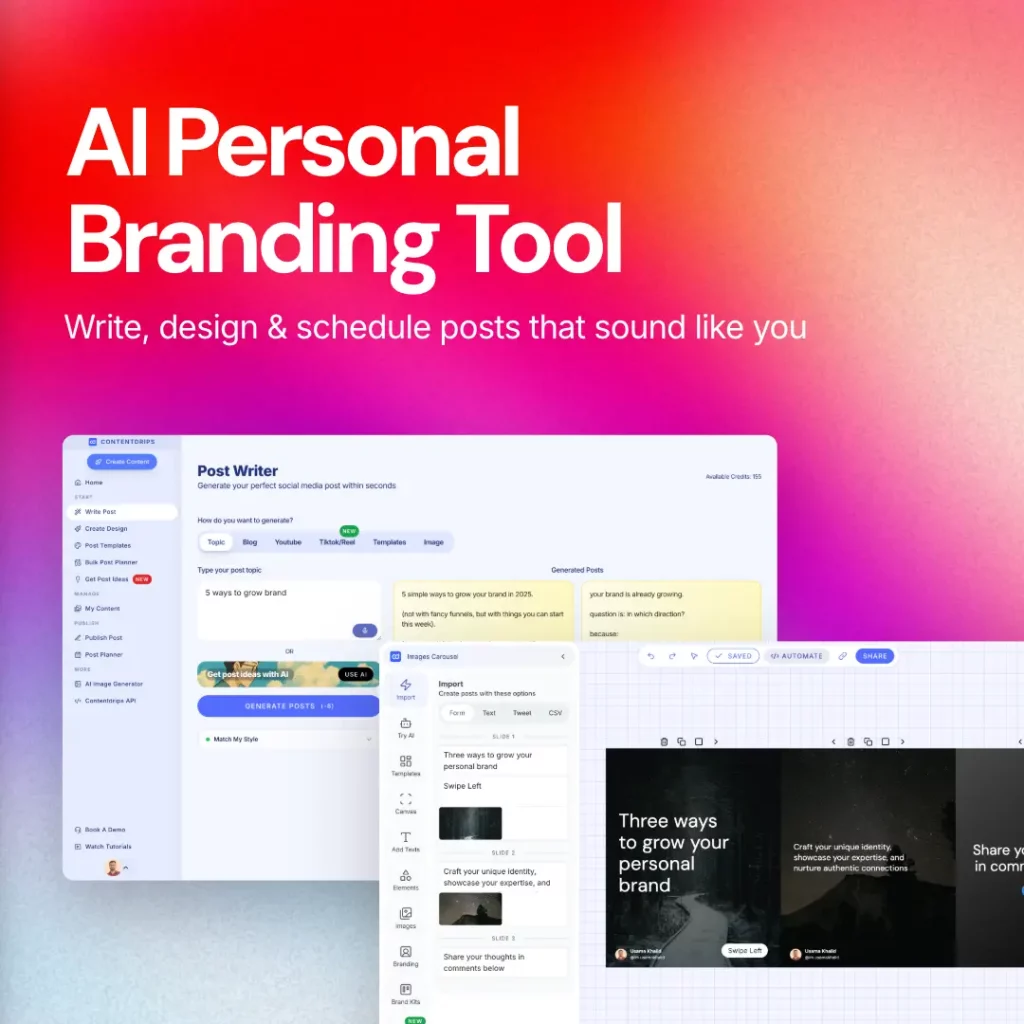
This guide shows you exactly how to create a LinkedIn carousel from scratch, whether you’re a complete beginner or looking to automate the process with tools like Contentdrips.
What You’ll Learn
- How to create a LinkedIn carousel with zero design skills
- Step-by-step carousel creation for beginners (desktop & mobile)
- The fastest way to create carousels using templates
- Common mistakes that kill engagement
- How to automate carousel creation in 5 minutes
Why LinkedIn Carousels Perform So Well
LinkedIn’s algorithm prioritizes dwell time — how long someone stays on your post. Carousels force users to swipe through multiple slides, which signals to LinkedIn that your content is valuable.
The result? More reach, more engagement, and better visibility in the feed.
LinkedIn Carousel Example: See What a High-Performing Post Looks Like
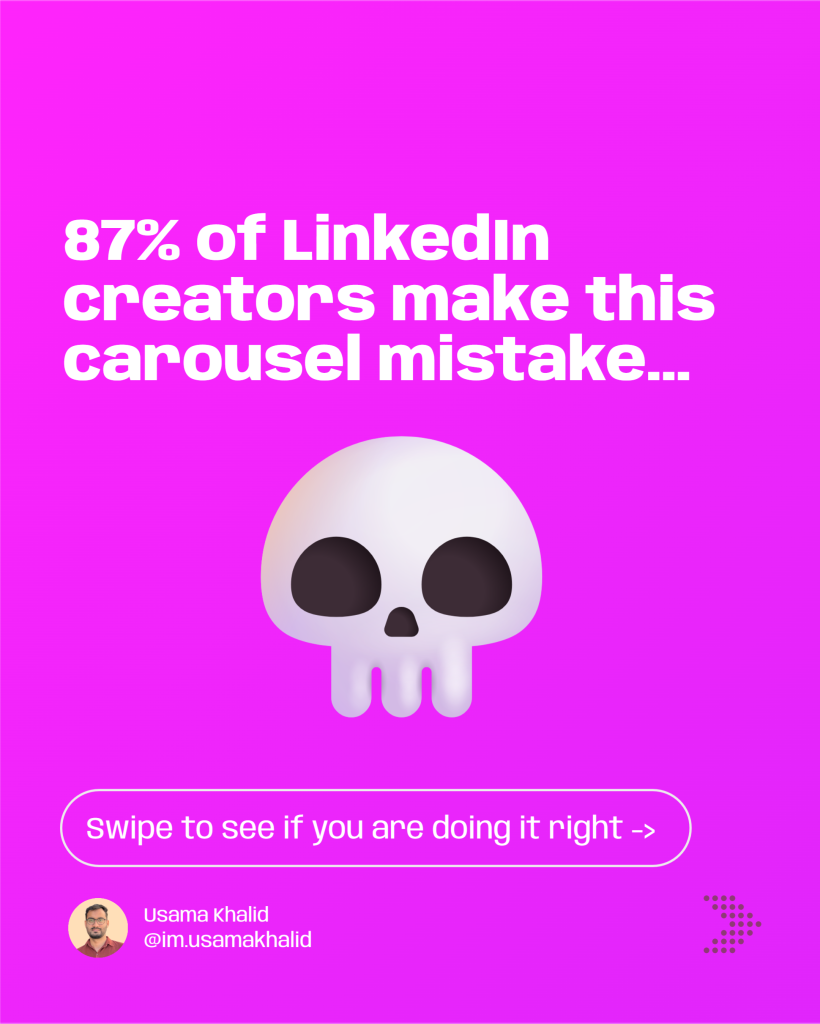
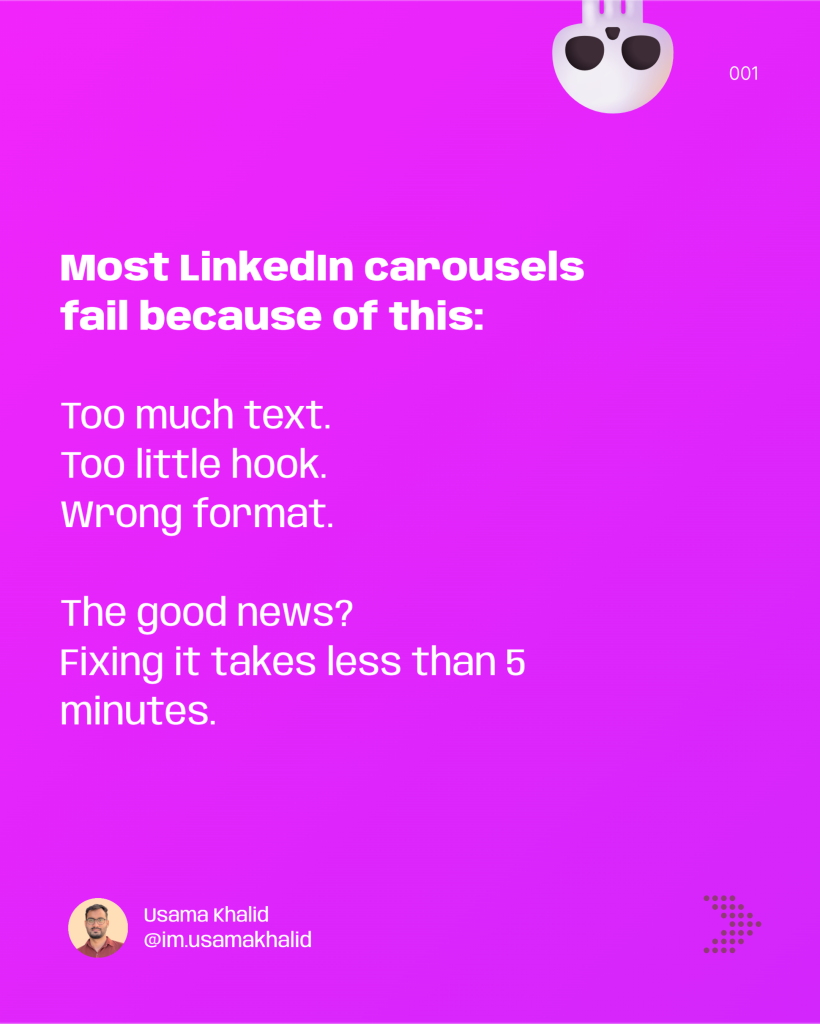
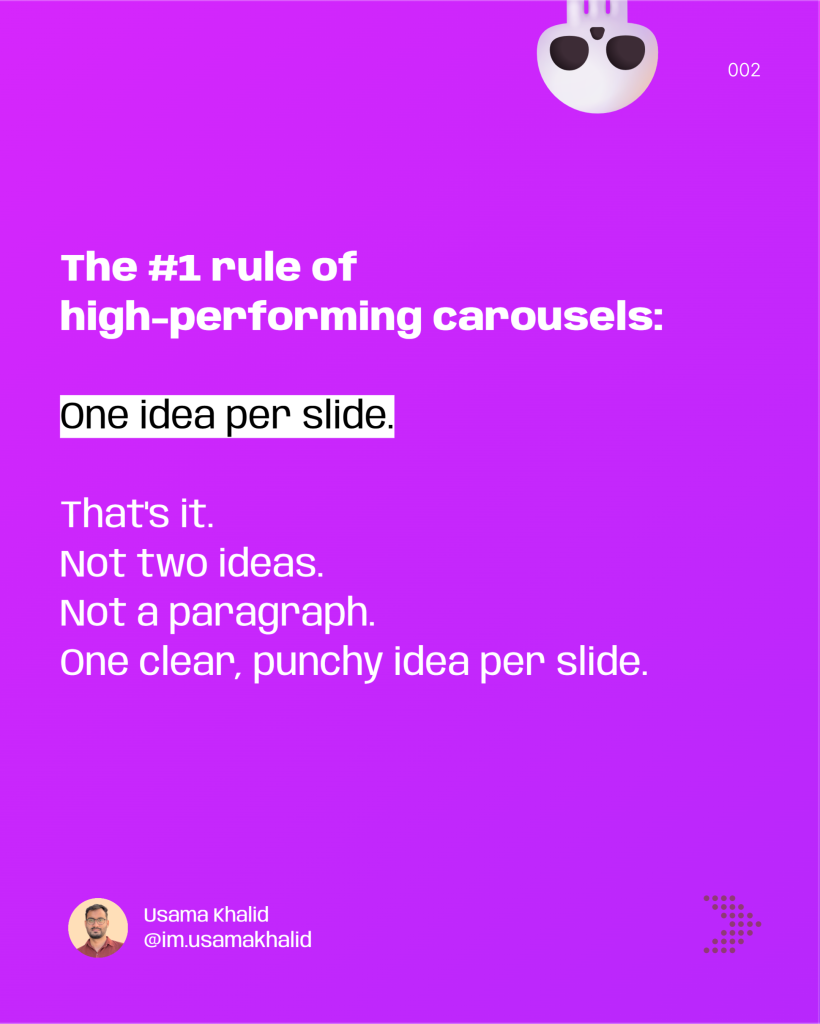
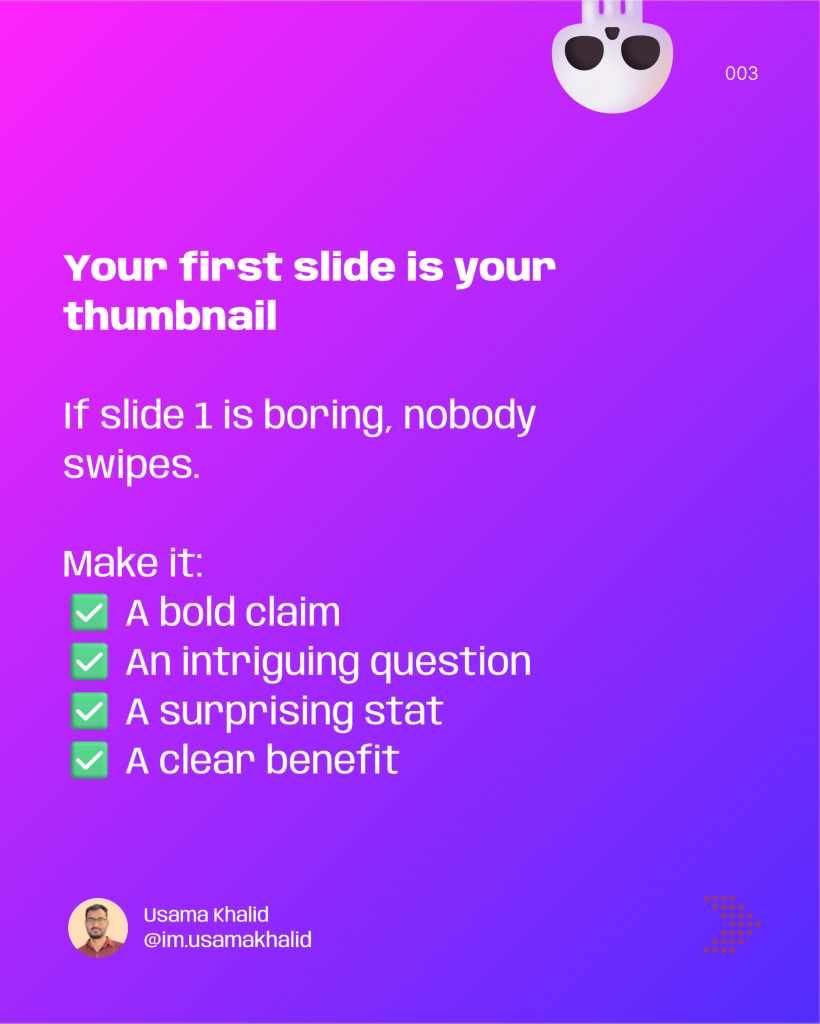
Here’s a real example of a high-performing LinkedIn carousel that applies everything in this guide.
Notice how each slide has one clear idea, a strong hook on slide 1, and a CTA on the last slide. That’s exactly what we’ll show you how to create below.




Step-by-Step: How to Create a LinkedIn Carousel
Method 1: Manual Creation (Free, Takes 30+ Minutes)
Step 1: Design Your Slides
- Open Canva or PowerPoint
- Create slides sized at 1080 x 1080 px (square format works best)
- Design 5-10 slides with one idea per slide
- Keep text large and readable (minimum 40pt font)
Step 2: Export as PDF
- Save your slides as a PDF document
- This is the only format LinkedIn accepts for carousels
Step 3: Upload to LinkedIn
- Click “Start a post”
- Click the document icon
- Upload your PDF
- LinkedIn will automatically convert it to a swipeable carousel
Step 4: Write Your Caption
- Hook in the first line (this appears in the feed)
- Tease what’s inside the carousel
- Add a CTA at the end
Step 5: Publish
- Review how it looks in preview
- Post immediately or schedule
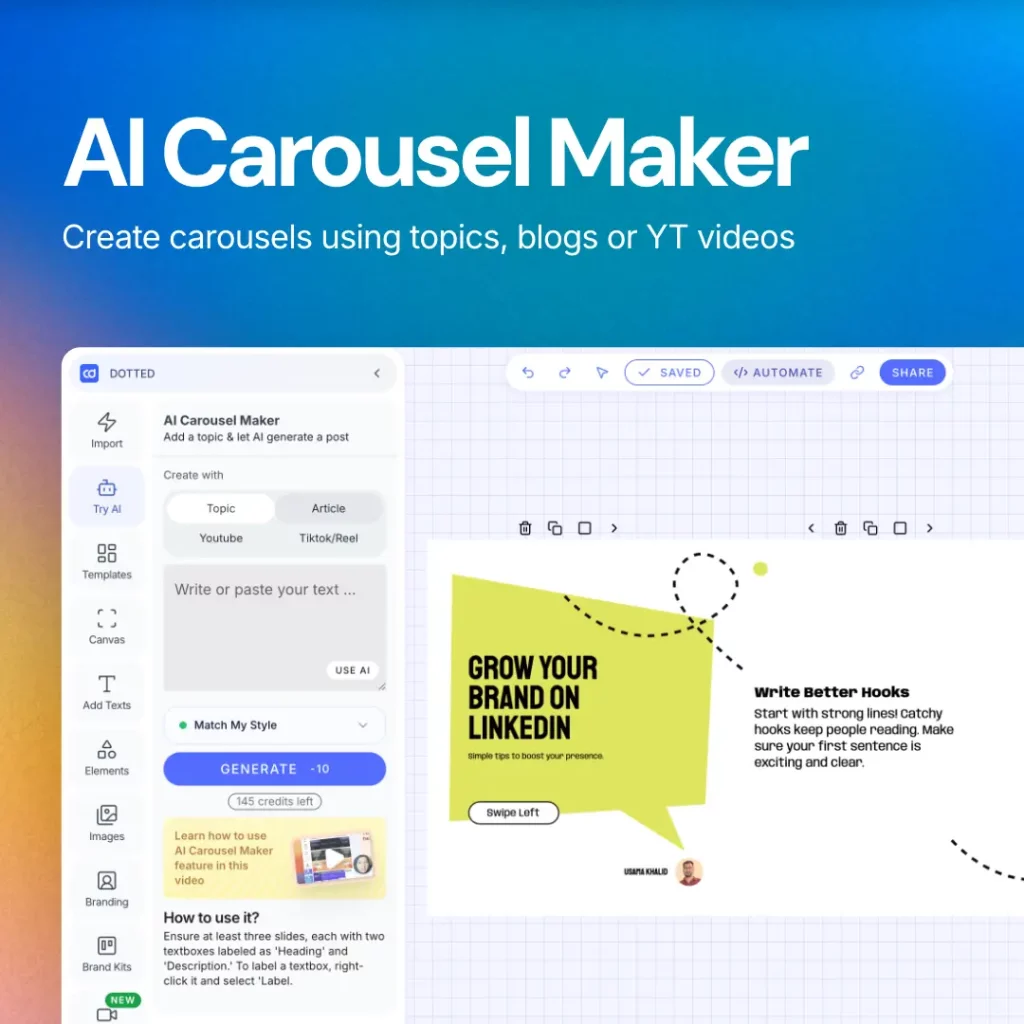
Method 2: AI-Powered Creation (5 Minutes with Contentdrips)
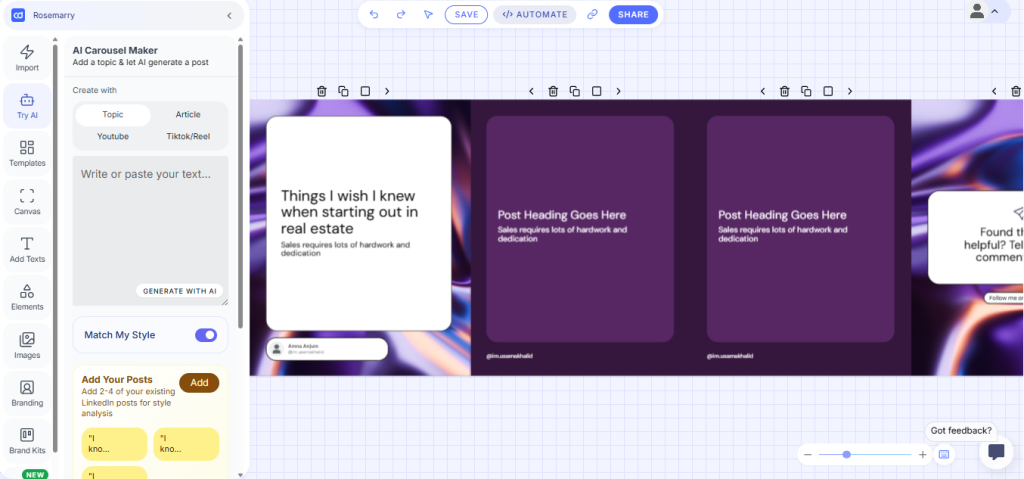
Step 1: Choose Your Starting Point
- Start from a topic, blog article, YouTube video, or trend
- Contentdrips’ AI analyzes the content and structures it into slides
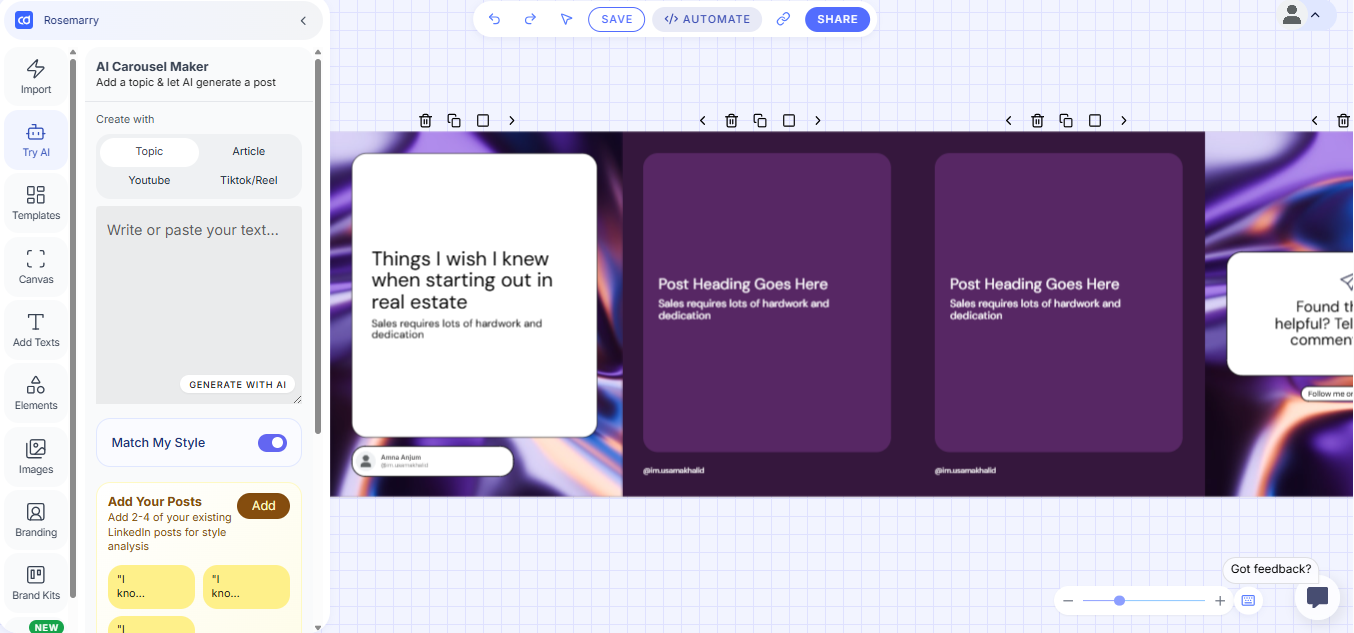
Step 2: Select a Template
- Browse 100+ pre-made carousel templates
- Filter by industry, style, or platform
- One-click apply
Step 3: Auto-Generate Content
- AI converts your source material into carousel slides
- Automatically formats text for readability
- Applies your brand colors and fonts
Step 4: Customize (Optional)
- Edit any slide in the canvas editor
- Adjust layouts, images, backgrounds
- Add elements from the built-in library
Step 5: Export & Post
- Download as PDF for LinkedIn
- Or schedule directly to LinkedIn from Contentdrips
- Done in under 5 minutes
Desktop vs Mobile: Key Differences
| Feature | Desktop | Mobile |
|---|---|---|
| Upload PDF | ✅ Yes | ✅ Yes |
| Preview carousel | ✅ Full preview | ⚠️ Limited preview |
| Edit after posting | ❌ No | ❌ No |
| Schedule posts | ✅ Via tools | ⚠️ Limited |
Pro tip: Always create and upload carousels from desktop for the best experience. Mobile preview doesn’t always show how the carousel will actually look.
Common Mistakes That Kill Carousel Engagement
❌ Mistake 1: Too Much Text Per Slide
The problem: LinkedIn users scroll fast. If slides look dense, they’ll skip.
The fix: Maximum 2-3 short sentences per slide. Use large fonts (50pt+).
❌ Mistake 2: No Hook on Slide 1
The problem: Slide 1 is your thumbnail. If it’s boring, no one clicks.
The fix: Make slide 1 attention-grabbing:
- Bold claim
- Intriguing question
- Surprising stat
- Clear benefit
Example: “87% of LinkedIn users do this wrong” beats “Introduction to LinkedIn Strategy”
❌ Mistake 3: Inconsistent Design
The problem: Random fonts, colors, and layouts make carousels look unprofessional.
The fix: Use a template system or brand kit. Every slide should feel cohesive.
❌ Mistake 4: No CTA on the Last Slide
The problem: You built engagement but didn’t direct it anywhere.
The fix: Always include a final slide with:
- What to do next
- Where to follow you
- How to get more value
❌ Mistake 5: Wrong File Format
The problem: LinkedIn only accepts PDFs for carousels. Uploading images creates a gallery, not a carousel.
The fix: Always export as PDF, not PNG or JPG.
FAQ: LinkedIn Carousel Creation
Q: Can I post a carousel on LinkedIn?
A: Yes, absolutely. LinkedIn supports carousel posts in PDF format. Simply design your slides, export as a PDF, and upload it when creating a post. LinkedIn automatically converts it into a swipe-able carousel.
Q: What is the LinkedIn carousel size for 2026?
A: The recommended LinkedIn carousel size in 2026 is 1080 x 1080 px (square) or 1080 x 1350 px (portrait). Square format tends to perform better in the feed. Make sure your font size is at least 40pt so text is readable on mobile.
Q: How do I download a LinkedIn carousel post?
A: To download a LinkedIn carousel post, click the three dots (⋯) on the post, select “Save to PDF” or “Copy link.” For third party tools, platforms like Contentdrips allow you to download your own carousels directly as PDF files.
Q: How do I create a LinkedIn carousel with no design skills?
A: The easiest way is to use a template-based tool like Contentdrips. Simply choose from millions of ready-made templates, add your content, and export as PDF. No design experience needed — the whole process takes under 5 minutes.
Q: What’s the ideal number of slides?
A: 6-10 slides performs best. Less than 5 feels too short. More than 12 causes drop-off.
Q: Can I edit a carousel after posting?
A: No. LinkedIn doesn’t allow post-publish edits to carousels. You’ll need to delete and repost.
Q: What size should my carousel be?
A: 1080 x 1080 px (square) or 1080 x 1350 px (portrait). Square performs better on LinkedIn.
Q: Do carousels work better than videos?
A: It depends on your audience. Test both. Carousels typically get more saves and shares. Videos get more comments.
Q: Can I schedule carousels?
A: Yes, using tools like Contentdrips, Buffer, or LinkedIn’s native scheduler.
Advanced Tips for High-Performing Carousels
Tip 1: Use the “Curiosity Gap” Technique
End each slide with a teaser for the next one. Example: “But here’s what most people miss…” This increases swipe-through rates.
Tip 2: Add a Pattern Interrupt
On slide 3 or 4, change the design slightly — different background color, pull quote, or unexpected image. This re-engages viewers who are about to scroll away.
Tip 3: Repurpose Everything
One blog post can become:
- A 10-slide carousel
- A video script
- 5 individual posts
- An email newsletter
Tools like Contentdrips automate this repurposing across formats.
Tip 4: Post on Tuesday-Thursday, 8-10 AM
LinkedIn data shows carousels perform best mid-week during work hours when professionals are actively browsing.
Tip 5: Track Saves, Not Just Likes
Saves indicate true value. If your carousel gets saved, LinkedIn’s algorithm will push it to more feeds.
The Fast Way: Automate Your Carousel Workflow
If you’re creating carousels weekly (or daily), manual design becomes a bottleneck.
Contentdrips automates the entire workflow:
- Input: Paste a blog URL, YouTube link, or topic
- AI Processing: Converts content into structured slides
- Design: Auto-applies templates with your branding
- Export: Download PDF or publish directly to LinkedIn
- Time saved: 25+ minutes per carousel
You can also bulk-create 2 weeks of carousels in one session using the Bulk Post Planner.
Conclusion: Start Creating Carousels Today
LinkedIn carousels are no longer optional — they’re one of the fastest ways to grow your presence on the platform.
Quick recap:
- Carousels get 3x more engagement than single posts
- You can create them manually in Canva or automate with tools like Contentdrips
- Avoid common mistakes: too much text, weak hooks, wrong format
- Aim for 6-10 slides with one clear idea per slide
The best time to start? Right now. Pick one piece of existing content and turn it into a carousel this week.
What to do next:
- Bookmark this guide
- Create your first carousel using the steps above
- Or automate the process with Contentdrips API
Need carousel templates to get started? Check out our library of 100+ LinkedIn carousel templates.