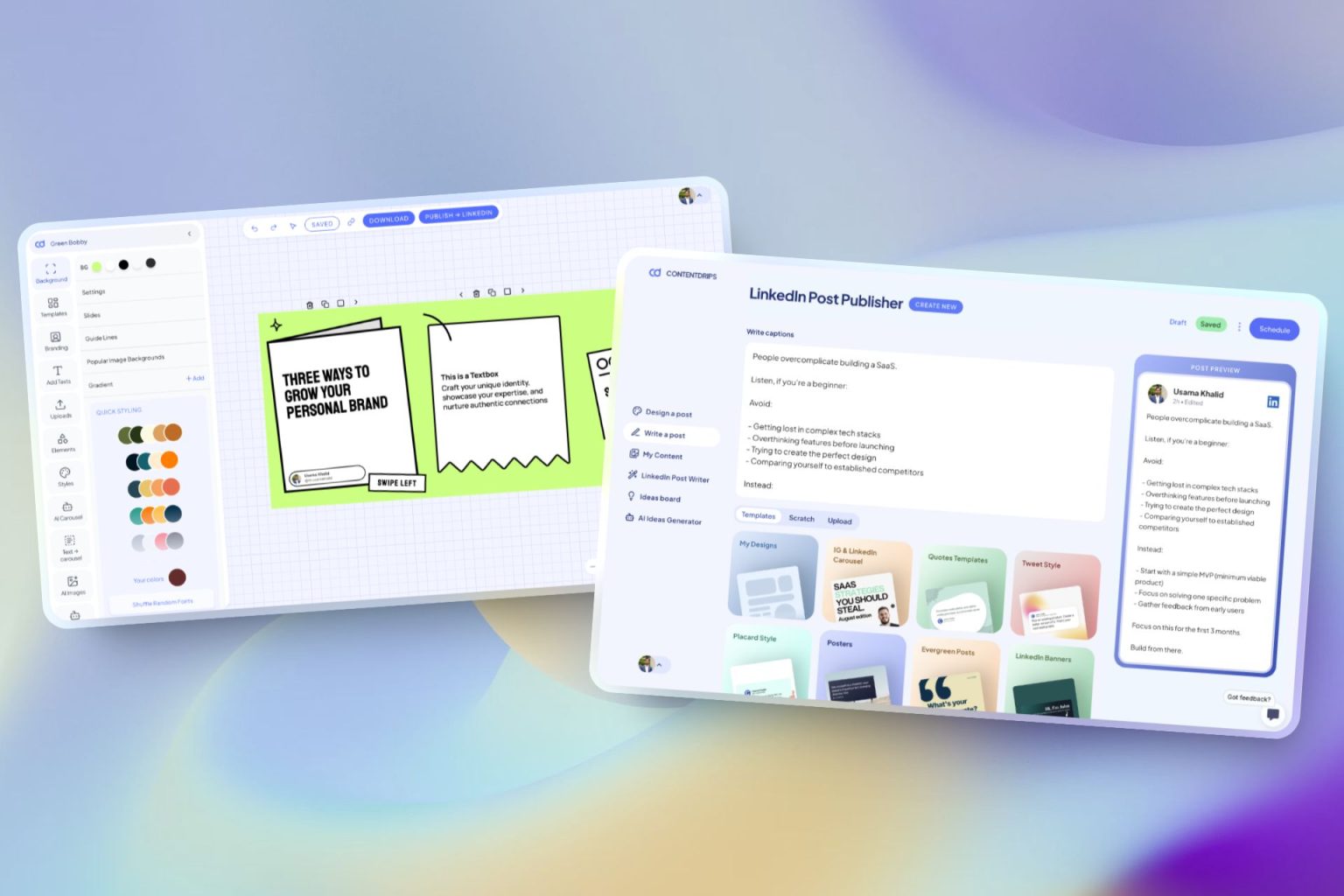
New Launch: AI Social Media Post Generator –Try for Free➜

Free AI Infographic Generator.
Describe It. AI Builds It. Done.

No design skills required. Describe your infographic and AI builds it instantly. Or paste a blog, YouTube, Reel, or TikTok link and let AI turn your existing content into a stunning infographic.
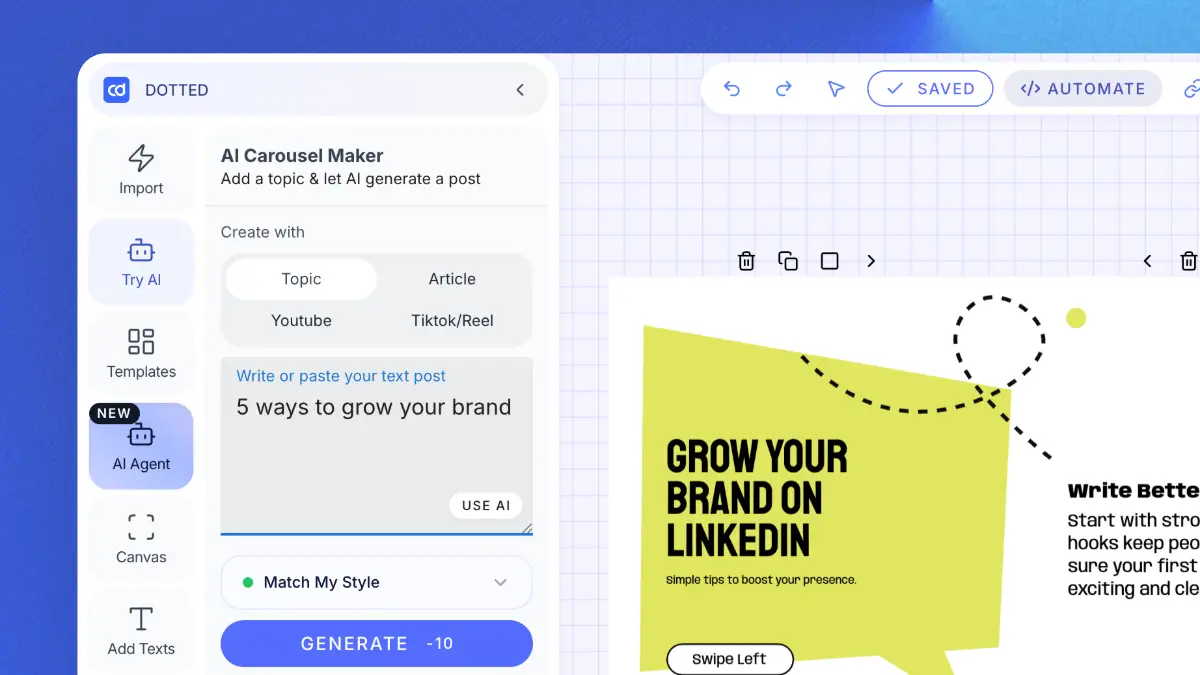
How to Use This Free AI Infographic Maker

Two ways to start. Three steps to finish. No design experience needed.

Choose Your Starting Point

Describe your infographic from scratch — no template needed. Or pick a template from the library and paste a blog, video, or social media link.

AI Designs It Instantly

The AI handles layout, typography, color, icons, and visual hierarchy automatically. No drag and drop. No blank canvas staring back at you.

Edit, Download, and Publish

Every element is fully editable on the canvas. Adjust text, swap colors, change fonts. Then download as PNG or PDF and use it anywhere.

Two Ways to Start

Everyone arrives with something different. The tool meets you where you are.

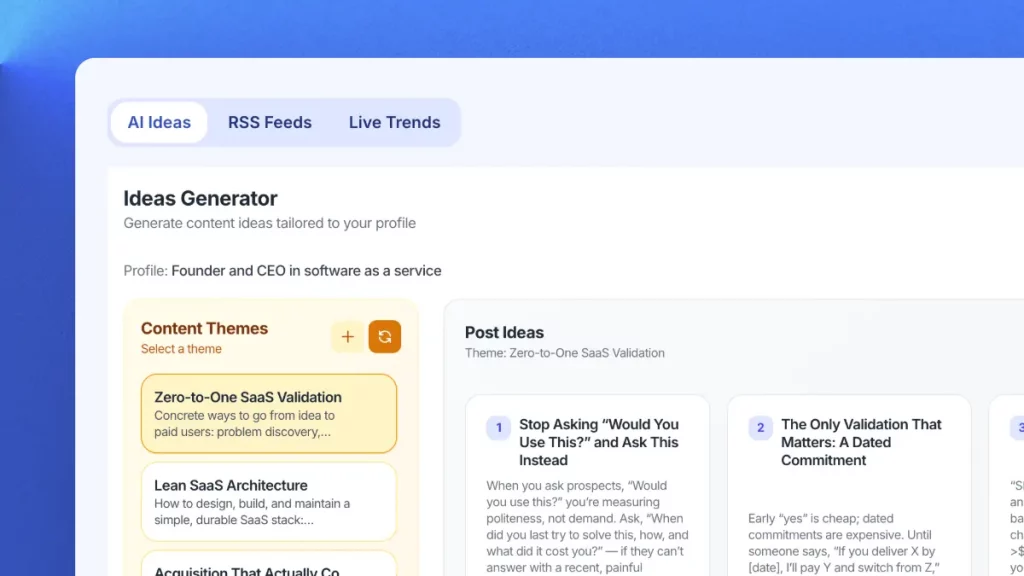
Start From an Idea

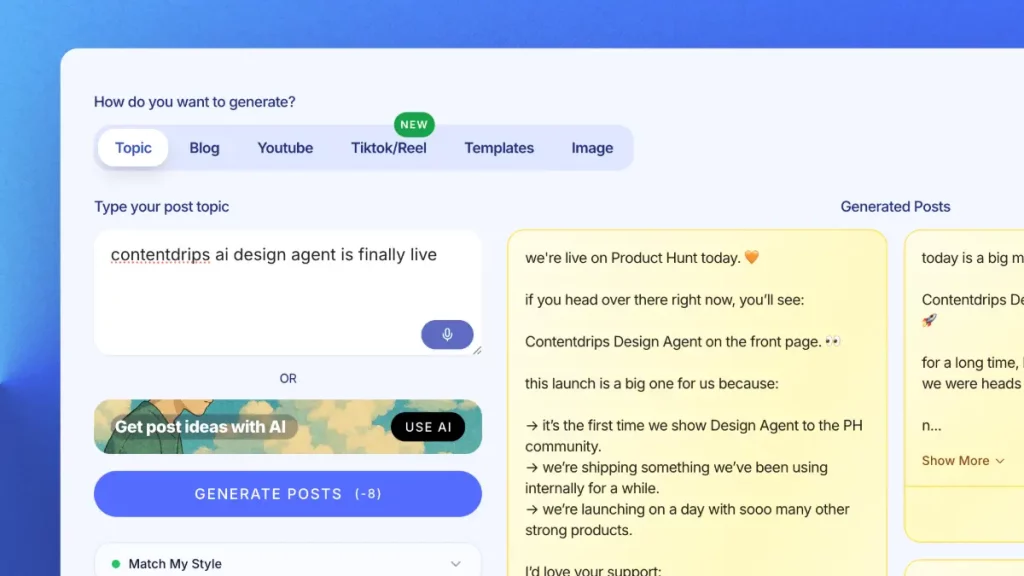
Describe your infographic in plain language and the AI builds it from scratch. No template selection, no blank canvas. Just type and generate.

Best for: new content, frameworks, guides, data points, or anything you want to visualize from scratch.

Start From Your Existing Content

Pick a template from the library, then paste your blog URL, YouTube video, Short, Reel, or TikTok link. The AI reads your content and fills the template automatically.

Best for: repurposing blog posts, videos, or social content you have already made into shareable infographics.

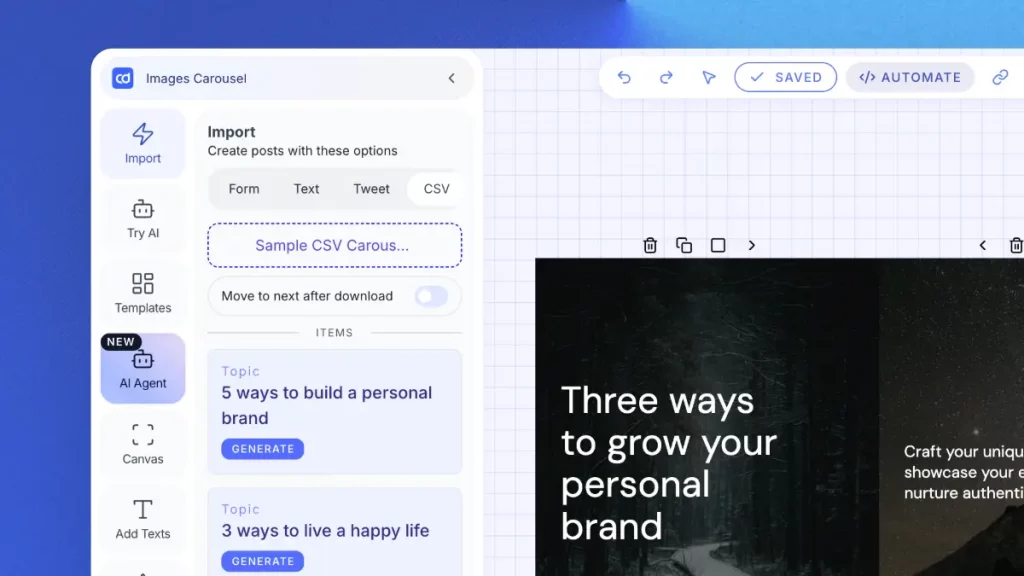
Begin with AI Design Agent

Begin with an idea. Watch the AI Design Agent bring the Infographic to life.

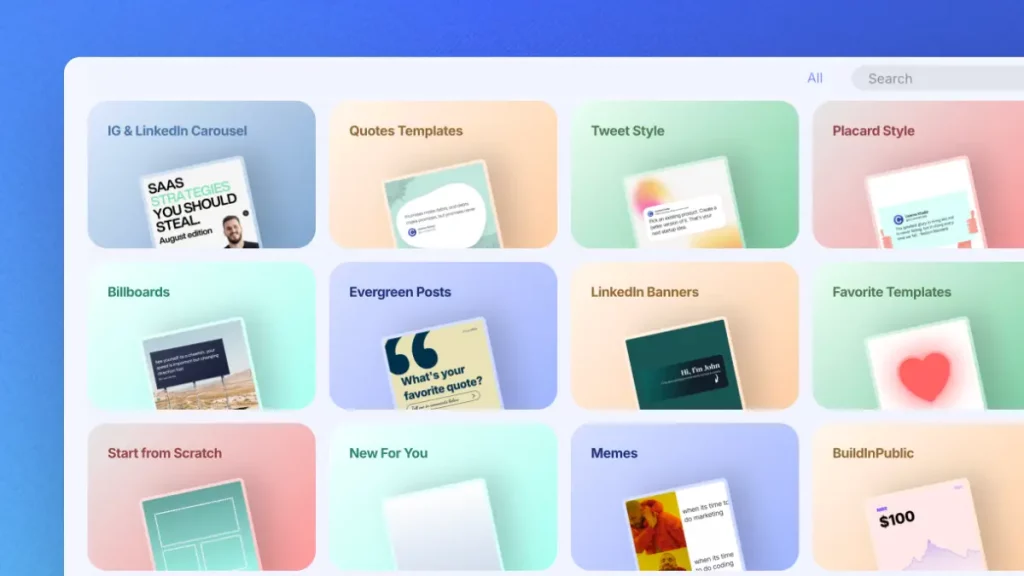
Begin with Infographic Templates

Want ready to go templates? We have got you covered with out extensive template library.

Who Uses This Free Infographic Maker?

From solo creators to marketing teams — anyone who has content but no time to design.

✍️

Content Creators and Bloggers

Turn your best posts into infographics that get shared on Pinterest, Instagram, and LinkedIn — without spending hours in a design tool.

📣

Marketers and Social Media Managers

Generate infographics for campaigns, reports, and social content at a pace that actually matches your publishing schedule.

🎓

Educators and Coaches

Turn your frameworks, lessons, and step-by-step guides into clean visual formats your audience can save and reference.

📈

SEO Teams

Create embeddable infographics from data and research content to earn backlinks and increase time on page.

Tips for Getting Great Results

Be Specific In Your Prompt

Instead of “make an infographic about marketing,” try “5 email marketing mistakes that kill open rates, with a dark background and bold typography.” The more detail you give, the better the output.

Use the Branding Toggle

The AI applies your brand colors, fonts, and logo to every infographic it generates. Set it once in your brand kit and every output stays on-brand automatically.

Iterate With Conversation, Not Clicks

If the first result is not quite right, tell it what to change. “Make the background darker” or “use a more minimal layout” — it adjusts instantly without you rebuilding anything.

Paste a Link for Faster Results

If you have existing content, pasting a URL almost always produces better output than describing from scratch. The AI has more context to work with and the result is usually stronger on the first try.

Edit After Generating

The AI gets you 90% of the way there. Everything it creates is fully editable on the canvas — swap icons, adjust text, change colors. You have full creative control after generation.

Why This Is Different From Canva?

Both tools produce infographics. Only one of them does the design work for you.

The old way

Designing in Canva

Canva is a drag-and-drop design tool. You still do all the work by choosing templates, moving elements, picking fonts, adjusting spacing. If you are not a designer, the blank canvas is intimidating and the output depends entirely on your skills.

Time to first infographic: 30–90 minutes

✦ The AI way

Generating With AI

You describe what you want and the AI makes every design decision for you. Layout, typography, color, icons, visual hierarchy — all handled automatically. The output does not depend on your design ability. It depends on how clearly you can describe your idea.

Time to first infographic: under 30 seconds

Go beyond free tools

What You Can Turn Into an Infographic

Four input types. One consistent output — a fully designed infographic ready to share. Pick the starting point that matches how you work.

A Text Description

Describe what you want in plain language. No template needed — just type and generate. Best for new ideas, frameworks, or step-by-step guides.

A Blog Post URL

Create LinkedIn & Instagram posts with templates or let AI do it.

A YouTube Video

Pick a template, drop in a YouTube URL. The AI turns your video content into a visual summary infographic — perfect for repurposing long-form content.

Shorts, Reels, or TikToks

Pick a template, paste your short-form video link. The AI extracts your content and builds a shareable infographic from it instantly.

Why This Beats Canva for Non-Designers

Canva is a design tool — you still do all the work. Here, the AI makes every design decision for you. The output depends on your idea, not your design skills.

Browse the Template Library

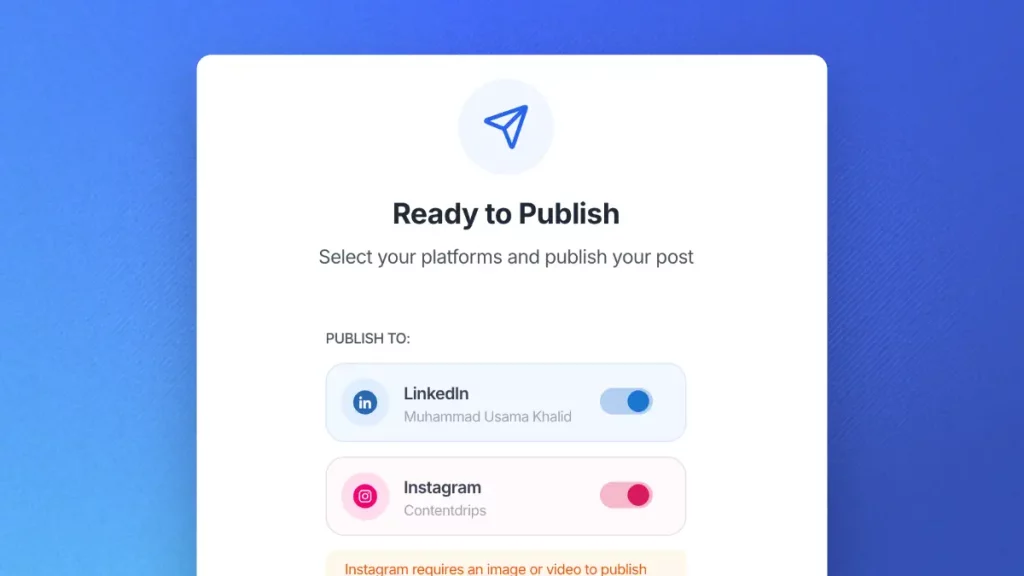
Schedule and publish to LinkedIn & Instagram. No switching tools.

Ready to Create Your First AI Infographic?

Describe what you want and see what the AI builds in seconds. Free to start. No credit card. No design skills needed.

Frequently Asked Questions About the Free AI Infographic Maker

No. Just describe what you want in plain text and the AI handles the layout, typography, colors, and visual hierarchy for you. No design experience needed at all.

Only if you are starting from a link — a blog post, YouTube video, Reel, Short, or TikTok. If you are describing your infographic from scratch, the AI builds the design without any template selection. Just type and generate.

Yes. Every design is fully editable on the Contentdrips canvas after generation. Adjust text, colors, fonts, icons, and layout — you have full creative control once the AI delivers the first result.

Yes. Enable the Use Branding toggle and the AI will automatically apply your saved brand kit — including your fonts, colors, and logo — to every infographic it generates.

PNG and PDF. Both are available after generation directly from the Contentdrips canvas.

Yes. You can sign up and generate infographics for free. No credit card required to get started.

The AI supports a wide range of formats including step-by-step guides, data visualizations, comparison infographics, listicles, timeline infographics, and quote-style posts.

Yes. Paste a YouTube, Shorts, Reel, or TikTok URL, pick a template, and the AI extracts your content and builds an infographic from it automatically.

Canva is a drag-and-drop design tool where you do all the design work yourself. This is an AI infographic generator — you describe what you want and the AI makes every design decision. Your output depends on your idea, not your design ability.

AI image generators produce unpredictable artistic images. This produces structured, branded infographics with real text, real data, and consistent layouts — suitable for professional and commercial use.

Yes. The tool works conversationally. After the first design is generated, type your changes — “make the background light blue” or “use a bolder font” — and the AI applies them instantly without starting over.

Yes. Everything you generate is yours to use however you need, including for commercial and client work.

A Complete Tool For Your Content Creation Workflow

The AI infographic generator that describes, designs, and delivers for you. No credit card required.

Try it