
How to Easily Download a LinkedIn Carousel Post
In the world of social media, visual content is king. LinkedIn carousel posts, which allow users to share multiple images or slides in a single post, are an excellent way to engage your audience. But what if you want to download these carousel posts for your own use or reference? In this guide, we’ll walk you through the process step-by-step, ensuring you can save these valuable resources with ease.
Understanding LinkedIn Carousel Posts
Before diving into the downloading process, it’s essential to understand what a LinkedIn carousel post is. Carousel posts are a series of
images or documents that users can swipe through, making them perfect for storytelling or presenting complex information in a digestible format. They can include:
-
Images
-
PDF documents
-
Infographics
-
Creative presentations
Carousel posts not only enhance engagement but also serve as a fantastic tool for branding and marketing. Now, let’s move on to how you can download these posts.
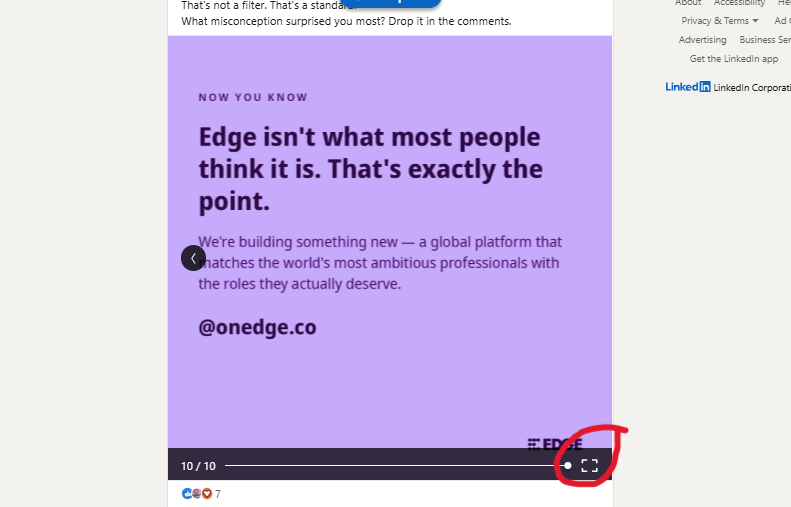
Step-by-Step Guide to Download LinkedIn Carousel Posts
Downloading a LinkedIn carousel post can be done in a few straightforward steps. Follow the instructions below:
Step 1: Access the Carousel Post
First, you need to find the carousel post you want to download. You can do this by:
-
Navigating to your LinkedIn feed
-
Searching for the user or page that created the post
-
Using LinkedIn’s search function to locate specific content
Step 2: Open the Post
Once you locate the post, click on it to open the full view. This will allow you to see all the slides in the carousel.
Step : Downloading PDFs
If the carousel post contains a PDF document, you can download it directly:
-
Click on the PDF slide in the carousel.
-
-
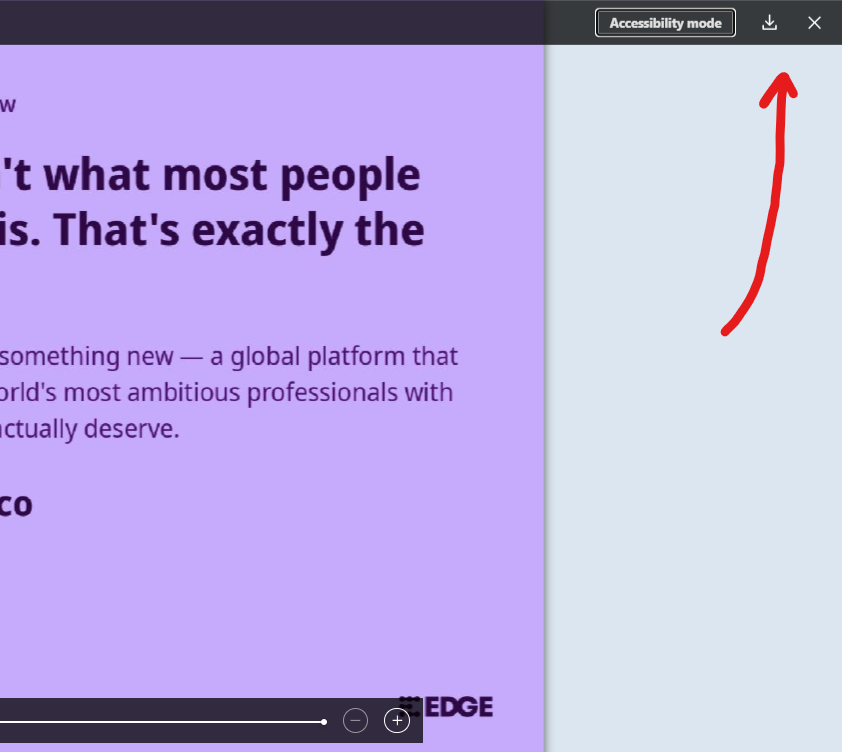
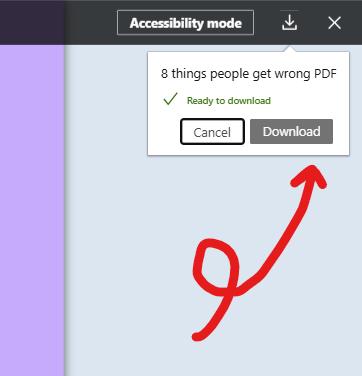
A window will open displaying the PDF. Look for a download icon or button.
-
-
Click on it to save the PDF to your device.
-
Step 4: Save Each Slide
Currently, LinkedIn doesn’t offer a direct download option for carousel posts, so you’ll need to download each slide manually. Here’s how:
-
Right-click on the image you wish to download.
-
Select “Save image as…” from the context menu.
-
Choose your desired location on your computer and click “Save.”
Repeat this process for each slide in the carousel.
[[IMAGE_PROMPT: A user right-clicking on an image in a carousel post]]
Using Third-Party Tools for Downloading Carousel Posts
If you find the manual method tedious, there are third-party tools available that can help you download LinkedIn carousel posts more efficiently. Here are a few popular options:
-
LinkedIn Carousel Downloader: A simple online tool where you can paste the URL of the carousel post and download all images at once.
-
Web Scraping Tools: For advanced users, tools like Octoparse or ParseHub can automate the image downloading process.
Always ensure that you comply with LinkedIn’s terms of service and respect copyright laws when using third-party tools.
[[IMAGE_PROMPT: A screenshot of a third-party tool interface for downloading carousel posts]]
Best Practices for Using Downloaded Carousel Content
Once you’ve downloaded the carousel posts, consider the following best practices for using this content:
-
Credit the Original Creator: If you intend to share or repurpose the content, always give credit to the original creator.
-
Repurpose for Your Audience: Use the downloaded content as inspiration for your own carousel posts or share valuable insights from the original.
-
Combine with Other Media: Enhance your content strategy by combining carousel images with videos or articles.
Conclusion: Make the Most of LinkedIn Carousel Posts
Downloading LinkedIn carousel posts is a straightforward process that can significantly enhance your content library. By following the steps outlined in this guide, you can easily save these valuable resources for your reference or repurpose them for your audience. Remember to respect copyright and give credit where it’s due.
Are you ready to start downloading and utilizing LinkedIn carousel posts? Share your thoughts in the comments below, and don’t forget to subscribe for more tips on maximizing your social media strategy!