AI tools are getting smarter. But the real upgrade is not just what they can do – it is what they can access. That is where MCP comes in.
You Have Probably Already Felt This Problem
You are working with an AI assistant. You ask it to help you write a LinkedIn carousel about your latest blog post. It does a decent job with the words. But then you realize:
-
You have to copy-paste the blog content yourself.
-
You have to manually upload the design to your scheduling tool.
-
You have to open your calendar separately to find the best posting time.
-
You have to switch to your email to share the draft with a teammate.
The AI is smart. But it is stuck in its own little bubble. It cannot see your tools, your files, or your workflows. Every task requires you to be the middleman.
Model Context Protocol, or MCP, is the technology that finally fixes this.
So What Exactly Is MCP? (In Plain English)
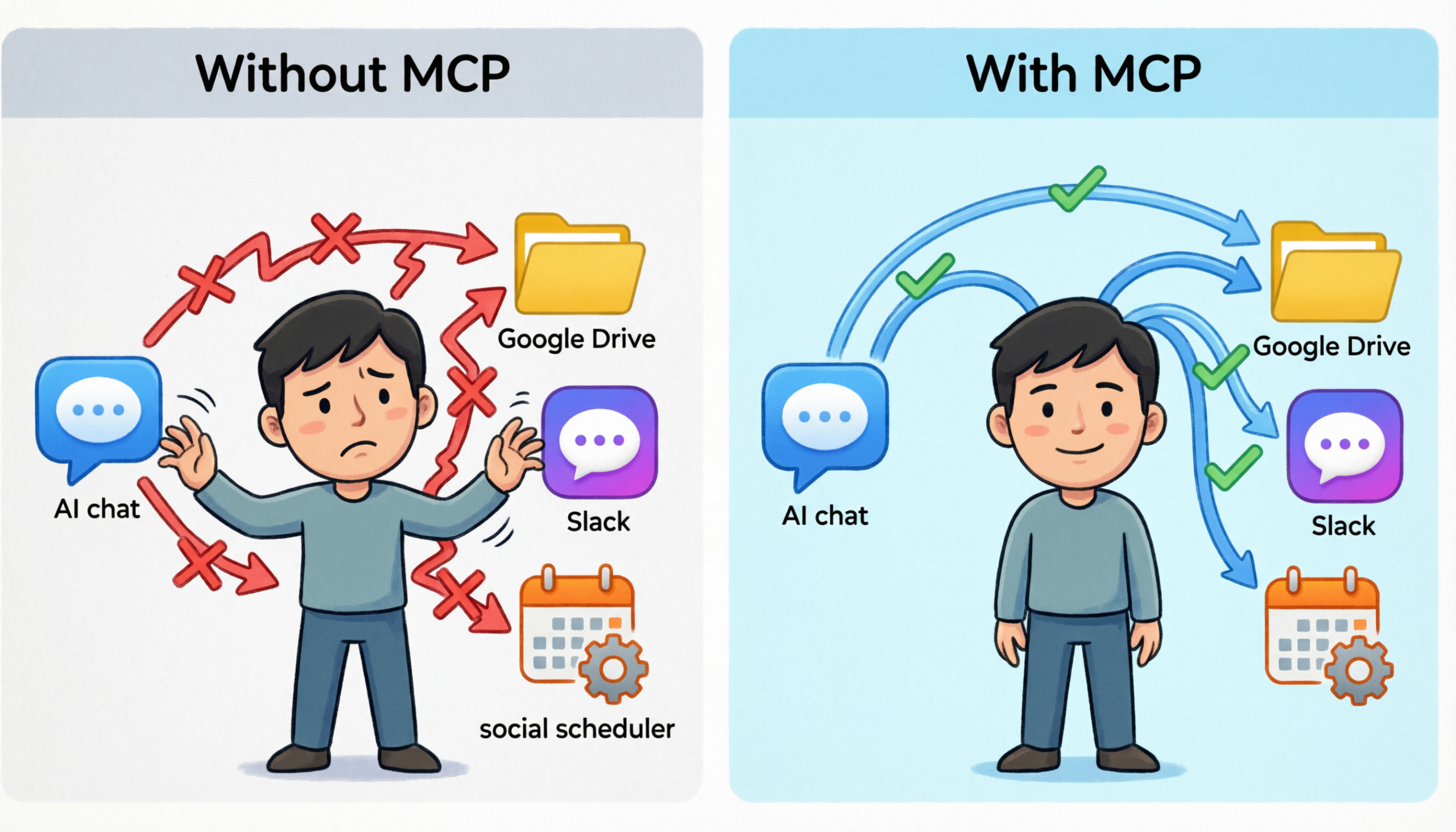
Think of MCP as a universal plug socket for AI assistants.
Right now, most AI tools work in isolation. They are like a brilliant consultant locked in a room with no phone, no laptop, and no access to your systems. They can only work with what you hand them directly.
MCP changes that. It is a standard way for AI assistants — like Claude — to securely connect to the tools and apps you already use every day. Once connected, the AI can read your files, check your calendar, post to social media, send messages, and more, all from within a single conversation.
No more switching tabs. No more copy-pasting. No more being the middleman between your AI and your tools.
How Does It Actually Work?
Here is the slightly technical part – but we will keep it painless.
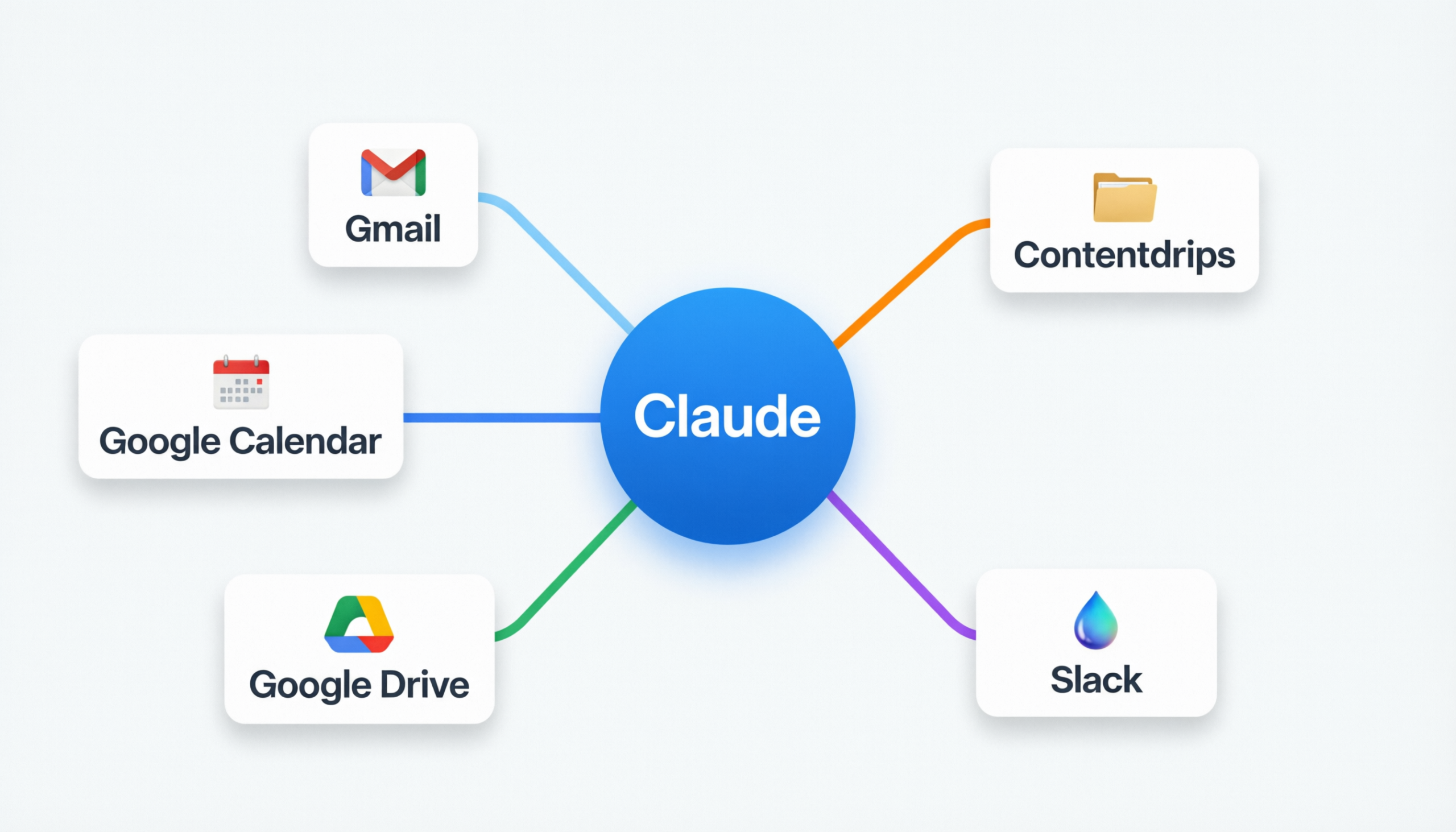
MCP works through what are called MCP servers. Each tool or app you want your AI to connect to has its own MCP server. Think of each server as a small translator that sits between your AI assistant and a specific app. It tells the AI what that app can do and lets the AI take actions inside it.
For example:
-
The Gmail MCP server lets your AI read your inbox and draft emails.
-
The Google Calendar MCP server lets your AI check your schedule and create events.
-
The Contentdrips MCP server lets your AI generate carousels, design graphics, and schedule social posts.
You connect these servers to your AI assistant once, and from that point forward, your AI has access to all of them inside every conversation.
Why Should Marketers Care?
You do not need to understand how MCP works under the hood. You just need to know what it lets you do. And for marketers, that list is genuinely exciting.
Here is what becomes possible when your AI assistant is connected to your tools via MCP:
Instead of this: You write a post topic in AI, get the copy, switch to Contentdrips to design the carousel, then open your calendar to pick a posting day, then go to LinkedIn to schedule it manually.
You can do this: You type one message to your AI: “Create a 6-slide LinkedIn carousel from my latest blog post, design it using my brand kit, and schedule it for Tuesday at 9am.” The AI handles every step.
That is the promise of MCP. Your AI assistant becomes an actual teammate, not just a text generator.
Real-World MCP Tools Marketers Are Using Right Now
Let us walk through some of the most useful MCP connections available today.
1. Gmail MCP
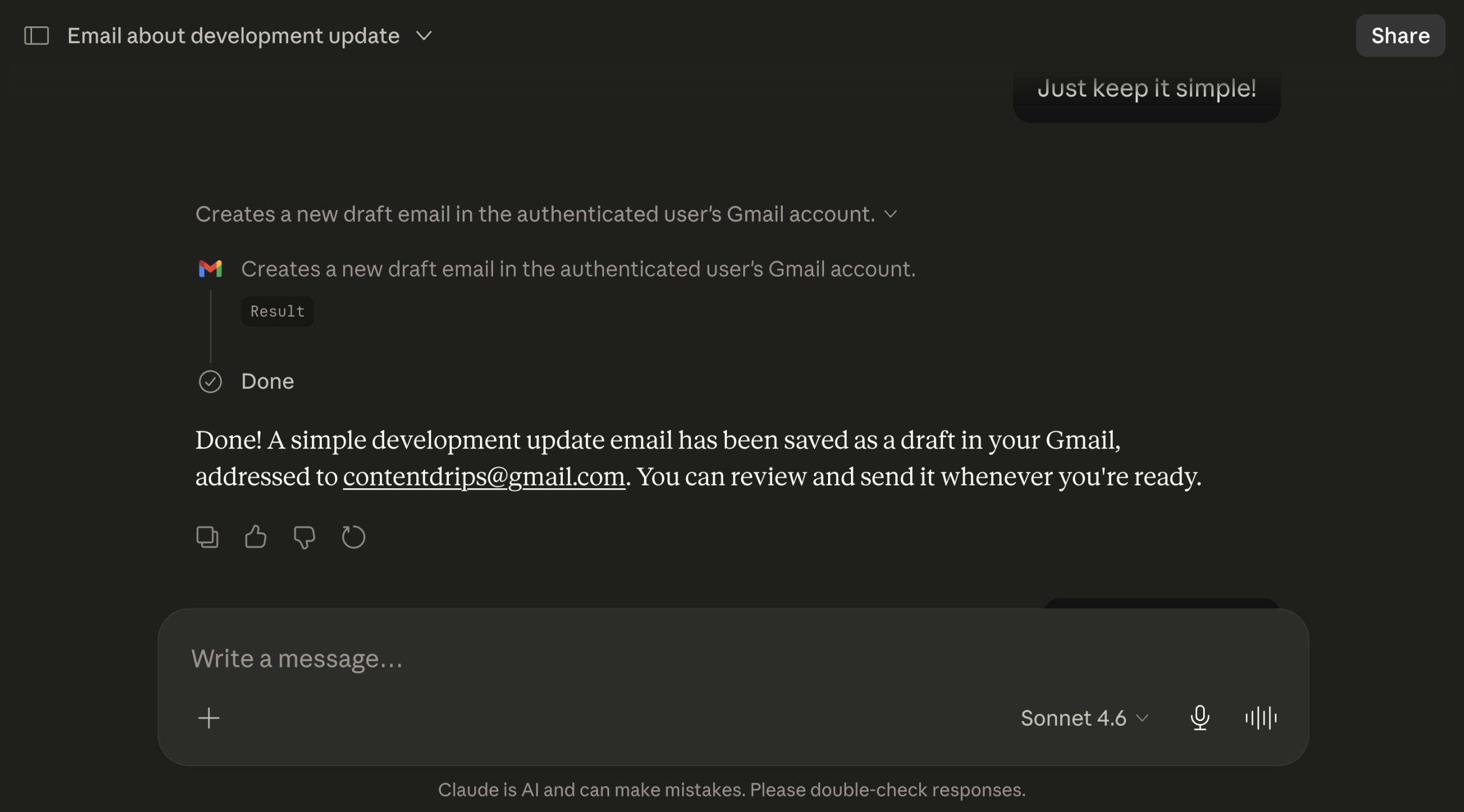
With Gmail connected via MCP, your AI assistant can:
-
Read recent emails and summarize them for you
-
Draft replies based on the actual thread content
-
Search your inbox for specific conversations
-
Write outreach emails that reference real context from past messages
No more copying email threads into an AI chat window. The AI can see the context directly and draft better, more relevant responses.
2. Google Calendar MCP
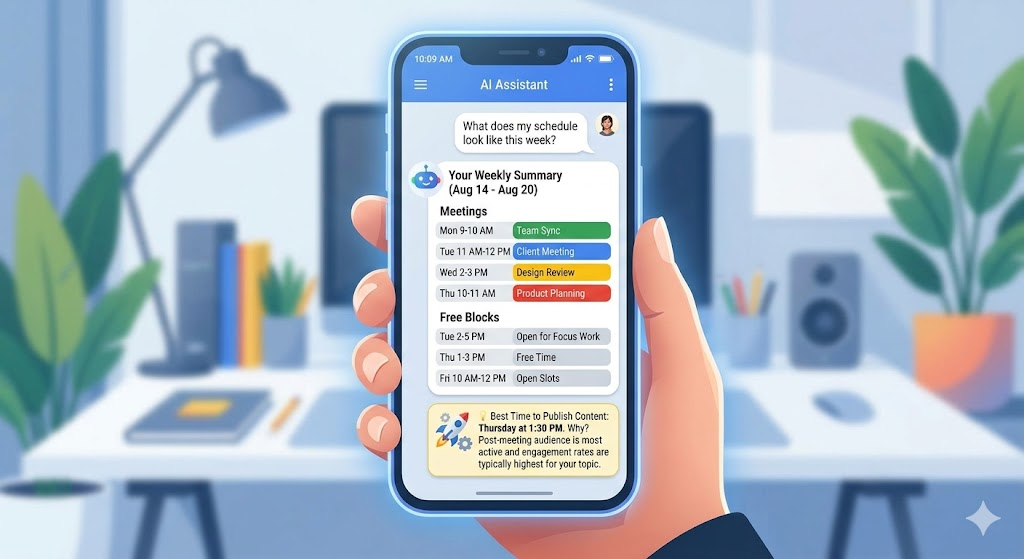
With Google Calendar connected, your AI can:
-
Check your availability before suggesting publishing schedules
-
Create new events or reminders directly from the chat
-
Summarize your upcoming week in a single message
-
Help you plan content calendars around real events and deadlines
For content marketers managing multiple campaigns, this is a genuine time-saver. You can ask your AI to “find a free slot next week to schedule three LinkedIn posts” and it will look at your actual calendar, not guess.
3. Google Drive MCP
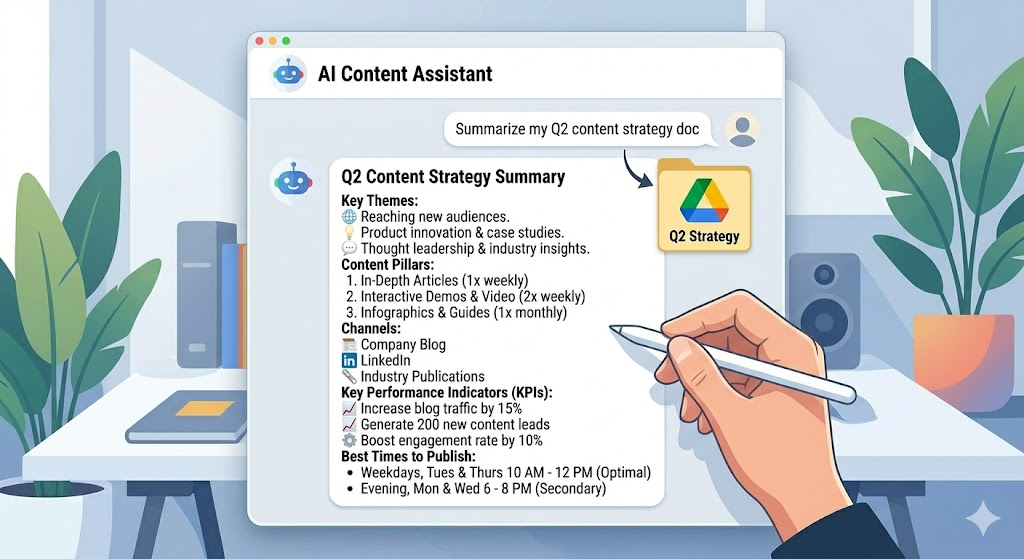
Google Drive MCP lets your AI:
-
Read documents, spreadsheets, and presentations stored in your Drive
-
Search for specific files by name or keyword
-
Use the content of your documents as context for writing tasks
-
Copy and organize files within your Drive
This is especially useful for content teams. Your AI can reference your brand guidelines doc, your content calendar spreadsheet, or your campaign brief without you having to paste anything.
4. Slack MCP
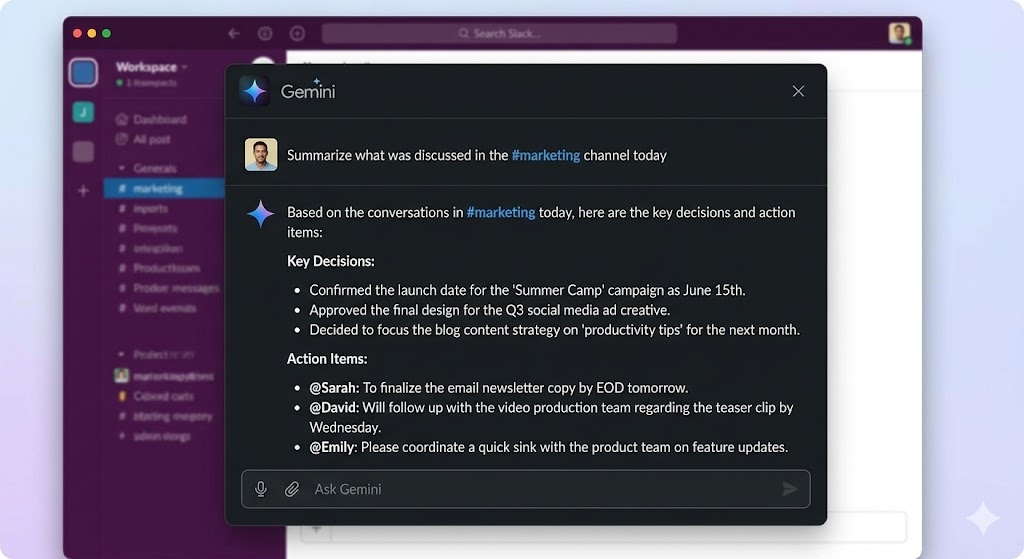
With Slack connected, your AI can:
-
Read messages from specific channels and summarize the key points
-
Draft Slack messages or announcements for you to send
-
Search for past conversations and decisions across your workspace
-
Help you stay on top of team discussions without reading every thread
For distributed marketing teams, this is huge. Instead of spending 20 minutes catching up on Slack every morning, you can ask your AI for a quick summary and get moving.
5. Contentdrips MCP
Now here is the one built specifically for content creators and social media marketers.

The Contentdrips MCP connects your AI assistant directly to your Contentdrips account. This means your AI can:
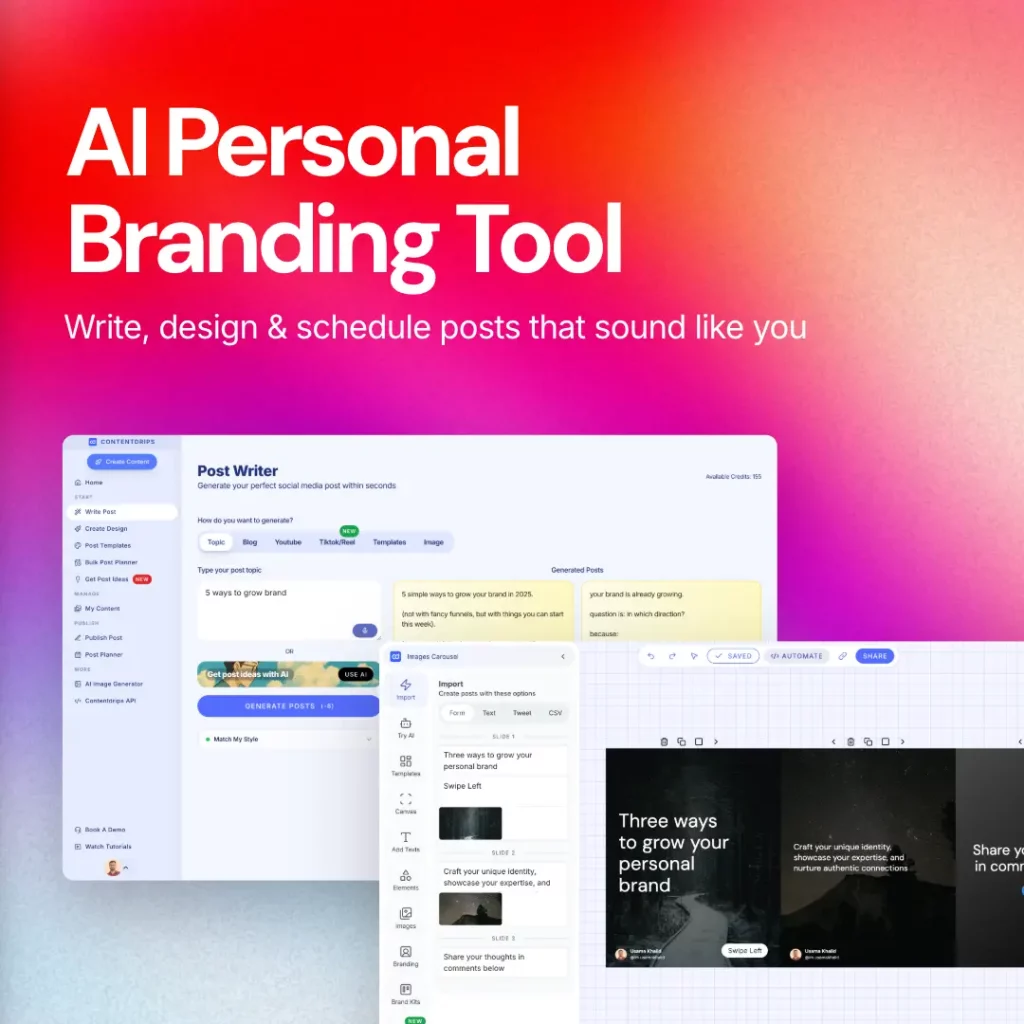
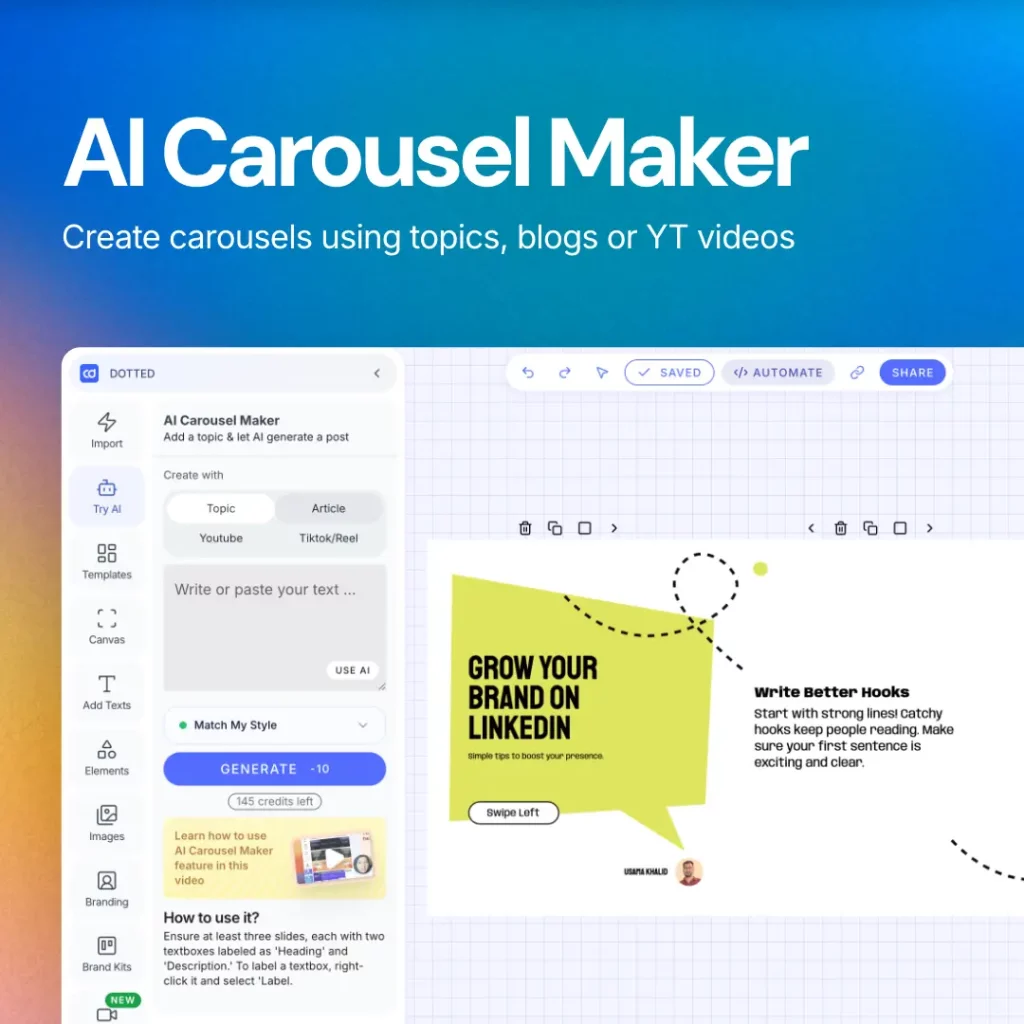
Generate carousels and graphics Give your AI a topic, a blog post URL, a YouTube video link, or even a TikTok URL and it will turn it into a fully designed carousel using your templates. You do not need to open the Contentdrips editor at all.
Use your brand kit automatically Every carousel and graphic the AI generates will use your saved fonts, colors, and brand style. No manual branding needed.
Design with the AI Design Agent Describe a post in plain English — “create a bold motivational quote post with a dark background and gold text” — and the AI Design Agent will build the full design and apply it to your canvas.
Create, schedule, and publish posts Your AI can create a social media post, attach the carousel images, and schedule it to go out on LinkedIn or Instagram at a specific time, all within one conversation.
Manage your content calendar Ask your AI to show you all scheduled posts, reschedule a specific post, or publish something immediately. No need to open the app.
Here is a real example of what a Contentdrips MCP workflow looks like:
“Turn this YouTube video into a LinkedIn carousel: [URL]. Use my Blue Corporate template. Then create a post with the caption I will give you, attach the carousel images, and schedule it for Thursday at 8am London time.”
Your AI handles every step of that workflow in a single conversation. From raw content to scheduled post, without you opening a single tab.
How to Connect MCP to Your AI Assistant
The most common way to use MCP today is through Claude on Claude.ai. Here is how to get started:
-
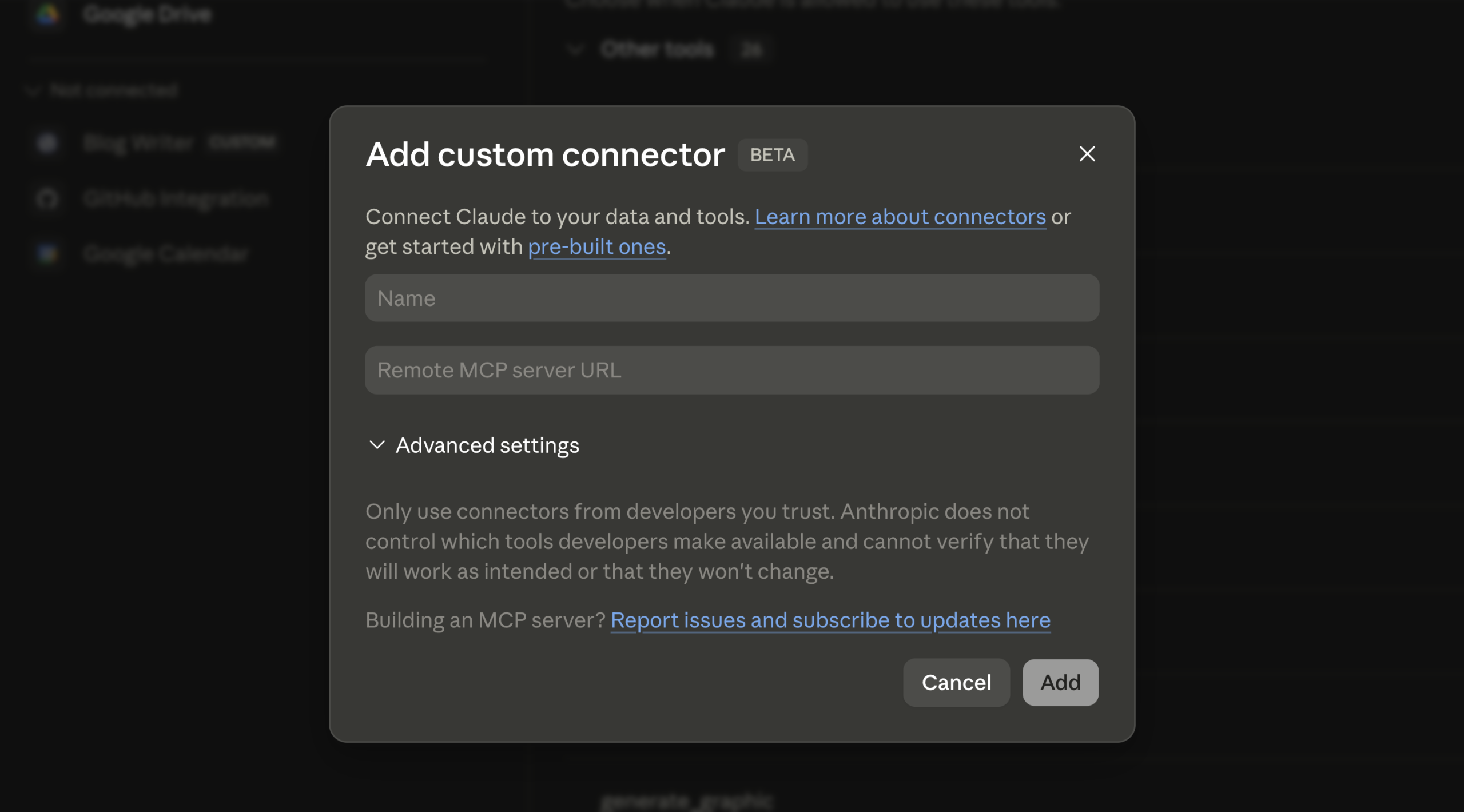
Go to claude.ai and open Customize
-
Click on Add Customization
-
Paste the MCP server URL for the tool you want to connect
-
Authorize the connection (usually just logging in or pasting an API key)
-
Done. The tools are now available in every new conversation with Claude.
For Contentdrips specifically, the MCP server URL is: https://mcp.contentdrips.com/mcp
You just need a Contentdrips account and your API key, which you can find under Settings > API Tokens inside the Contentdrips app.
What Can You Actually Do With All of This Connected?
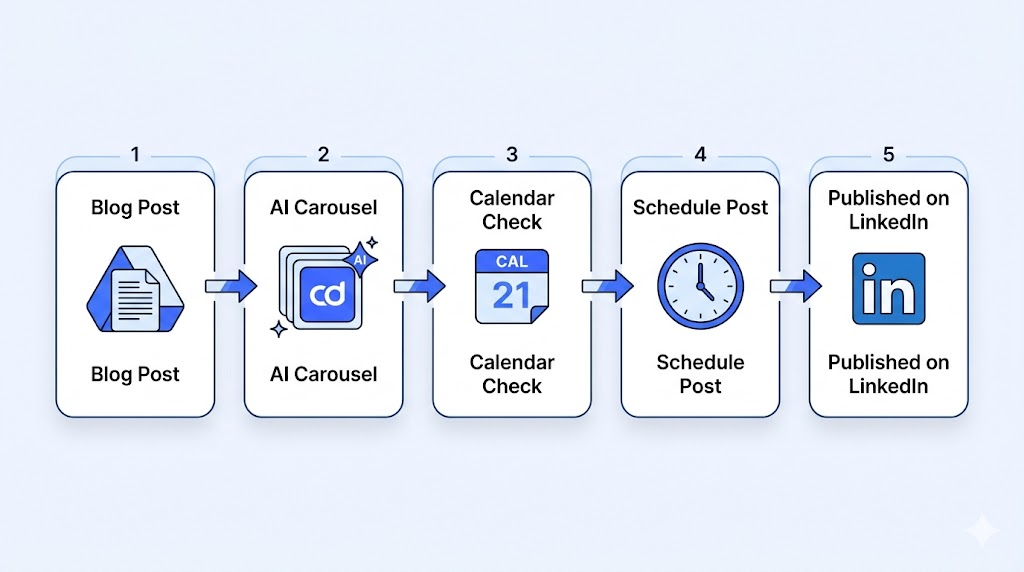
Let us paint a full picture. Imagine you wake up Monday morning and want to publish a LinkedIn carousel based on a blog post you wrote last week. Here is what that workflow looks like with MCP connected:
Step 1: You open Claude and type: “Go to my Google Drive, find the blog post I wrote last week about content repurposing, and turn the key points into a 6-slide LinkedIn carousel.”
Step 2: Claude reads the blog post from your Drive, writes the slide content, and generates a carousel using your Contentdrips brand template.
Step 3: You ask: “Now check my Google Calendar and find the best open slot this week to post this.”
Step 4: Claude checks your calendar and suggests Thursday at 9am.
Step 5: You say: “Perfect. Schedule it on Contentdrips for Thursday 9am and post it to LinkedIn.”
Step 6: Done. Claude schedules the post.
The whole thing took under 3 minutes. No tab-switching. No copy-pasting. No manual uploads.
Is MCP Safe to Use?
This is a fair question and one worth answering directly.
MCP connections are authorized by you. The AI can only access tools you have explicitly connected. You control which apps are linked and you can disconnect them at any time from your settings.
For Contentdrips specifically, your API key is sent securely over HTTPS and is never stored on the MCP server. The server is stateless, meaning no data from your account is kept between conversations.
Think of it like giving a trusted assistant access to specific filing cabinets. They can only open the ones you have unlocked for them.
The Bottom Line
MCP is not just a technical feature for developers. It is one of the most practical upgrades available to marketers right now.
It turns your AI assistant from a smart text generator into a connected workflow engine. One that can read your documents, check your calendar, design your carousels, and publish your content, without you having to babysit every step.
The tools are already available. Contentdrips MCP, Gmail MCP, Google Calendar MCP, Google Drive MCP, and Slack MCP are all live and ready to connect.
If you are using Claude and Contentdrips already, you are one integration away from a significantly faster content workflow.
Ready to Connect Contentdrips to Your AI?
Getting started takes less than five minutes. All you need is a Contentdrips account.
-
Sign up or log in at contentdrips.com
-
Go to Contentdrips API > API Tokens and copy your API key
-
Open Claude at claude.ai > Customize > Add Connector > Custom Connector
-
Add the Contentdrips MCP URL:
https://mcp.contentdrips.com/mcp -
Start creating carousels, graphics, and scheduled posts directly from your AI chat
Try Contentdrips Free — No credit card required.