
How to Find Saved Jobs on LinkedIn: A Simple Guide
Have you been on a job search and found some positions on LinkedIn that you wanted to keep track of? If so, you’re not alone! Many users save jobs on LinkedIn to revisit later, making it easier to manage applications. But how do you actually find those saved jobs? In this guide, we’ll walk you through how to find saved jobs on LinkedIn in just a few simple steps.
Why Save Jobs on LinkedIn?
Saving jobs on LinkedIn can be a lifesaver during your job search. Here’s why:
Easy Access: Quickly revisit job postings you’re interested in without having to search repeatedly.
Organization: Keep your job search organized by saving jobs that catch your eye.
Notifications: Get alerts if there are updates regarding the jobs you’ve saved.
Now that you know the benefits, let’s dive into how to view saved jobs on LinkedIn.
Step-by-Step: How to Find Saved Jobs on LinkedIn
Finding your saved jobs on LinkedIn is quite straightforward. Here’s how to do it:
Log Into Your LinkedIn Account: Start by logging into your LinkedIn profile. This is the first step to accessing your saved jobs.
Navigate to the Jobs Section: Once logged in, click on the Jobs icon at the top of your LinkedIn homepage.
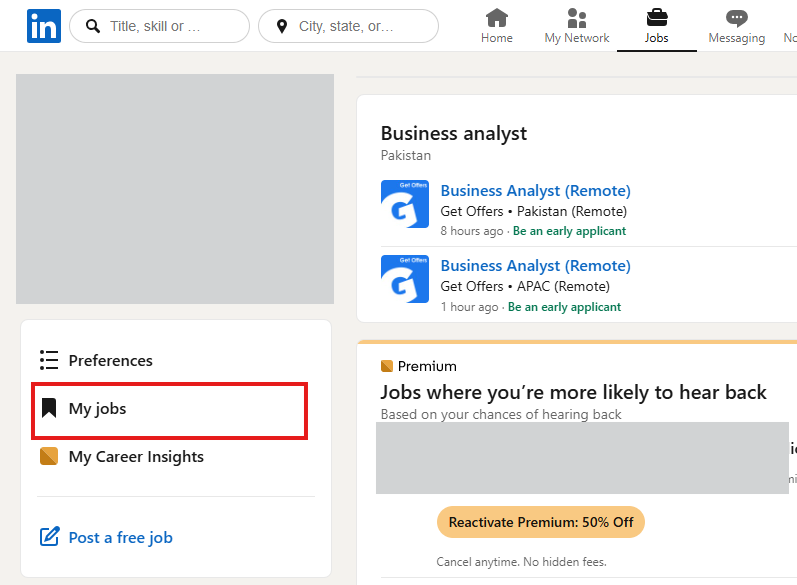
Access Saved Jobs: On the Jobs page, you’ll see a tab that says Saved. Click on it to see all the jobs you’ve saved.
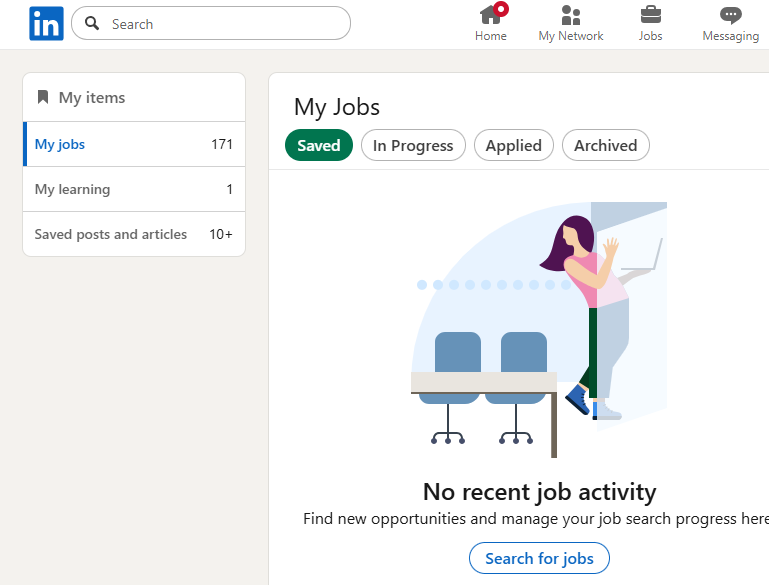
That’s it! You can now view all your saved jobs LinkedIn has kept for you.
How to See Saved Jobs on LinkedIn Mobile App
If you prefer using the LinkedIn mobile app, finding your saved jobs is just as easy:
Open the LinkedIn App: Launch the app on your smartphone or tablet.
Go to the Jobs Tab: Tap on the Jobs icon at the bottom of your screen.
Select Saved Jobs: Here, you’ll find the Saved section where all your saved jobs are listed.
Now you can easily manage your job applications right from your phone!
Managing Your Saved Jobs
Once you’ve found your saved jobs, you might want to manage them. Here are some tips:
Remove Jobs: If you’re no longer interested in a job, you can easily unsave it by clicking the saved icon again.
Apply Directly: When you find a job you want to apply for, you can click the Apply button directly from your saved jobs list.
Share with Connections: If you think a connection might be a good fit for a job you saved, you can share it with them!
Managing your saved jobs helps streamline your job search, making it easier to focus on the positions that matter most to you.
Conclusion: Stay Organized with LinkedIn
By following these simple steps, you can easily find and manage your saved jobs on LinkedIn. Whether you’re using the desktop version or the mobile app, LinkedIn makes it convenient to keep track of job postings that interest you. Remember, staying organized is key to a successful job search!
Ready to take the next step in your career? Go ahead and explore your saved jobs today. And if you found this guide helpful, feel free to share it with your friends or colleagues who might also be on the job hunt!