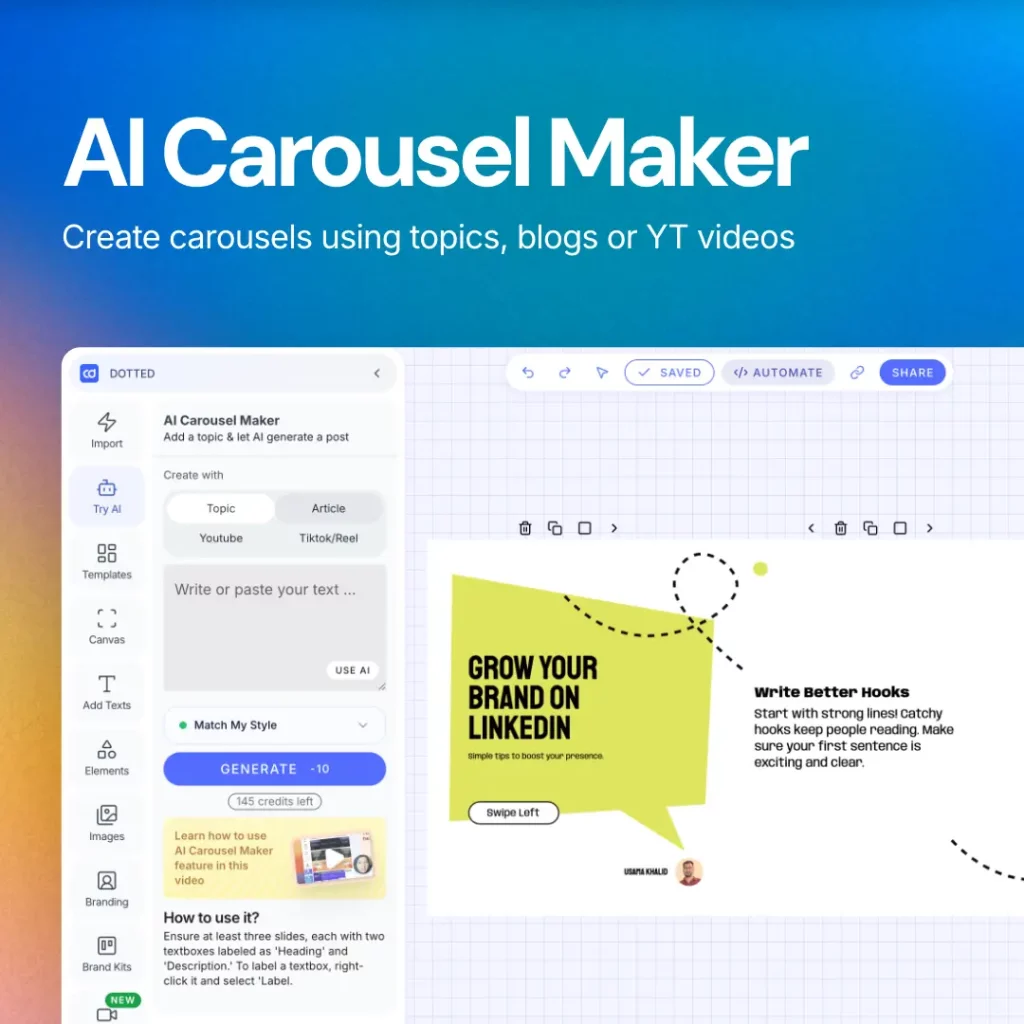
How to Effectively Post a Carousel on LinkedIn
In the ever-evolving world of social media, platforms continuously innovate to help users engage with their audience more effectively. One such feature that has gained popularity is the carousel post, commonly seen on platforms like Instagram. But can you also utilize this engaging format on LinkedIn? The answer is yes! In this guide, we’ll explore how to create and post carousels on LinkedIn, along with tips to maximize your engagement.

What is a Carousel Post?
A carousel post allows users to upload multiple images or documents in a single post, which viewers can swipe through. This format is perfect for storytelling, showcasing products, or sharing valuable insights without overwhelming your audience. While LinkedIn is primarily a professional networking site, it’s essential to leverage every tool at your disposal to stand out and connect with your audience.
Why Use Carousels on LinkedIn?
-
Increased Engagement: Carousel posts tend to have higher engagement rates, encouraging viewers to spend more time on your content.
-
Showcase Multiple Ideas: You can effectively present complex information, case studies, or product features in a clear, digestible format.
-
Visual Appeal: Adding visuals can help your post stand out in a feed that is often filled with text-heavy updates.
-
Networking Opportunities: Engaging content can lead to more connections, shares, and comments, enhancing your professional network.
Creating a Carousel for LinkedIn
Creating a carousel post on LinkedIn involves a few straightforward steps. Here’s a detailed guide:
-
Design Your Content: Use tools like Canva or Adobe Spark to design your carousel slides. Aim for a consistent theme and color palette that aligns with your brand.
-
File Format: Make sure to save your images in a supported format (JPEG, PNG, or PDF for documents). LinkedIn allows up to 10 images or documents in a single post.
-
Upload to LinkedIn: Go to the LinkedIn homepage, click on the post option, and select the images or documents you want to upload.
-
Add Captions: Write engaging captions for each slide that encourage viewers to swipe through your content. Be concise and impactful.
-
Post and Engage: After publishing, monitor engagement and respond to comments to foster interaction.
Best Practices for LinkedIn Carousel Posts
To ensure your carousel posts are successful, consider the following best practices:
-
Tell a Story: Use your slides to tell a cohesive story. Start with a hook, provide valuable information, and conclude with a call-to-action.
-
Keep Text Minimal: Avoid overcrowding your slides with text. Use bullet points and visuals to communicate your message effectively.
-
Use High-Quality Visuals: Invest time in creating visually appealing graphics that resonate with your audience.
-
Utilize Analytics: After posting, use LinkedIn analytics to track engagement and understand what resonates with your audience.
Examples of Engaging Carousel Posts
To inspire your creativity, here are a few examples of effective carousel post ideas:
-
Industry Insights: Share statistics or trends in your industry, breaking them down slide by slide.
-
How-To Guides: Create step-by-step guides on topics relevant to your audience.
-
Product Showcases: Highlight features or benefits of your product in a visually appealing way.
-
Success Stories: Share case studies or success stories from clients to build trust and credibility.

Conclusion
Carousel posts are a powerful tool on LinkedIn that can help you engage your audience and showcase your expertise. By following the steps and best practices outlined in this guide, you can create compelling carousels that not only capture attention but also encourage interaction. Now it’s time to put this knowledge into action!
Ready to create your first LinkedIn carousel? Start designing today and watch your engagement soar!