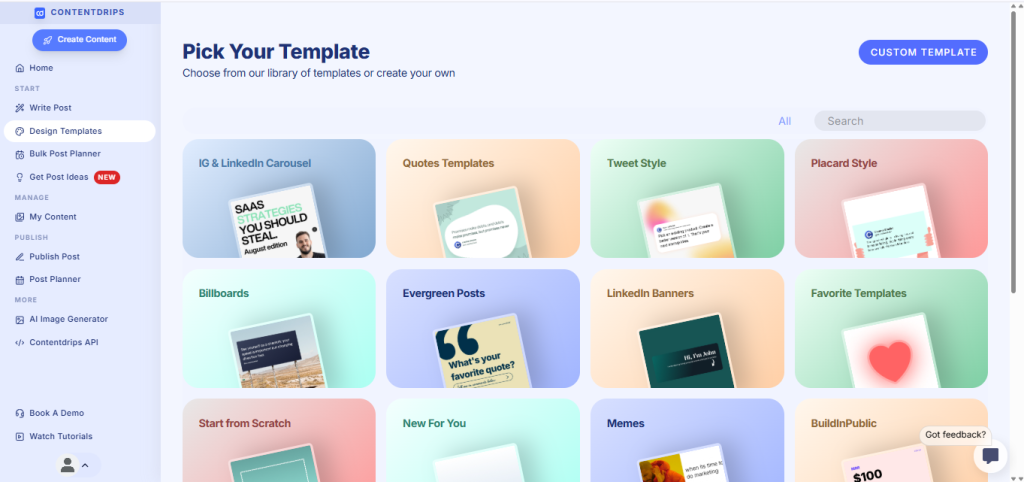
LinkedIn carousels are the fastest-growing content format on the platform. They get 3x more engagement than single-image posts and drive more profile visits than any other format.
But here’s the problem: designing carousels from scratch takes 30-60 minutes. Most creators don’t have that kind of time.
That’s where templates come in.
This guide includes 50+ pre-made LinkedIn carousel templates you can use right now, organized by use case, industry, and goal. Whether you’re a coach, founder, marketer, or creator, there’s a template here that will save you hours.
What You’ll Find
- 50+ carousel templates across 8 categories
- When to use each template type
- Common carousel mistakes to avoid
- How to customize templates for your brand
Why Templates Beat Starting from Scratch
The Time Math:
- Designing a carousel from scratch: 45-60 minutes
- Using a pre-made template: 5-10 minutes
- Time saved per carousel: 40+ minutes
The Quality Advantage:
- Templates are designed by professionals
- Proven layouts that drive engagement
- Consistent branding across all posts
- No design experience required
The Strategic Benefit:
- Spend time on content, not design
- Test different formats faster
- Maintain consistency across your profile
- Scale content production without burnout
Most top LinkedIn creators don’t design from scratch. They use template systems to maintain quality while posting consistently.
Template Category 1: Instagram & LinkedIn Carousels
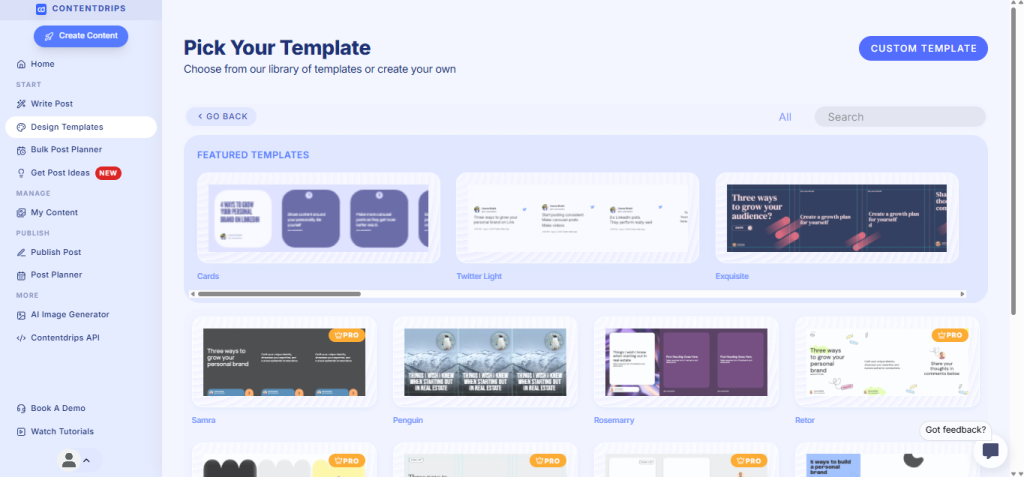
These templates are perfect for teaching concepts, sharing frameworks, or breaking down complex topics.
Template 1: The Step-by-Step Guide
Best for: Tutorials, how-to content, processes
Structure:
- Slide 1: “How to [achieve result] in [timeframe]”
- Slides 2-8: One step per slide with clear action items
- Slide 9: Common mistakes to avoid
- Slide 10: CTA or next steps
Example topics:
- “How to write a viral LinkedIn post in 15 minutes”
- “How to build an email list from LinkedIn”
- “How to create carousels that convert”
Design elements: Numbered steps, icons for each action, progress bar
Template 2: The Framework Breakdown
Best for: Business models, strategies, methodologies
Structure:
- Slide 1: “The [Framework Name] Framework”
- Slides 2-7: Each component of the framework
- Slide 8: How to implement it
- Slide 9: Real-world example
- Slide 10: CTA
Example topics:
- “The Content Flywheel Framework”
- “The LinkedIn Growth Strategy”
- “The 4-Hour Workweek for Creators”
Design elements: Diagrams, flowcharts, visual hierarchy
Template 3: The Mistake List
Best for: Helping audience avoid common errors
Structure:
- Slide 1: “X Mistakes [Audience] Make on LinkedIn”
- Slides 2-9: One mistake per slide + how to fix it
- Slide 10: “Start fixing these today”
Example topics:
- “7 LinkedIn Profile Mistakes Costing You Clients”
- “10 Carousel Design Mistakes Killing Your Engagement”
- “5 Content Mistakes Keeping You Invisible”
Design elements: Red X icons, before/after comparisons, warning colors
Template 4: The Myth Buster
Best for: Challenging conventional wisdom
Structure:
- Slide 1: “X Myths About [Topic]”
- Slides 2-9: Myth vs Reality format
- Slide 10: “What to do instead”
Example topics:
- “5 Myths About LinkedIn Algorithms”
- “Content Creation Myths Holding You Back”
- “The Truth About Going Viral on LinkedIn”
Design elements: Split screens, contrasting colors, myth/truth labels
Template 5: The Checklist
Best for: Actionable resources people will save
Structure:
- Slide 1: “The Ultimate [Topic] Checklist”
- Slides 2-9: Checkbox items with brief explanations
- Slide 10: “Download the full checklist” CTA
Example topics:
- “LinkedIn Profile Optimization Checklist”
- “Pre-Publish Content Checklist”
- “LinkedIn Engagement Checklist”
Design elements: Checkboxes, clean lists, iconography
Template Category 2: Storytelling Carousels
These templates help you share personal stories, case studies, and transformations.
Template 6: The Transformation Story
Best for: Before/after narratives, personal growth
Structure:
- Slide 1: “X months ago, I was…”
- Slides 2-4: The struggle
- Slides 5-7: What changed
- Slides 8-9: The results
- Slide 10: “Here’s what I learned”
Example topics:
- “From 500 to 50K followers in 6 months”
- “How I quit my job and went full-time as a creator”
- “My LinkedIn growth journey”
Design elements: Timeline graphics, contrasting colors for before/after
Template 7: The Case Study
Best for: Showcasing client results, proof of concept
Structure:
- Slide 1: “How [Client] achieved [Result]”
- Slide 2: The challenge
- Slides 3-6: The strategy/process
- Slides 7-8: The results (with numbers)
- Slide 9: Key takeaways
- Slide 10: “Want similar results?”
Example topics:
- “How we helped a B2B founder get 100K impressions/month”
- “Case study: LinkedIn content that generated $50K in sales”
Design elements: Data visualizations, client testimonials, metrics
Template 8: The Day-in-the-Life
Best for: Building relatability, showing your process
Structure:
- Slide 1: “A day in my life as a [role]”
- Slides 2-9: Hourly or activity-based breakdown
- Slide 10: “What’s your schedule look like?”
Example topics:
- “What a content creator’s day actually looks like”
- “How I manage 3 businesses and LinkedIn”
Design elements: Time stamps, activity icons, casual photography
Template Category 3: Data & Insights Carousels
These templates help you present statistics, research, and findings.
Template 9: The Stats Showcase
Best for: Sharing research, industry data
Structure:
- Slide 1: “X Stats Every [Audience] Needs to Know”
- Slides 2-9: One stat per slide with context
- Slide 10: “What this means for you”
Example topics:
- “10 LinkedIn Algorithm Stats from 2025”
- “Creator Economy Statistics That Will Surprise You”
Design elements: Large numbers, data visualization, source citations
Template 10: The Trend Report
Best for: Industry insights, what’s working now
Structure:
- Slide 1: “What’s Working on LinkedIn Right Now”
- Slides 2-8: One trend per slide with examples
- Slide 9: “What’s dying”
- Slide 10: “How to adapt”
Example topics:
- “LinkedIn Content Trends for 2025”
- “What Top Creators Are Doing Differently”
Design elements: Graphs, trend arrows, comparison charts
Template Category 4: List & Roundup Carousels
These templates organize resources, tools, or ideas into digestible lists.
Template 11: The Tool Stack
Best for: Sharing resources, recommendations
Structure:
- Slide 1: “X Tools I Use Every Day for [Goal]”
- Slides 2-9: One tool per slide with what it does
- Slide 10: “Honorable mentions”
Example topics:
- “10 Tools Every LinkedIn Creator Needs”
- “My Content Creation Tech Stack”
- “Free LinkedIn Tools You’re Sleeping On”
Design elements: Tool logos, feature callouts, pricing info
Template 12: The Resource Library
Best for: Curated collections, reading lists
Structure:
- Slide 1: “X Resources to [Achieve Goal]”
- Slides 2-9: One resource per slide (books, courses, creators, etc.)
- Slide 10: “Start with these first”
Example topics:
- “10 Books Every Entrepreneur Should Read”
- “LinkedIn Creators Worth Following”
Design elements: Book covers, profile pictures, star ratings
Template 13: The Best Practices List
Best for: Actionable tips, optimization advice
Structure:
- Slide 1: “X Best Practices for [Topic]”
- Slides 2-9: One best practice per slide
- Slide 10: “Which one will you implement first?”
Example topics:
- “LinkedIn Posting Best Practices for 2025”
- “Carousel Design Best Practices”
Design elements: Icons, checkmarks, highlighted tips
Template Category 5: Comparison Carousels
These templates help you compare options, strategies, or approaches.
Template 14: The A vs B Comparison
Best for: Helping audience choose between options
Structure:
- Slide 1: “[Option A] vs [Option B]”
- Slides 2-8: Feature-by-feature comparison
- Slide 9: “Which is right for you”
- Slide 10: Recommendation based on use case
Example topics:
- “LinkedIn Carousels vs Videos: Which Performs Better?”
- “Contentdrips vs Canva for LinkedIn Creators”
Design elements: Split-screen layouts, vs. graphics, comparison tables
Template 15: The Tier List
Best for: Ranking strategies, tools, or approaches
Structure:
- Slide 1: “Ranking [Items] from Best to Worst”
- Slides 2-9: Items organized in tiers (S, A, B, C, D, F)
- Slide 10: “Where would you rank these?”
Example topics:
- “Ranking LinkedIn Content Formats by ROI”
- “Every LinkedIn Feature Ranked”
Design elements: Tier graphics, color-coded rankings
Template Category 6: Quote & Inspiration Carousels
These templates feature memorable quotes, insights, or motivational content.
Template 16: The Quote Collection
Best for: Thought leadership, inspiration
Structure:
- Slide 1: “X Quotes That Changed How I Think About [Topic]”
- Slides 2-9: One quote per slide with context
- Slide 10: “Which one hit hardest?”
Example topics:
- “10 Quotes on Content Creation”
- “Wisdom from Top Entrepreneurs”
Design elements: Large typography, minimal backgrounds, attribution
Template 17: The Lesson Learned
Best for: Sharing hard-won wisdom
Structure:
- Slide 1: “X Lessons I Learned the Hard Way”
- Slides 2-9: One lesson per slide with short story
- Slide 10: “Save yourself the pain—learn from my mistakes”
Example topics:
- “10 Lessons from Building a 6-Figure Business”
- “What 1,000 LinkedIn Posts Taught Me”
Design elements: Story-based visuals, personal photos, handwritten fonts
Template Category 7: Engagement & Viral Carousels
These templates are optimized for maximum engagement and shares.
Template 18: The Hot Take
Best for: Sparking conversation, standing out
Structure:
- Slide 1: “Unpopular opinion: [Controversial statement]”
- Slides 2-7: Why you believe this
- Slide 8: The counterargument
- Slide 9: Why you still disagree
- Slide 10: “Change my mind”
Example topics:
- “Unpopular Opinion: Daily Posting Is Overrated”
- “Hot Take: You Don’t Need 10K Followers to Make Money”
Design elements: Bold typography, contrasting colors, fire emojis
Template 19: The Fill-in-the-Blank
Best for: Driving comment engagement
Structure:
- Slide 1: “Fill in the blank!”
- Slides 2-9: Prompts that require audience input
- Slide 10: “Drop your answers in the comments”
Example topics:
- “My biggest content struggle is __“
- “If I could change one thing about LinkedIn it would be __“
Design elements: Blank spaces, playful fonts, interactive elements
Template 20: The This or That
Best for: Quick engagement, polls
Structure:
- Slide 1: “This or That: [Topic] Edition”
- Slides 2-9: Binary choices with fun graphics
- Slide 10: “Comment your answers!”
Example topics:
- “This or That: Content Creator Edition”
- “LinkedIn Content Preferences”
Design elements: Split screens, option buttons, playful design
Template Category 8: Industry-Specific Carousels
Pre-made templates for specific niches and industries.
Templates for Coaches & Consultants
- Client transformation templates
- Testimonial showcase templates
- Framework breakdown templates
- Authority-building templates
Templates for SaaS Founders
- Product update templates
- Feature comparison templates
- Use case showcase templates
- Customer success story templates
Templates for Marketers
- Campaign results templates
- Strategy breakdown templates
- Tool recommendation templates
- Trend analysis templates
Templates for Creators
- Behind-the-scenes templates
- Growth milestone templates
- Creator economy insights templates
- Monetization breakdown templates
Templates for Job Seekers
- Career journey templates
- Skills showcase templates
- Portfolio highlight templates
- Interview tip templates
When to Use Each Template Type
| Template Type | Best For | Post Frequency |
||-|-|
| Educational | Building authority | 2-3x/week |
| Storytelling | Connection & relatability | 1-2x/week |
| Data & Insights | Thought leadership | 1x/week |
| Lists & Roundups | Providing value | 2x/week |
| Comparisons | Helping decision-making | 1x/week |
| Quotes | Engagement filler | 1x/week |
| Viral/Engagement | Growing reach | 1x/week |
| Industry-Specific | Niche authority | 2x/week |
Pro tip: Rotate between 3-4 template types to keep your content fresh and appeal to different audience segments.
How to Customize Templates for Your Brand
Even with pre-made templates, customization is key to standing out.
Step 1: Apply Your Brand Colors
- Replace template colors with your brand palette
- Maintain consistency across all posts
- Use 2-3 primary colors maximum
Step 2: Add Your Logo or Branding
- Include a small logo on slide 10
- Add your handle or website
- Use consistent fonts that match your brand
Step 3: Adapt Tone and Voice
- Rewrite template copy in your voice
- Add personality and personal touches
- Remove generic placeholder text
Step 4: Add Unique Elements
- Include your photo where relevant
- Add custom icons or illustrations
- Incorporate brand-specific graphics
Step 5: Test and Iterate
- Post different templates
- Track which styles get the most engagement
- Double down on what works for your audience
Common Carousel Template Mistakes
❌ Mistake 1: Using Templates Without Customization
The problem: Your carousels look generic and blend in with everyone else’s.
The fix: Always customize with your brand colors, fonts, and voice. Templates are a starting point, not the finish line.
❌ Mistake 2: Overcomplicating the Design
The problem: Too many fonts, colors, and elements make slides hard to read.
The fix: Keep it simple. One idea per slide. Maximum 2-3 colors. Consistent fonts.
❌ Mistake 3: Ignoring Mobile Preview
The problem: Text is too small or elements are cut off on mobile.
The fix: Always preview your carousel on mobile before posting. LinkedIn is primarily mobile.
❌ Mistake 4: Using Low-Quality Images
The problem: Pixelated or blurry images make your content look unprofessional.
The fix: Use high-resolution images (minimum 1080 x 1080 px). Test how they look after LinkedIn compresses them.
❌ Mistake 5: Forgetting the CTA
The problem: Slide 10 doesn’t tell viewers what to do next.
The fix: Always include a clear CTA: follow, comment, share, visit link, download resource, etc.
Where to Find These Templates
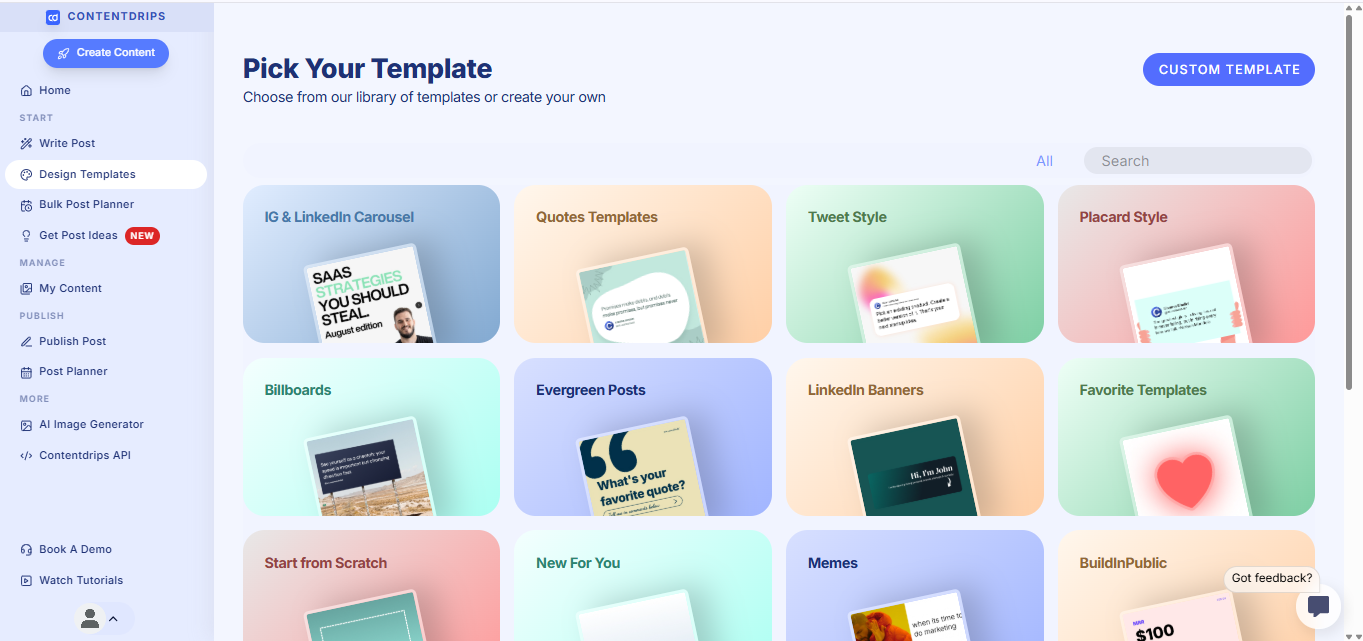
Option 1: Contentdrips Template Library
- 100+ professional LinkedIn carousel templates
- Organized by category and industry
- One-click customization with your branding
- Export to PDF or post directly to LinkedIn
Features:
- All 50+ templates mentioned in this guide
- New templates added weekly
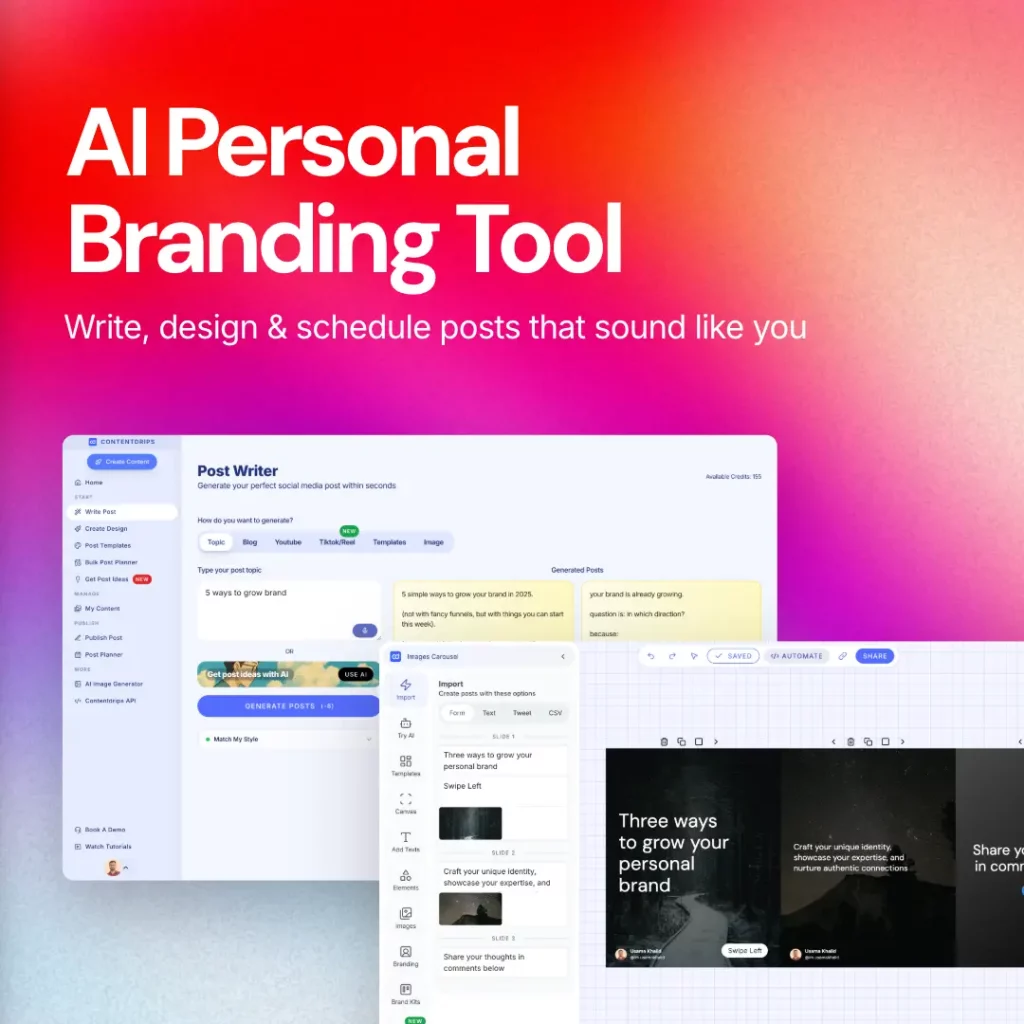
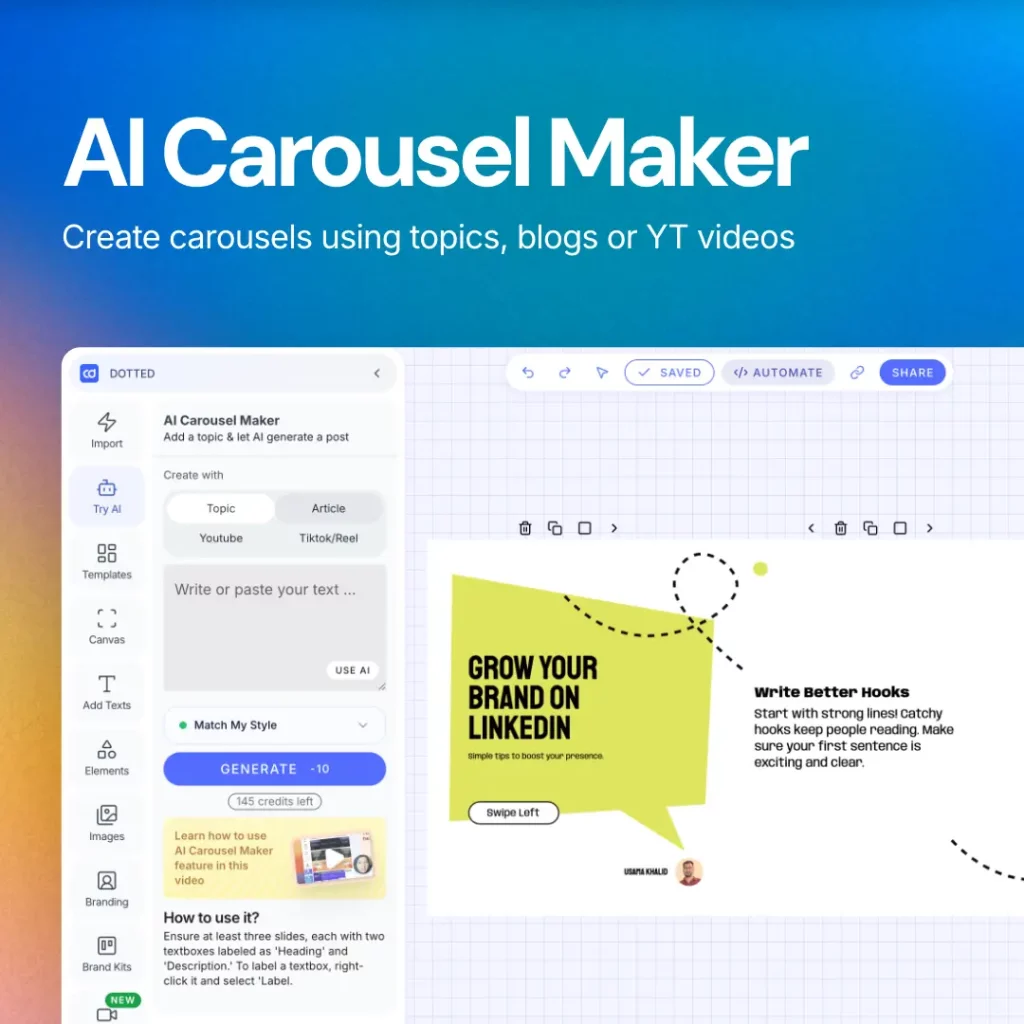
- AI-powered content generation
- Bulk template application
Browse Contentdrips templates →
Option 2: Canva (Free & Pro)
- Search “LinkedIn carousel” in Canva
- Free templates available (limited customization)
- Canva Pro unlocks more options
- Requires manual design work
Option 3: Figma Community
- Free community templates
- Requires Figma account
- More design flexibility
- Steeper learning curve
Option 4: Create Your Own Template System
If you’re creating carousels regularly, build a template library:
- Design 5-10 base templates
- Save as reusable files
- Create a swipe file of successful carousels
- Establish brand guidelines
- Batch-create content using your templates
This approach gives you full control but requires upfront design time.
How to Build a Template-Based Content System
Week 1: Foundation
- Choose 5 template types that fit your content strategy
- Customize them with your branding
- Create 1 carousel with each template
Week 2: Production
- Use templates to create 10 carousels
- Schedule across 2 weeks
- Track performance of each template type
Week 3: Optimization
- Identify which 2-3 templates performed best
- Create variations of winning templates
- Retire underperforming templates
Week 4: Scale
- Batch-create 20 carousels using proven templates
- Schedule 4-6 weeks in advance
- Focus creative energy on new content ideas, not design
Result: Consistent, high-quality carousel output without design bottlenecks.
FAQ: LinkedIn Carousel Templates
Q: Can I use the same template multiple times?
A: Yes! Top creators reuse templates constantly. Just change the content, not the design.
Q: How many templates should I use?
A: Start with 3-5. This gives variety without overwhelming your audience.
Q: Do templates hurt originality?
A: No. Templates handle design so you can focus on original ideas and insights. Your voice makes it unique.
Q: Are free templates good enough?
A: Free templates work for testing. Premium templates (like Contentdrips’) save more time and offer better customization.
Q: How often should I update my templates?
A: Refresh your template system every 3-6 months to stay current with design trends.
Conclusion: Templates Are Your Competitive Advantage
The creators winning on LinkedIn aren’t designing every carousel from scratch. They’re using template systems to scale quality content production.
Quick recap:
- 50+ carousel templates across 8 categories
- Use templates for educational, storytelling, data, lists, comparisons, quotes, engagement, and niche content
- Customize templates with your brand
- Rotate 3-5 template types for variety
- Track performance and double down on what works
Next steps:
- Choose 3 templates that fit your content strategy
- Customize them with your branding
- Create your first carousel in under 10 minutes
- Schedule it for this week
The fastest way to start? Browse 100+ ready-to-use templates in Contentdrips and create your first carousel today.
Stop spending hours on design. Start using templates and focus on what matters: great ideas and consistent execution.