How to Create a LinkedIn Carousel in 5 Minutes
LinkedIn is more than just a platform for job seekers and professional networking; it has evolved into a powerful tool for content marketing. One of the most engaging formats you can use on LinkedIn is the carousel. Carousels allow users to swipe through multiple slides, making your content interactive and visually appealing. In this blog post, we will guide you through the process of creating a LinkedIn carousel in just 5 minutes!
[[IMAGE_PROMPT: A visual representation of a LinkedIn carousel with engaging slides]]
What is a LinkedIn Carousel?
A LinkedIn carousel is a post format that allows users to upload multiple images or PDFs that viewers can swipe through. This format is perfect for storytelling, showcasing products, sharing tips, or presenting case studies. Carousels can increase engagement rates significantly, as they encourage users to interact with your content.
Why Use a Carousel on LinkedIn?
-
Increased Engagement: Carousels encourage viewers to spend more time on your post, increasing engagement rates.
-
Visual Appeal: They allow for creative storytelling through visuals, capturing attention more effectively than static images.
-
Showcase Expertise: You can share valuable insights, tips, or case studies in a concise manner, positioning yourself as an expert in your field.
Step-by-Step Guide to Create a LinkedIn Carousel
Creating a LinkedIn carousel is easier than you might think. Follow these simple steps to create your first carousel in just 5 minutes!
Step 1: Plan Your Content
Before diving into the design, outline the key points you want to cover in your carousel. Consider the following:
-
What message do you want to convey?
-
How many slides will you need?
-
What visuals will complement your text?
Step 2: Design Your Slides
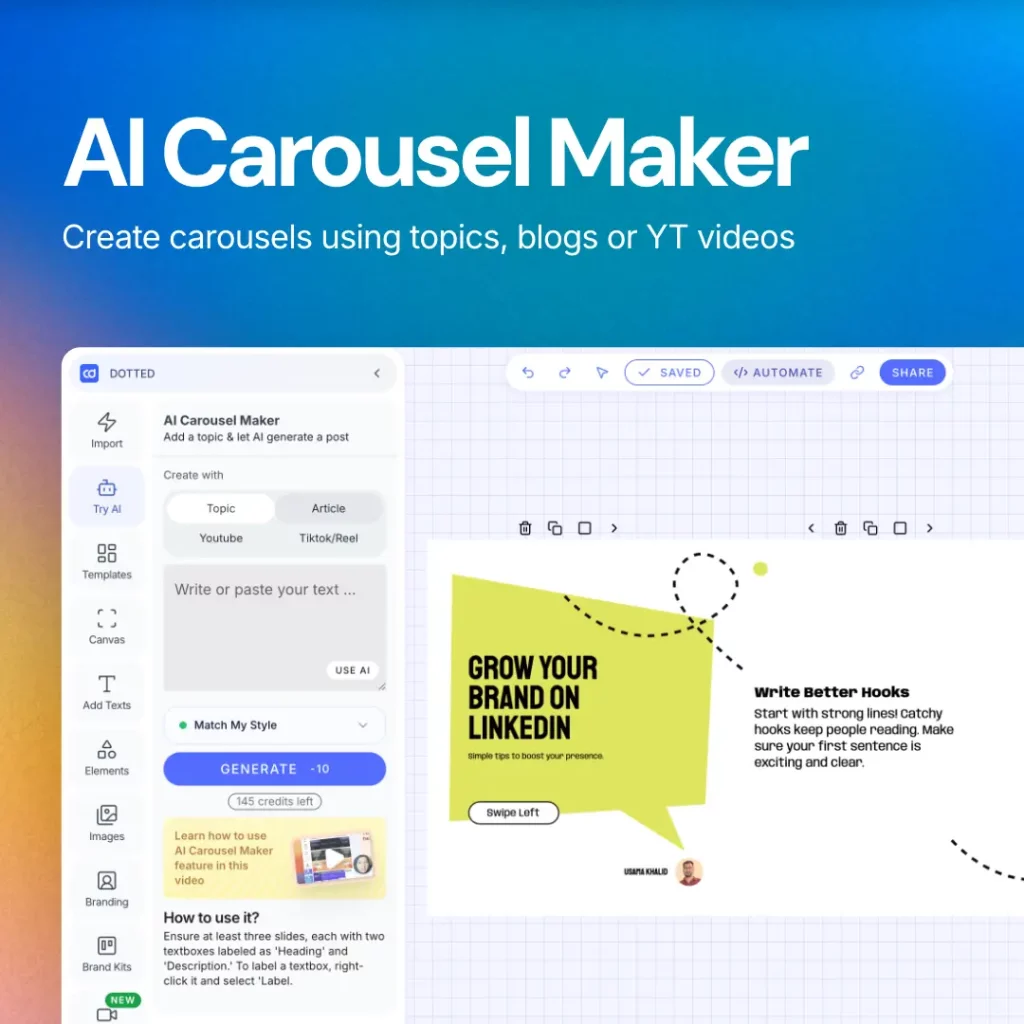
For creating the slides, you can use design tools like Canva, PowerPoint, or Google Slides. Here’s how to do it:
-
Choose a template that aligns with your brand.
-
Keep text to a minimum—aim for clear and concise messaging.
-
Use high-quality images and graphics to make the slides visually appealing.
-
Make sure your branding is consistent across all slides.
[[IMAGE_PROMPT: A person designing a LinkedIn carousel on a laptop with design tools]]
Step 3: Export Your Slides
Once your slides are ready, export them as a PDF or individual images. If you’re using a tool like Canva, you can download your design as a PDF directly. Ensure that:
-
Your images are high resolution to maintain quality.
-
You keep the file size manageable for quick uploading.
Step 4: Upload to LinkedIn
Now that you have your slides ready, it’s time to upload them to LinkedIn:
-
Log in to your LinkedIn account.
-
Click on the ‘Start a post’ button at the top of your feed.
-
Select the ‘Document’ option to upload your PDF, or use the image option for individual images.
-
Add a catchy caption to encourage engagement. Use relevant hashtags to increase visibility.
Step 5: Publish and Promote
After reviewing your post, hit ‘Publish’! Keep these tips in mind to promote your carousel effectively:
-
Engage with your audience in the comments.
-
Share the post in relevant LinkedIn groups.
-
Encourage your connections to share the post to reach a wider audience.
[[IMAGE_PROMPT: A person scrolling through LinkedIn, viewing a carousel post]]
Tips for Creating Engaging Carousels
To make your LinkedIn carousel stand out, consider the following tips:
-
Keep It Simple: Don’t overload your slides with information. Stick to one main idea per slide.
-
Use Eye-Catching Visuals: Incorporate images, infographics, or icons that align with your content.
-
Tell a Story: Create a narrative that draws your audience in and keeps them swiping.
-
Include a Call-to-Action: Encourage your audience to take the next step, whether it’s commenting, sharing, or checking out your website.
Conclusion
Creating a LinkedIn carousel is a fantastic way to enhance your content strategy and engage your audience. By following the steps outlined in this guide, you can create an impressive carousel in just 5 minutes. Remember to keep your content visually appealing and concise, and always include a compelling call-to-action to encourage interaction.
Ready to create your first LinkedIn carousel? Start designing today and watch your engagement soar!
For more tips on social media marketing and content creation, subscribe to our blog!